You sit down at your desk one morning and trigger a terraform plan command to see what changes Terraform will make to your infrastructure. To your horror, you see the following error:
$ terraform plan
│ Error: Unsupported state file format
│
│ The state file could not be parsed as JSON: syntax error at
│ byte offset 7805.
Every Terraform practitioner’s nightmare is a corrupt state file, but it can happen despite your best intentions.
If you have followed best practices for your Terraform state backend, you will have implemented state file versioning, which enables you to recover a previous state version.
In this blog post, you will learn how to perform a rollback to a previous state in Terraform, follow a walkthrough of how to perform a rollback, and learn best practices around state rollback operations with Terraform.
What we’ll cover:
TL;DR
Rolling back Terraform state means restoring an older, known-good state file version and making it the current source of truth, usually to recover from a corrupted state after a failed terraform apply.
To roll back Terraform state safely:
- Stop additional Terraform operations from running.
- Identify the last known good state file version.
- Temporarily point Terraform at the restored state version (via a different backend or a new location) and run
terraform planuntil it looks correct. - Replace the corrupted state file in the remote backend with the corrected version.
- Reconfigure Terraform to use the original/correct state backend again.
- Verify
terraform planreturns no changes.
Why would you need to roll back to a previous state in Terraform?
Before we can understand why rollbacks are needed, let’s explore how they happen in the first place.
Many remote state backends can be configured to store every version of your state file. This is referred to as state file versioning. Each time Terraform updates the state file, a new version of it is stored in the state backend, as illustrated in the following image.
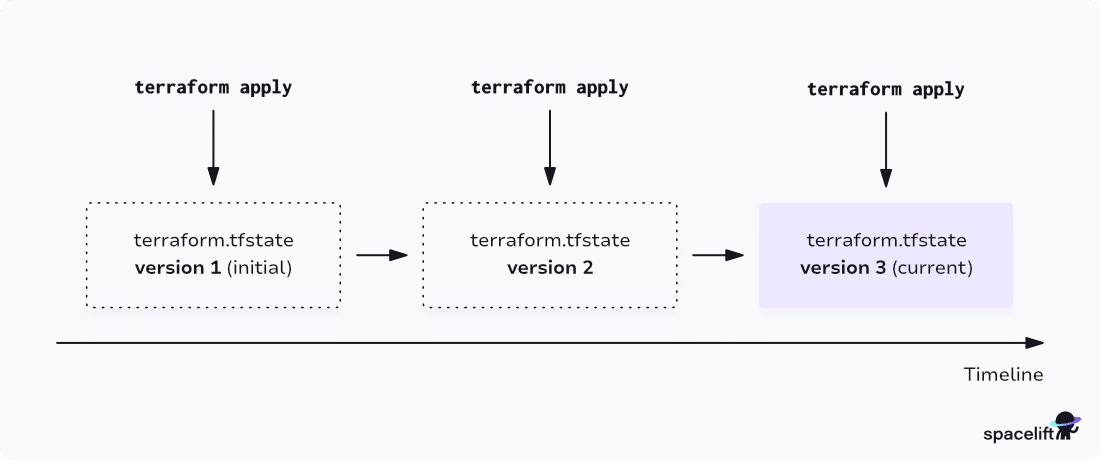
The state file is never overwritten, as each update creates a new state file version.
Versioning is often combined with lifecycle rules to manage how many older versions of the state file you want to keep. The number of versions you store is up to you. The number of daily Terraform operations you run could influence the number of state files you wish to keep. The most common scenario is to roll back to the most recent version possible.
Rolling back to a previous state in Terraform simply means restoring one of the older versions of the state file and using that version as the new current state.
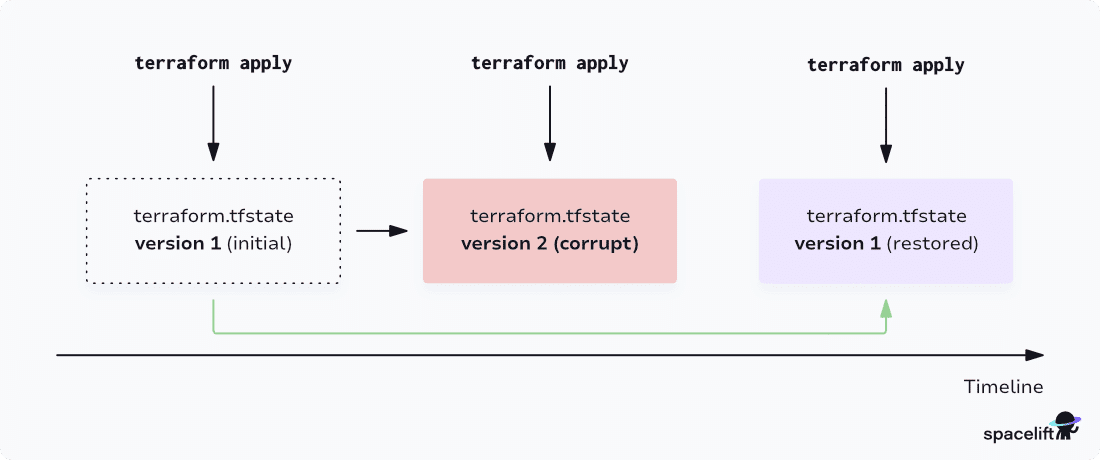
This is rarely needed.
The primary reason why you would need to perform a rollback is if your state file has become corrupt. This can happen if Terraform fails halfway through a terraform apply and the persisted state file is in an inconsistent state.
Without state file versioning, you would not have any previous versions to roll back to, and the only way to recover the state would be to start with a blank state and import every resource back into it. With state file versioning enabled, you can recover a previous version instead and perform necessary corrections to your state or your Terraform configuration to make sure they agree.
Bear in mind that versioning and lifecycle rules are features of the underlying cloud service (e.g., AWS S3 or Azure storage) and not a feature of Terraform itself.
It can be illustrative to think about rollbacks in git. The proper way of undoing a commit to your git repository is to revert the change with new commits that undo the work of the previous commit. This is not a rollback, it is a roll-forward.
In some cases, you might be able to do a roll-forward with Terraform, as long as the state file is not in a corrupt state that prohibits Terraform from reading it. A roll-forward with Terraform would involve using state manipulation to undo previous changes.
In the rest of this blog post, we will consider situations in which a direct rolling-forward operation is not an option.
How to roll back to a previous state in Terraform
This example will use an AWS S3 backend to illustrate the process of rolling back to a previous state in Terraform. You can follow the same general steps for any backend that supports versioning, but the specific details will vary by backend.
The following walkthrough shows one way to perform a rollback to a previous state. Variations to this workflow involve the same general steps.
Step 1: Configure an AWS S3 backend with versioning
This is the minimum required resource configuration to create a state backend on AWS using Terraform.
A state backend on AWS S3 consists of an S3 bucket. Configure the bucket resource:
resource "aws_s3_bucket" "state" {
  bucket_prefix = "terraform-state-backend-"
}
Most configuration of an S3 bucket is done using dedicated Terraform resources. To enable bucket versioning (and thus state file versioning), configure an aws_s3_bucket_versioning resource:
resource "aws_s3_bucket_versioning" "state" {
  bucket = aws_s3_bucket.state.bucket

  versioning_configuration {
    status = "Enabled"
  }
}
Versioning should always be enabled for any state backend you configure. This is often not enabled by default, so check how to enable versioning for your backend.
Step 2: Use the AWS S3 backend in a Terraform configuration
Create a Terraform configuration that uses the state backend you configured in the previous section. An example of how to configure the backend for a Terraform configuration is shown below:
terraform {
  backend "s3" {
    bucket       = "terraform-state-backend-20260123"
    region       = "eu-north-1"
    key          = "state/spacelift/blog/terraform.tfstate"
    use_lockfile = true
  }
}
Add a virtual private cloud (VPC) network resource with an associated subnet resource to this Terraform configuration:
data "aws_availability_zones" "all" {}

resource "aws_vpc" "spacelift" {
  cidr_block = "10.100.0.0/16"

  tags = {
    Name = "vpc-spacelift"
  }
}

resource "aws_subnet" "first" {
  vpc_id            = aws_vpc.spacelift.id
  availability_zone = data.aws_availability_zones.all.names[0]
  cidr_block        = cidrsubnet(aws_vpc.spacelift.cidr_block, 8, 0)

  tags = {
    Name = "subnet-spacelift-1"
  }
}
Apply this Terraform configuration to create the VPC and subnet resources. The resulting state file is the one we will roll back to. Note that you do not usually know in advance which Terraform state file you will recover in case of a disaster.
Step 3: Discover the disaster
Add a second subnet resource to the Terraform configuration:
resource "aws_subnet" "second" {
  vpc_id            = aws_vpc.spacelift.id
  availability_zone = data.aws_availability_zones.all.names[1]
  cidr_block        = cidrsubnet(aws_vpc.spacelift.cidr_block, 8, 1)

  tags = {
    Name = "subnet-spacelift-2"
  }
}
Apply this change.
We now pretend that something goes wrong during the terraform apply that causes the current state file version to become corrupt. Terraform encounters an error in the middle of the run and the pipeline fails. You run a quick follow-up terraform plan command that returns the dreaded “Unsupported state file format” error message.
At this point, it is important to disable the CI/CD pipeline or Terraform automation platform (e.g., your Spacelift stack) from trying to apply additional changes that could potentially make the situation worse.
Step 4: Identify a previous good state file version
The most common situation is to roll back to the version immediately preceding the corrupt state version.
A straightforward way to list all available versions for a state file in the AWS S3 backend is to use the AWS CLI (The output is truncated to show only the current version and the previous version.):
$ aws s3api list-object-versions \
    --bucket terraform-state-backend-20260123 \
    --prefix state/spacelift/blog/terraform.tfstate \
    --query "Versions[].[VersionId,IsLatest,LastModified,Key,Size]"

[
    [
        "XyoXkJtYSfprNFtnApSHkF4yp0Lx.uQG",
        true,
        "2026-01-24T18:27:06+00:00",
        "state/spacelift/blog/terraform.tfstate",
        9579
    ],
    [
        "KLEPD3lsArLKfK72_FAIVNpz_mcKRjJR",
        false,
        "2026-01-24T18:21:30+00:00",
        "state/spacelift/blog/terraform.tfstate",
        9507
    ],
    ...
]
In this scenario, we want to perform a rollback to the previous version identified by the version ID KLEPD3lsArLKfK72_FAIVNpz_mcKRjJR in the output above.
Step 5: Initiate a rollback and reconcile discrepancies
Before you replace the current state file version with a previous version, you should copy the target version to a different state backend location. In the following example, we use the local backend as a temporary backend during recovery.
The reason for doing this is to avoid directly working with the live state file and accidentally overwriting earlier versions or mixing up versions with each other. It can also be a good idea to back up the current state file, including all its versions.
Download the state file version you identified in the previous step using the AWS CLI:
$ aws s3api get-object \
    --bucket terraform-state-backend-20260123 \
    --key state/spacelift/blog/terraform.tfstate \
    --version-id "KLEPD3lsArLKfK72_FAIVNpz_mcKRjJR" \
    terraform.rollback.tfstate
Update the state backend in your Terraform configuration to use the terraform.rollback.tfstate file:
terraform {
  # backend "s3" { ... }

  backend "local" {
    path = "terraform.rollback.tfstate"
  }
}
Initialize the Terraform configuration locally and ask Terraform to reconfigure the state backend with the new local configuration:
$ terraform init -reconfigure
Initializing the backend...
...
Terraform has been successfully initialized!
Now we come to the difficult part. You need to update your Terraform configuration, or possibly the new state file, until you are certain the configuration, the state, and the real-world resources agree.
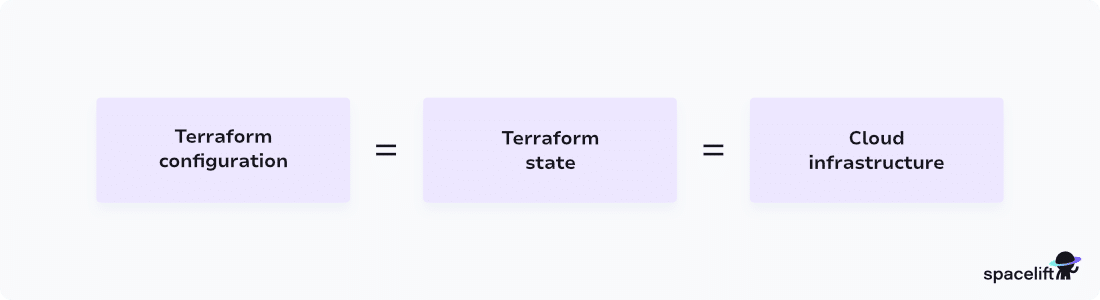
In real life, you will encounter different types of state discrepancies that need to be reconciled. You should use the full Terraform toolbox to perform the reconciliation, including import blocks, removed blocks, moved blocks, state refresh commands, and more.
We continue our simple example: Terraform failed during the provisioning of the second subnet resource. From the Terraform configuration, you expect two subnets to exist. In your AWS environment, you find that two subnets have been created.
But when you run a terraform plan command you now get the following result (the output is truncated):
$ terraform plan
Terraform will perform the following actions:

  # aws_subnet.second will be created
  + resource "aws_subnet" "second" { ... }

Plan: 1 to add, 0 to change, 0 to destroy.
Terraform wants to create the second subnet again, even though we know it exists. One way of reconciling this difference is to import the existing resource into the state. Add an import block similar to the following:
import {
  to = aws_subnet.second
  id = "subnet-0eaff80a663a1e20d"
}
You can find the resource ID in your AWS environment by identifying the correct subnet that you want to import and copying its ID.
Re-run the plan command:
$ terraform plan
...
Plan: 1 to import, 0 to add, 0 to change, 0 to destroy.
This looks better: One resource will be imported, and no new resource will be created.
Apply the change to import the missing resource into your state.
Step 6: Switch back to the correct state backend
Now you have a working and up-to-date state, but your Terraform configuration is still using the local backend. Switch back to the AWS S3 backend and re-initialize your configuration:
$ terraform init -reconfigure
...
Terraform has been successfully initialized!
Your Terraform configuration is now configured to use the AWS S3 backend again, but the current up-to-date state file is still located locally in terraform.rollback.tfstate. Push the updated state file to the remote state backend:
$ terraform state push terraform.rollback.tfstateThis command will not work if the serial number of the current state file is smaller than the latest version in the remote state backend. If you encounter this error you might have to increase the serial number of your local file before you push it.
Step 7: Verify the result
Once the rollback is complete, you should be able to run Terraform with the correct backend without any issues and without any changes:
$ terraform plan
...
No changes. Your infrastructure matches the configuration.
You can now enable the CI/CD pipeline or other Terraform automation platform you disabled in the beginning to allow new changes to be applied using your normal Terraform workflow.
Best practices for rolling back to the previous state in Terraform
Keep the following best practices in mind when preparing for and performing rollbacks to previous state versions:
1. Enable state backend versioning
If you are using a remote state backend that does not support versioning, you should consider switching to one that does. Popular examples that support versioning include Azure storage, AWS S3, and Google Cloud Storage.
Versioning is a feature of the underlying cloud service (e.g. AWS S3) and not a feature of Terraform itself. From Terraform’s perspective, there is only a single version of the state file.
If your backend does not support versions, but you can’t use a different backend, you can build your own versioning automation that copies the current state file and stores it under a different name before any change is applied.
2. Use lifecycle rules
If you keep every version of your state file forever, it will eventually appear on your cloud service bill. To avoid this situation, use lifecycle rules that remove older versions according to rules that you configure. Not every backend supports lifecycle rules.
The following lifecycle configuration is for an AWS S3 backend. This configuration applies to any blob stored with a prefix of state/spacelift/. The rule specifies that any version older than 7 days will be expired (deleted), but at least 10 non-current versions will always be retained.
resource "aws_s3_bucket_lifecycle_configuration" "expire_old_versions" {
  bucket = aws_s3_bucket.state.id

  rule {
    id = "old_versions"

    filter {
      prefix = "state/spacelift/"
    }

    noncurrent_version_expiration {
      noncurrent_days           = 7
      newer_noncurrent_versions = 10
    }

    status = "Enabled"
  }
}
3. Enable backups to multiple cloud regions
Cloud provider regions can experience issues that prohibit your Terraform configurations from accessing your state file. Even if you have versioning enabled, it does not matter if the whole cloud region where your state files are stored is not responding.
For this reason, you should enable backups of your state files and make sure the backups are stored in a secondary cloud region. As with the primary region, you should also enable versioning in the backup region. This enables you to perform state file rollbacks in the secondary region if required.
For the AWS S3 backend, you can replicate data to a secondary region using a replication configuration resource:
resource "aws_s3_bucket_replication_configuration" "name" {
  bucket = aws_s3_bucket.state.bucket
  role   = "<my role arn>"

  rule {
    status = "Enabled"

    destination {
      # destination should be in a different region
      bucket = "my-destination-bucket"
    }
  }
}
Not every backend has built-in backup support.
4. Practice performing rollbacks in a controlled environment
The first time you perform a state file rollback should not be in your production environment.
Like any backup and recovery procedure, it is useless unless you test it out in a non-production environment to make sure it works as intended. Document the steps you take and any pitfalls you encounter. Recovering a Terraform state can include different types of challenges each time, so it is a good idea to practice often.
Ideally, you will build a robust automation workflow that can perform a rollback procedure for you. With automation in place, you can also write automatic tests that run through multiple rollback procedures often to increase your confidence in the automation.
5. Split monolithic Terraform state files into smaller state files
Rollbacks are more challenging if most or all of your cloud infrastructure is in one monolithic state file. This is one reason to split your infrastructure into smaller Terraform configurations.
If a rollback turns out to be impossible and you need to re-import every resource into your state file, it will be much easier for smaller Terraform configurations.
The larger your state file is, the larger the blast radius when you encounter issues.
Managing Terraform resources with Spacelift
Terraform is really powerful, but to achieve an end-to-end secure GitOps approach, you need to use a product that can run your Terraform workflows. Spacelift takes managing Terraform to the next level by giving you access to a powerful CI/CD workflow and unlocking features such as:
- Policies (based on Open Policy Agent) – You can control how many approvals you need for runs, what kind of resources you can create, and what kind of parameters these resources can have, and you can also control the behavior when a pull request is open or merged.
- Multi-IaC workflows – Combine Terraform with Kubernetes, Ansible, and other infrastructure-as-code (IaC) tools such as OpenTofu, Pulumi, and CloudFormation, create dependencies among them, and share outputs
- Build self-service infrastructure – You can use Blueprints to build self-service infrastructure; simply complete a form to provision infrastructure based on Terraform and other supported tools.
- Integrations with any third-party tools – You can integrate with your favorite third-party tools and even build policies for them. For example, see how to integrate security tools in your workflows using Custom Inputs.
Spacelift enables you to create private workers inside your infrastructure, which helps you execute Spacelift-related workflows on your end. Read the documentation for more information on configuring private workers.
You can check it out for free by creating a trial account or booking a demo with one of our engineers.
Key takeaways
If you end up with a corrupt state file that contains incomplete data, you must roll back to a previous state file. This is only possible if you first enable versioning on the remote backend of your choice. With versioning, you store all or a few of the previous versions of the state file.
Rolling back to a previous state in Terraform involves a few steps:
- Stop additional Terraform operations from potentially making the situation worse.
- Identify the last known good state file version.
- Temporarily point Terraform at the new state file version (either using a different backend or a new location in your existing backend) and run through
terraform planuntil the plan looks good. Your Terraform configuration, state, and the real world cloud resources should ideally all agree. - Replace the corrupt state file in the remote backend with the new corrected state file version.
- Configure your Terraform configuration to use the correct state backend again.
- Verify that a
terraform planreturns no results.
Automate this process and perform regular manual or automated tests to make sure it works. If disaster strikes in your production environment, you want to be prepared.
Note: New versions of Terraform are placed under the BUSL license, but everything created before version 1.5.x stays open-source. OpenTofu is an open-source version of Terraform that will expand on Terraform’s existing concepts and offerings. It is a viable alternative to HashiCorp’s Terraform, being forked from Terraform version 1.5.6.
Automate Terraform deployments with Spacelift
Automate your infrastructure provisioning and build more complex workflows based on Terraform using policy as code, programmatic configuration, context sharing, drift detection, resource visualization, and many more.
Frequently asked questions
What happens if the Terraform state file is corrupted?
If the Terraform state file is corrupted, Terraform can no longer reliably map real infrastructure resources to the resources in your configuration, so plans and applies become untrustworthy and may fail or propose destructive changes.
How to recover the state file in Terraform?
You recover a Terraform state file either by restoring a backed-up state (best option), or by reconstructing state from real infrastructure using terraform import when no usable state exists. The right path depends on whether you still have any .tfstate copies, remote backend history, or provider-managed objects you can import.
What are some best practices for backing up Terraform state files securely?
Back up Terraform state by storing it in a remote backend with encryption, strong access controls, and versioning, then add auditing and break glass recovery. Avoid treating state like source code, because it often contains sensitive values and infrastructure metadata.