The Terraform state file is arguably one of the most important objects in Terraform. In the state file, Terraform keeps track of the resources it manages, their attributes, and their relationships with one another. It also contains metadata, output values, and check block results.
The state file is stored in a state backend. You can use the default local backend, where the state file is stored as a local file, or any of the available remote backends, where it is stored at a remote location.
For anything other than local experiments, you should use a remote backend. Unlike the local backend, it enables collaboration with other developers on the same Terraform configuration. The key concept that enables collaboration without chaos is state locking.
This blog post will explore the concept of state locking in Terraform: what it is, why it’s important, how to enable it with common remote backends, and best practices for state locking.
What we’ll cover:
TL;DR
State locking in Terraform prevents the state file from being updated simultaneously by multiple Terraform operations. With state locking in place, Terraform locks the file while it is in use, and if a different Terraform operation starts while the lock is held, it will fail.
All current remote state backends (e.g., AWS S3, Microsoft Azure storage, and Google Cloud Storage (GCS)) support state locking. However, not all state backends enable state locking by default (e.g., AWS S3).
What is state locking in Terraform?
The state locking mechanism in Terraform is used to prohibit two or more Terraform operations from simultaneously modifying the state file.
If you allow multiple Terraform operations to update the same state file at the same time, you end up with a corrupt state file that needs to be recovered using a combination of backups and additional state manipulation operations.
State locking is a feature of state backends. All current official state backends support state locking. However, not all state backends enable state locking by default.
If you are the sole user of a given Terraform configuration, you can get by without enabling state locking. However, there is little to be gained by disabling state locking. With state locking enabled, Terraform runs a minimal operation before and after a Terraform plan or apply, where the state lock is acquired and then released. In practice, you should not notice any performance degradation of using state locking.
State locking for common Terraform backends
State locking is available for all current official backends. Most backends do not require explicit configuration to enable state locking. In the following sections, you will learn about state locking for some of the most popular backend types.
When using backends with state locking, you can identify when state locking and unlocking operations occur by watching for the following log events during Terraform operations that require state locking:
$ terraform plan
Acquiring state lock. This may take a few moments...
# output omitted
# ...
Releasing state lock. This may take a few moments...
If a current Terraform run has acquired the state lock and a different Terraform run tries to acquire a new lock, it will fail with the following error message:
$ terraform apply
│ Error: Error acquiring the state lock
│
│ Error message: state blob is already locked
│ Lock Info:
│   ID:        c019b207-6a4d-c20f-90d2-f9ddca723347
│   Path:      state/spacelift/blog/terraform.tfstate
│   Operation: OperationTypeApply
│   Who:       mattias@mac.lan
│   Version:   1.14.2
│   Created:   2026-01-22 16:05:33.336749 +0000 UTC
│   Info:
│ Terraform acquires a state lock to protect the state from being
│ written by multiple users at the same time. Please resolve the issue
│ above and try again.
The above error was generated for a Terraform configuration using an Azure storage backend, but it will look similar for other backends.
State locking in AWS S3
A state backend on AWS S3 consists of an S3 bucket. State files are stored as blobs inside the bucket, possibly in a hierarchy of virtual directories (using / as separators in the blob name).
In the past, you had set up an AWS DynamoDB table to enable state locking for the S3 backend. The current implementation of the S3 backend no longer requires DynamoDB to enable state locking.
A typical backend block for AWS S3 with state locking is configured like the following example:
terraform {
  backend "s3" {
    bucket       = "spacelift"
    region       = "eu-west-1"
    key          = "state/blog/terraform.tfstate"
    use_lockfile = true
  }
}
State locking is not enabled by default for the S3 backend, i.e., the default value of use_lockfile is false.
When you run a Terraform command that requires state locking a lock file named terraform.tfstate.tflock file is created in the S3 bucket next to the state file, as illustrated in the following image:
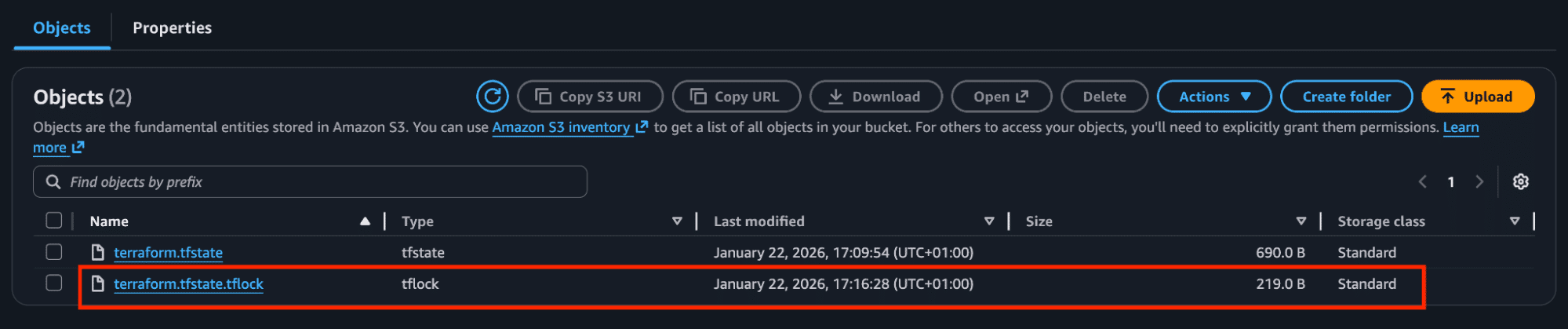
When the Terraform command completes, the state lock is released and the terraform.tfstate.tflock file is deleted. A new Terraform run can now acquire the lock.
State locking in Azure storage
A state backend on Microsoft Azure consists of a storage account and a blob storage container. State files are stored as blobs inside the container, possibly in a hierarchy of virtual directories similar to AWS S3.
A typical backend block for Azure storage is configured like in the following example:
terraform {
  backend "azurerm" {
    resource_group_name  = "rg-terraform-state"
    storage_account_name = "terraformstate"
    container_name       = "state"
    key                  = "spacelift/blog/terraform.tfstate"
    use_azuread_auth     = true
  }
}
The Azure storage backend has state locking enabled by default, and there is no option to disable it. In Azure storage terminology, Terraform acquires a lease on the state file blob when it is in use. It keeps track of the lease using a lease ID.
There is no lock file created, as with the S3 backend.
The following image illustrates when a state file is in a locked state (i.e., leased) in the Azure portal.
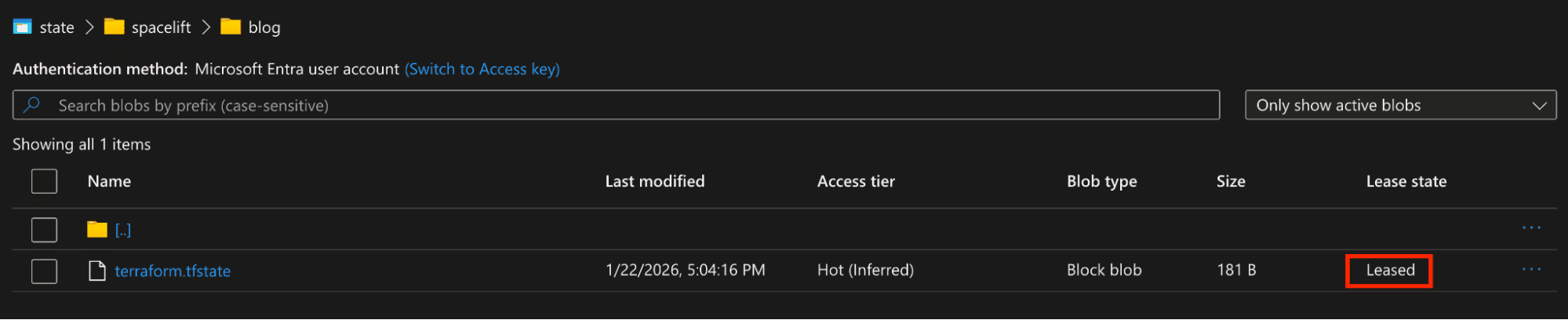
Once Terraform has performed the required state file updates the lease state changes to “Available” and a new Terraform operation can acquire the lease.
State locking in Google Cloud Storage (GCS)
A state backend on Google Cloud consists of a GCS bucket. State files are stored as blobs inside the bucket, possibly in a hierarchy of virtual directories similar to AWS S3 and Azure storage.
A typical state backend block for GCS is configured like in the following example:
terraform {
  backend "gcs" {
    bucket = "terraform-state-r2lfbb"
    prefix = "spacelift/blog/"
  }
}
With this backend, you configure a state file name prefix (e.g., spacelift/blog/). The state file name is set to the name of the current Terraform workspace (defaults to default) with a .tfstate ending (e.g., default.tfstate).
When you run a Terraform command that requires a state lock, a lock file is created next to the state file. The lock file name is the name of the current Terraform workspace with a .tflock file ending (e.g., default.tflock).
If another Terraform run tries to acquire the state lock at the same time, it will discover this lock file, and the operation will fail.
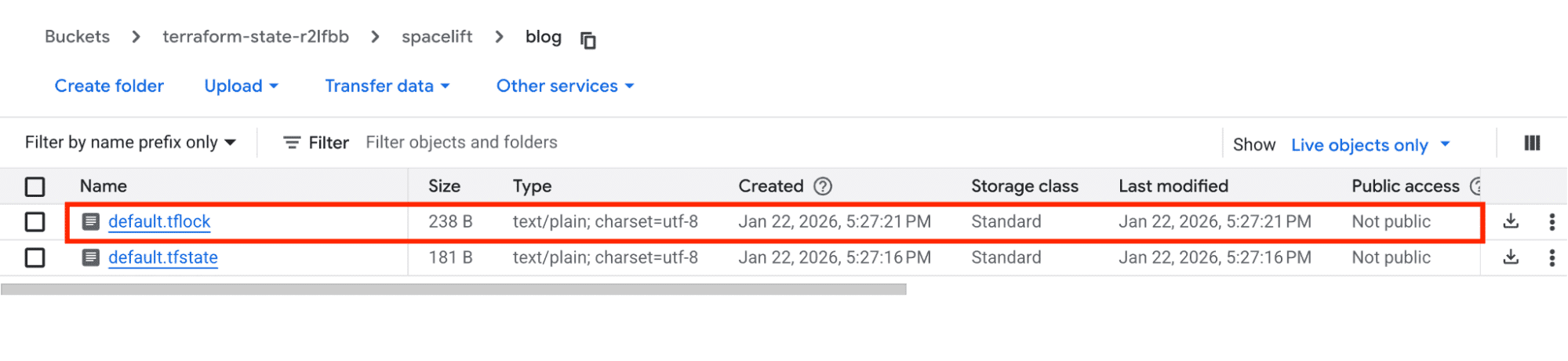
Once the run completes, Terraform releases the lock and deletes the default.tflock file and a new Terraform run can acquire the state lock.
State locking in other backends
Other backends that support state locking by default:
- HashiCorp Consul
- Tencent Cloud Object Storage
- Kubernetes
- Oracle Cloud Infrastructure (OCI) Object Storage
Backends that support state locking if explicitly configured for it:
- Alibaba Cloud OSS
- HTTP
Managing state locking in Terraform
The Terraform CLI allows you to interact with the state locking mechanism.
The commands that require a state lock (e.g., terraform plan, terraform apply) allow you to set the -lock=false flag to tell Terraform to skip acquiring a lock. There is usually no good reason to add this flag, so care must be taken if you do.
If you run a busy Terraform CI/CD pipeline or use another Terraform automation platform with frequent changes being applied, you can add the -lock-timeout flag to any command that requires a state lock. This flag prompts Terraform to try to obtain the state lock for up to a specified timeout.
The following command will try to acquire the lock for up to 60 seconds:
$ terraform apply -lock-timeout=60sIf Terraform fails to acquire the lock within the specified timeout, the operation will fail. If the current lock is released before the timeout expires, the operation will acquire a new lock and proceed.
Handling stuck locks
Sometimes the state unlock process can fail. If this happens, you have to force-unlock the state file. There is a specific terraform force-unlock command for this purpose. This command requires that you know the lock ID. There is no dedicated Terraform command to read the current lock ID, but you can use either of two other approaches:
- Run a
terraform planorterraform applycommand while the state file is locked. This will generate an error message including metadata about the current lock together with the lock ID. - Find the lock ID from your backend.
For example, the Azure storage backend writes details about the current lock as metadata in the state file blob. The following image shows how this appears in the Azure portal:

The metadata is base64-encoded. Decoding the value gives you the following details about the current lock:
{
  "ID": "0071b31e-4d15-17dd-78b2-d24f117a2c35",
  "Operation": "OperationTypeApply",
  "Info": "",
  "Who": "mattias@mac.lan",
  "Version": "1.14.2",
  "Created": "2026-01-22T16:52:33.536104Z",
  "Path": "state/spacelift/blog/terraform.tfstate"
}
The ID property shown in the output is the lock ID. Use the lock ID with the force-unlock command:
$ terraform force-unlock 0071b31e-4d15-17dd-78b2-d24f117a2c35
Do you really want to force-unlock?
  Terraform will remove the lock on the remote state.
  This will allow local Terraform commands to modify this
  state, even though it may still be in use. Only 'yes' will
  be accepted to confirm.

  Enter a value: yes

Terraform state has been successfully unlocked!
If the force-unlock command fails, you have to manually remove the lock from the state backend. The exact steps for how this works depend on which Terraform backend you use.
As an example, for the Azure storage backend, you can break the lease on the state file blob using the Azure CLI command:
$ az storage blob lease break \
  --account-name terraformstate
  --container-name state \
  --blob-name spacelift/blog/terraform.tfstate
Best practices for Terraform state locking
Keep the following best practices in mind when working with state locking in Terraform:
1. Enable state locking for your backend
If you use a state backend that does not enable state locking by default (e.g., AWS S3), you should ensure it is enabled.
State locking does not result in any significant performance degradation, and you gain the certainty that no two Terraform operations will be able to write to the state file simultaneously.
Because state backends are configured in your Terraform code, you can write policies that check that state locking is enabled. For the AWS S3 backend, for example, you should write a policy that checks that the use_lockfile argument is set to true.
2. Use the -lock-timeout flag in automation
If you know you will frequently update your Terraform configuration on your automation platform, add the -lock-timeout flag to each command that requires a state lock. Set a lock timeout value that is appropriate for your context.
Adding this flag prevents workflows from failing if Terraform can’t acquire the state file lock.
However, if the lock-timeout expires this either indicates you should use a longer timeout or you are applying changes too frequently.
3. A single writer per state file
Any given Terraform state file should only have a single writer. A single writer means that one CI/CD pipeline or Terraform automation entity (e.g., one Spacelift stack) uses a specific state file. In essence, this means that each Terraform configuration should have a unique state backend configuration.
This does not necessarily mean that each entity (e.g., CI/CD pipeline) can only run a single operation at a time. Workflows could still overlap within reason, as long as you utilize the -lock-timeout flag as discussed above.
4. Use force-unlock as a last resort
In rare circumstances, Terraform will fail to unlock the state file after it has successfully acquired the lock and applied a change. This can happen when network issues prevent Terraform from interacting with the state backend.
If this happens, you can use the terraform force-unlock command to force Terraform to unlock the file. Note that this command does not know if the state file is locked due to a previous failed attempt to unlock it, or if it is currently being used by another Terraform operation.
If you follow the single writer per state (see the previous best practice), it should be easy to verify if another operation currently holds the state lock or not.
5. State locking is a safety feature, not a security feature
Remember that state locking protects you from accidentally writing to the same state file at the same time. This feature enables safety in collaboration and automation that is difficult to achieve without state locking.
State locking is not a security feature that protects the state file from bad actors. Anyone with access to the state file can still download it even if it is locked.
You must implement security features separately, including access control, network security, encryption, backups, and versioning.
How to manage Terraform resources with Spacelift
Terraform is really powerful, but to achieve an end-to-end secure GitOps approach, you need to use a product that can run your Terraform workflows. Spacelift takes managing Terraform to the next level by giving you access to a powerful CI/CD workflow and unlocking features such as:
- Policies (based on Open Policy Agent) – You can control how many approvals you need for runs, what kind of resources you can create, and what kind of parameters these resources can have, and you can also control the behavior when a pull request is open or merged.
- Multi-IaC workflows – Combine Terraform with Kubernetes, Ansible, and other infrastructure-as-code (IaC) tools such as OpenTofu, Pulumi, and CloudFormation, create dependencies among them, and share outputs
- Build self-service infrastructure – You can use Blueprints to build self-service infrastructure; simply complete a form to provision infrastructure based on Terraform and other supported tools.
- Integrations with any third-party tools – You can integrate with your favorite third-party tools and even build policies for them. For example, see how to integrate security tools in your workflows using Custom Inputs.
- Secure state management and locking – Because Terraform and OpenTofu state is shared, preventing concurrent writes is essential. With Spacelift-managed state, Spacelift injects a backend configuration for each run using one-time credentials, restricts state access to active runs and tasks, and stores state encrypted in Amazon S3. You also get state history and a break-glass rollback for rare cases of state corruption, such as after provider upgrades.
Spacelift enables you to create private workers inside your infrastructure, which helps you execute Spacelift-related workflows on your end. Read the documentation for more information on configuring private workers.
If you are interested in learning more about Spacelift, create a free account today or book a demo with one of our engineers.
Key takeaways
State locking in Terraform is a mechanism that prevents the state file from being updated simultaneously by multiple Terraform operations. With state locking in place, Terraform locks the file once it is in use, and if a different Terraform operation is started while the lock is in place, it will fail.
The main benefit of using state locking in Terraform is that it enables collaboration with others on the same Terraform configuration without complex coordination of when different actors run a terraform plan or terraform apply.
All current remote state backends (e.g., AWS S3, Microsoft Azure storage, and GCP GCS) support state locking. However, not all state backends enable state locking by default (e.g. AWS S3).
You can control certain aspects of the state file using the Terraform CLI, including force-unlocking a state file if the lock failed to be released by Terraform.
Note: New versions of Terraform are released under the BUSL license, but everything created before version 1.5.x remains open source. OpenTofu is an open-source version of Terraform that will expand on Terraform’s existing concepts and offerings. It is a viable alternative to HashiCorp’s Terraform, being forked from Terraform version 1.5.6.
Manage Terraform better and faster
If you are struggling with Terraform automation and management, check out Spacelift. It helps you manage Terraform state, build more complex workflows, and adds several must-have capabilities for end-to-end infrastructure management.
Frequently asked questions
Why state locking matters in Terraform?
State locking matters in Terraform because it prevents two runs from modifying the same state at the same time, which can corrupt state and create inconsistent or duplicate infrastructure. In practice, locking is the guardrail that turns your state file into a safe “single source of truth” for concurrent teams and CI pipelines.
How to fix Terraform state lock error?
A Terraform state lock error happens when Terraform thinks another run is using the same remote state, so you need to either wait for the active operation to finish or safely clear the stale lock. Most fixes involve finding the process that holds the lock, confirming it is not still running, then removing the lock in the backend.
How do you force-unlock a state lock in Terraform?
Use terraform force-unlock <LOCK_ID> from the same backend configuration as the stuck state, where LOCK_ID is the identifier Terraform printed when the lock failed. This tells Terraform to remove the lock record so future runs can acquire the state lock normally.