Authentication and authorization are two important concepts for a secure cloud environment.
Authentication involves verifying that you are who you say you are by using something you know (e.g., username/password), something you possess (e.g., a YubiKey or a certificate private key) or something you are (e.g., fingerprint or face ID). Authorization is about determining if you have the required permissions to perform some action in a given system.
Terraform is no different. You must authenticate to the providers you are using, and you must have the proper authorization to use state backends and to provision infrastructure on the target platform.
With Terraform, you can also configure everything around authentication and authorization on target platforms (e.g., cloud providers, database systems, and more).
In this blog post, we will focus on one important concept within authorization: implementing role-based access control with Terraform.
What we’ll cover:
TL;DR
Terraform lets you manage RBAC as code across AWS, Azure, and Google Cloud by defining roles, policies, and assignments as declarative resources that are version-controlled and repeatable.
On Azure, you assign role definitions to identities at a specific scope, on Google Cloud, you bind roles to service accounts at the project or resource level, and on AWS, you attach IAM policies to roles that principals can assume via a trust policy.
What is RBAC?
RBAC stands for Role-Based Access Control, a fundamental concept in authorization and access management for cloud platforms.
The definition of a role varies slightly between platforms. Generally, a role is a collection of one or more permissions that allow you to perform actions within a platform. You assign roles to some identity (e.g., a user, a group, or some type of programmatic entity).
Permissions are granted at one or more scopes. A few examples of valid scopes are:
- An Azure resource group (e.g., assigning permissions to all resources within the group).
- An AWS S3 bucket (e.g., assigning permissions to all S3 objects within the bucket).
- A Google Cloud folder (e.g., assigning permissions to all Google Cloud projects within the folder).
Scopes can be cloud resources or higher-level collections of multiple cloud resources. The higher the scope, the broader the access and the permissions granted.
Compare the following two examples that provide the same permission (read blobs) but at different scopes:
- You are given read access to one specific object within an AWS S3 bucket named “spacelift”.
- You are given read access for all blobs in a specific Azure storage account named “spaceliftblobs”.
- You are given read access to all blobs in all Google Cloud projects of your organization.
You can configure RBAC for your different platform identities using Terraform. In the following sections, we will see examples of how to do this on Azure, Google Cloud, and AWS. The RBAC concept is universal, and you will find the same principles on other providers, platforms, and systems.
A related concept to RBAC is Attribute-Based Access Control, or ABAC. With ABAC, permissions are granted based on attributes (e.g., key/value tags) set on resources. For example, you could assign read and write permissions to every AWS S3 bucket with a tag key/value pair of ManagedBy = Terraform.
Key benefits of RBAC with Terraform
Managing RBAC with Terraform changes how teams reason about access across cloud environments. Here’s what you gain:
- Consistency across environments. When roles and permissions live in code, every environment gets the same access model. No more “it works in staging because someone clicked the right buttons six months ago.”
- Version-controlled changes. Every permission update goes through pull requests and code reviews, giving you a clear history of who changed what, when, and why.
- Faster rollback. If a role assignment causes problems, you can revert the change like any other code commit instead of manually retracing console clicks.
- Reduced human error. Codifying RBAC shrinks the surface area for mistakes and makes least-privilege easier to enforce, especially across multiple accounts.
- Easier audits. Terraform-managed RBAC gives you a declarative source of truth and a clear chain of approvals to back up your compliance claims.
- Scalable governance. Reusable modules let new environments inherit the same access patterns by default, so governance doesn’t drift as your infrastructure grows.
Pair RBAC as code with policy as code, and you get a layered defense: Roles control who can do what, and policies control how those actions are performed.
How to implement RBAC with Terraform for cloud providers
In the following sections, we will review how to implement built-in (sometimes called managed) roles and custom roles in Azure, Google Cloud, and AWS.
These examples merely illustrate how to do this for different platforms. The exact details of which roles you should assign to perform a given task in your environment are different. These examples should serve as a great starting point, and you can customize them for your environment.
How to implement RBAC with Terraform on Azure
Implementing RBAC with Terraform on Azure involves assigning one or more built-in role definitions to the identity that requires permissions. You can also define custom role definitions if none of the built-in roles fulfill your needs.
On Azure, you can assign roles at the following scopes:
- A resource: This is the lowest possible scope and assigns permissions for a single resource in an Azure subscription.
- A resource group: On Azure, all resources are grouped together in resource groups. This scope assigns permissions to all resources within a given resource group.
- A subscription: Every resource (and resource group) belongs to an Azure subscription. Assigning permissions at this scope gives access to all resources within the subscription.
- A management group: Azure subscriptions can be grouped together into logical groups called management groups. Management groups can be nested. Assigning permissions at this scope gives access to all subscriptions and all nested management groups.
In the following example, we will assign one built-in role and one custom role to a user-assigned managed identity to see how both of these work.
A user-assigned managed identity is an identity that exists as a resource within your Azure subscription. You can assign this identity to compute services, PaaS services, and much more. Using the identity is outside the scope of this blog post; below, we will focus on implementing the RBAC components in Azure using Terraform.
The first step is to configure our Terraform configuration to use the Azure provider. At the time of writing, the latest version is 4.68.0:
terraform {
  required_providers {
    azurerm = {
      source  = "hashicorp/azurerm"
      version = "4.68.0"
    }
  }
}
The Azure provider requires an explicit provider configuration block that, at the very least, contains an empty feature block. The rest of the Azure provider configuration in this example is expected to be provided using the environment where Terraform executes (e.g., using the Azure CLI):
provider "azurerm" {
  features {}
}
Resources on Azure live within the context of an Azure resource group. The user-assigned managed identity we will configure must also exist within a resource group. Configure a new resource group for this demo:
resource "azurerm_resource_group" "default" {
  name     = "rg-spacelift-rbac-example"
  location = "swedencentral"
}
Use an Azure region (location) that is close to where your workload runs.
Now we configure the user-assigned managed identity resource:
resource "azurerm_user_assigned_identity" "spacelift" {
  name                = "id-spacelift-rbac-example"
  resource_group_name = azurerm_resource_group.default.name
  location            = azurerm_resource_group.default.location
}
Azure has many built-in roles. The documentation contains the current list of available built-in roles. Owner, contributor, and reader are built-in roles that are broad in scope and considered highly privileged. More specialized roles include backup reader, CDN endpoint contributor, and SQL security manager.
Assign the built-in role “storage blob data reader” to the user-assigned managed identity and apply this assignment to the current Azure subscription scope:
data "azurerm_subscription" "current" {}

resource "azurerm_role_assignment" "storage_blob_data_reader" {
  scope                = data.azurerm_subscription.current.id
  role_definition_name = "Storage Blob Data Reader"

  principal_id = azurerm_user_assigned_identity.spacelift.principal_id
}
The “storage blob data reader” role grants the identity read access to all storage blobs across all storage accounts in the Azure subscription.
Let’s also create a custom role definition named “Resource Group Reader” which provides permissions to read resource groups:
resource "azurerm_role_definition" "resource_group_reader" {
  name = "Resource Group Reader"
  scope = data.azurerm_subscription.current.id

  permissions {
    actions = [
      "Microsoft.Resources/subscriptions/resourceGroups/read",
    ]

    # You can also configure the following:
    # not_actions = []
    # data_actions = []
    # not_data_actions = []
  }

  assignable_scopes = [
    data.azurerm_subscription.current.id
  ]
}
In the custom role above, we specify actions. A role definition can also be configured with data_actions. Actions are permissions within the Azure management plane (e.g., reading and writing resources), and data_actions are permissions within the Azure data plane (e.g., reading and writing blobs within a storage account).
You can also subtract permissions using the corresponding not_actions and not_data_actions. This allows you to assign an overly broad permission set while excluding specific permissions.
Assign the custom role to the user-assigned managed identity:
resource "azurerm_role_assignment" "resource_group_reader" {
  scope = data.azurerm_subscription.current.id
  role_definition_id = azurerm_role_definition.resource_group_reader.role_definition_resource_id
  principal_id = azurerm_user_assigned_identity.spacelift.principal_id
}
How to implement RBAC with Terraform on Google Cloud Platform
On Google Cloud Platform (Google Cloud), there are three types of roles:
- Basic roles
- Predefined roles
- Custom roles
Basic roles assign broad permissions to Google Cloud resources. Predefined roles provide granular permissions intended for specialized work roles or tasks. Finally, custom roles are roles you configure for your specific purposes.
On Google Cloud, you can assign roles to the following scopes:
- Resource: Permissions are applied to a specific resource.
- Project: Resources belong to a project. Permissions applied at this level apply to all resources within the project.
- Folder: Google Cloud projects can be organized into folders (similar to Azure management groups). Permissions applied at this scope apply to all projects (and nested folders) within the folder.
- Organization: This is the top-level container on Google Cloud. Permissions applied at this level apply to everything within your Google Cloud environment.
Let’s walk through an example of implementing RBAC with Terraform on Google Cloud.
The first step is to tell Terraform to use the Google provider. At the time of writing the latest available version is 7.28.0:
terraform {
  required_providers {
    google = {
      source  = "hashicorp/google"
      version = "7.28.0"
    }
  }
}
We don’t have to add any specific provider configuration block for the Google provider. In this case, we rely on credentials being available in the environment where Terraform executes (e.g., using the Google Cloud CLI).
Roles are assigned to users, groups, or service accounts. For this example, let’s configure a service account that represents an automation user we could use for Terraform or some other process that runs without a human user:
resource "google_service_account" "spacelift" {
  account_id   = "spacelift-automation-account"
  display_name = "Spacelift Automation Account"
}
Basic and predefined roles are assigned in a similar way, but use different resource types from the Google provider.
An example of assigning a basic role (reader on our Google Cloud project) and a predefined role (storage admin on a GCS bucket named “spacelift”) to our service account:
data "google_project" "current" {}

resource "google_project_iam_member" "reader" {
  project = data.google_project.current.id
  role    = "roles/reader"
  member  = "serviceAccount:${google_service_account.spacelift.email}"
}

resource "google_storage_bucket_iam_member" "storage_admin" {
  bucket = "spacelift"
  role   = "roles/storage.admin"
  member = "serviceAccount:${google_service_account.spacelift.email}"
}
Note that the assignments follow a similar structure but use different resource types. Resources that support assigning roles in this way have corresponding *_iam_member resource types available. These resource types add a role to a given member (e.g., a service account in this example) at a specific scope.
To define and assign a custom role that allows our service account to delete (and list) objects from any storage bucket where this role is assigned looks like this:
resource "google_project_iam_custom_role" "object_deleter" {
  role_id     = "objectDeleter"
  title       = "Storage Object Deleter"
  description = "Allows deletion of objects in Cloud Storage buckets."

  permissions = [
    "storage.objects.list",
    "storage.objects.delete",
  ]

  stage = "GA"
}

resource "google_storage_bucket_iam_member" "spacelift_object_deleter" {
  bucket = "spacelift"
  role   = google_project_iam_custom_role.object_deleter.name
  member = "serviceAccount:${google_service_account.spacelift.email}"
}
Custom roles are configured with a “stage” that indicates where in its lifecycle this role is. You can use this to tell consumers what to expect when using the role. Possible values of the stage argument include GA (Generally Available), ALPHA, BETA, and DEPRECATED.
How to implement RBAC with Terraform on AWS
Implementing RBAC on AWS involves creating IAM (Identity and Access Management) roles and one or more IAM policies. An IAM policy is a collection of permissions that define what the role is allowed to do.
The definition of a role differs on AWS compared to both Azure and Google Cloud, covered in the previous sections.
On AWS, a role has no permissions on its own. Permissions are attached to roles through one or more policies. A principal (user, group, or machine entity) can assume a role to perform actions granted by these policies. The process of assuming a role requires a trust policy assigned to the role. The trust policy specifies who is allowed to assume the role.
The resource hierarchy on AWS works in the following way:
- Resources: individual resources exist in a flat hierarchy within an AWS account.
- AWS account: all resources belong to an AWS account.
- Organizational unit: AWS accounts can be grouped into logical groups called organizational units (OUs). OUs can be nested.
- Organization: the top-level container for all AWS accounts.
Permissions on AWS do not follow the same resource hierarchy inheritance as on Azure and Google Cloud. You can’t assign permissions at a higher-up scope (e.g., an AWS account) and have the permissions cascade to each resource below this scope. Instead, you assign explicit permissions using resource identifiers in different policies.
However, resource identifiers can include wildcards which could provide some of the same resource hierarchy behavior (e.g., you could identify all AWS IAM role resources within a specific AWS account by arn:aws:iam::123456789012:role/*).
AWS offers many managed policies you can assign to roles. These are intended for specific tasks or job roles. You can also configure your own custom policies.
Let’s walk through an example of implementing RBAC with Terraform on AWS. Start by creating a new Terraform configuration and configure it to use the AWS provider. The latest version at the time of writing is 6.40.0:
terraform {
  required_providers {
    aws = {
      source = "hashicorp/aws"
      version = "6.40.0"
    }
  }
}
Configure the AWS provider to use your favorite AWS region:
provider "aws" {
  region = "eu-north-1"
}
We want to configure an IAM role for automation scenarios. First, create a trust policy. The following trust policy says that the AWS EC2 service is allowed to assume the role:
data "aws_iam_policy_document" "assume_role" {
  statement {
    actions = ["sts:AssumeRole"]

    principals {
      type        = "Service"
      identifiers = ["ec2.amazonaws.com"]
    }
  }
}
Next, we create an IAM role and attach the trust policy to it:
resource "aws_iam_role" "spacelift" {
  name               = "spacelift-automation-role"
  assume_role_policy = data.aws_iam_policy_document.assume_role.json
}
We will assign a managed policy to the role that will allow it to read everything in AWS S3 within our AWS account:
resource "aws_iam_role_policy_attachment" "s3_read_only" {
  role       = aws_iam_role.spacelift.name
  policy_arn = "arn:aws:iam::aws:policy/AmazonS3ReadOnlyAccess"
}
An important detail to understand here is that even though this assignment technically gives the role access to all of S3 in all AWS accounts in the world, by default, it will only apply in the current account. If you want to access S3 in other accounts, there must be an S3 resource policy within the other account that also grants this access.
Managed policies are identified by special policy ARNs (Amazon Resource Names) where the account ID component of the ARN is simply “aws” instead of a real account ID.
We also want to create a custom IAM policy and attach this to our role. The custom policy will allow the role to write and delete objects within a specific S3 bucket named “spacelift”:
data "aws_iam_policy_document" "s3_write_delete" {
  statement {
    effect    = "Allow"
    actions   = ["s3:PutObject", "s3:DeleteObject"]
    resources = ["arn:aws:s3:::spacelift/*"]
  }
}

resource "aws_iam_policy" "s3_write_delete" {
  name   = "CustomS3WriteDeleteAccess"
  policy = data.aws_iam_policy_document.s3_write_delete.json
}
Finally, attach the custom policy to the IAM role:
resource "aws_iam_role_policy_attachment" "s3_write" {
  role       = aws_iam_role.spacelift.name
  policy_arn = aws_iam_policy.s3_write_delete.arn
}Best practices for implementing RBAC with Terraform
Keep the following best practices in mind when implementing RBAC on any provider platform.
1. Use conditions in role assignments
You can configure conditions on role assignments to restrict when they are valid.
Conditions can check from which IP address the role is used, which tags are set on the resource being accessed, which date and time it is, and much more.
On AWS, you add conditions as condition blocks in a policy document. An example of denying all access to AWS services when the request does not originate from specific IP address ranges belonging to your internal AWS VPCs can look like this:
data "aws_iam_policy_document" "deny_all" {
  statement {
    effect    = "Deny"
    actions   = ["*"]
    resources = ["*"]

    condition {
      test     = "NotIpAddress"
      variable = "aws:SourceIp"
      values   = ["10.123.0.0/16", "10.124.0.0/16"]
    }
  }
}

resource "aws_iam_policy" "deny_all" {
  name   = "DenyAllIfNotOnVPC"
  policy = data.aws_iam_policy_document.deny_all.json
}

resource "aws_iam_role_policy_attachment" "deny_all" {
  role       = aws_iam_role.spacelift.name
  policy_arn = aws_iam_policy.deny_all.arn
}
This is an effective way to lock down all access from outside known environments identified by a known property (e.g., IP CIDR ranges, as in this example).
On Azure, you add condition expressions to role assignments. In the following example, we update the storage blob data reader assignment we configured earlier to only allow access if the storage container has a metadata key “managed_by” with the value of “Terraform”:
resource "azurerm_role_assignment" "storage_blob_data_reader" {
  scope                = data.azurerm_subscription.current.id
  role_definition_name = "Storage Blob Data Reader"
  principal_id         = azurerm_user_assigned_identity.spacelift.principal_id

  condition_version = "2.0"
  condition         = <<-EOT
(
 (
  !(ActionMatches{'Microsoft.Storage/storageAccounts/blobServices/containers/blobs/read'})
 )
 OR
 (  @Resource[Microsoft.Storage/storageAccounts/blobServices/containers/metadata:managed_by] StringEquals 'Terraform'
 )
)
EOT
}
The example above shows that condition expressions in Azure can be quite complicated and verbose.
On Google Cloud, you can add a condition block when assigning a role to a member. Let’s customize the reader role we assigned to our service account earlier to only be valid before a certain date:
resource "google_project_iam_member" "reader" {
  project = data.google_project.current.id
  role    = "roles/reader"
  member  = "serviceAccount:${google_service_account.spacelift.email}"

  condition {
    title       = "not_after_2026_12_31"
    description = "Valid until end of 2026"
    expression  = "request.time < timestamp(\"2027-01-01T00:00:00Z\")"
  }
}
2. Use the principle of least privilege
Do not assign a role with more permissions than are required to perform its intended job.
When building a new application or configuring the infrastructure for a new system, it is easy to fall into the trap of assigning overly generous permissions to roles and then forgetting or disregarding going back and updating this generous assignment later.
The principle of least privilege encourages you to only assign the specific permissions a role needs. If your role on AWS should be an administrator of EC2 instances in your account, assign the AmazonEC2FullAccess managed policy instead of the AdministratorAccess managed policy.
Working according to the principle of least privilege requires more upfront configuration to determine the exact permissions required, but it is worth the extra effort to strengthen your security by using less permissive roles.
3. Assign roles at the correct scope
As well as assigning only the permissions a role requires, you should also avoid assigning permissions at a broader scope than necessary.
If a role should be able to read blobs in Azure storage accounts within a specific resource group, then assign the permission at the resource group level, not at a higher scope because that could grant access to more storage accounts than intended.
4. Avoid assigning permissions directly to human users
It is advisable to avoid assigning static permissions directly to human users. This bypasses the whole RBAC approach to permission management and is often a security concern.
Assign permissions to roles, and assign roles to human users (and other types of identities).
5. Use custom roles sparingly
Some situations require you to configure custom roles, but opt for built-in roles if possible. The benefit of using built-in roles is that they are managed by the cloud providers and tailored to specific purposes.
If the underlying platform changes in a way that requires additional permissions to perform a given job, then you have to update your custom roles. Because built-in roles are managed by the provider, this is automatically taken care of for you.
Custom roles can be difficult to configure correctly, and you may include more permissions than are needed.
6. Separate roles by purpose
Instead of using a single role for multiple purposes, you should separate roles by concern.
Taking this to the extreme for Terraform means you should have one role with read access to your state file and to your infrastructure (scoped to the infrastructure managed by the Terraform configuration) and another role that has write access to the state file and the infrastructure. Use the read-only role for terraform plan, and the higher privilege role for terraform apply.
You can also separate state management and infrastructure management into separate roles. The role that interacts with the Terraform state backend does not have to be the same role that provisions the infrastructure.
The same principle applies to any other job function within your cloud environments.
7. Continuously evaluate role permissions
Set up monitoring to evaluate which permissions each of your roles actually uses. Often, you will find that your roles use only a fraction of the permissions you have assigned to them. This identifies possible security improvements by removing unused permissions from roles.
For example, on AWS, you can use the IAM Access Analyzer service that helps identify unnecessary permissions assigned to your IAM roles.
How to securely manage Terraform resources with Spacelift
Spacelift is an infrastructure orchestration platform that gives you centralized governance and visibility across Terraform, OpenTofu, Pulumi, CloudFormation, Ansible, Kubernetes, and other infrastructure tools.
When it comes to implementing Terraform guardrails, Spacelift can help you with:
- Policy as code: Spacelift supports PaC through OPA, and you build policies to restrict certain resources and certain resource parameters, require multiple approvals for runs, control what happens when a PR is merged, and where to send notifications
- Drift detection and remediation: With Spacelift, you get out-of-the-box drift detection and remediation, so that you can easily detect changes that were made outside of your IaC processes and remediate them with a click of a button
- Lifecycle hooks: Spacelift lets you control what happens before and after each runner phase, so you can easily embed any guardrail tool into your workflow. You can also leverage Spacelift’s built-in plugins for this (there are plugins available for Checkov, Trivy, Wiz, and others)
- Self-service: You can implement self-service using Blueprints and Templates, making it easy to enforce all the guardrails you need. Spacelift also integrates with Backstage and ServiceNow, making it easy for your developers to self-serve infrastructure from the tools they already know and use
- AI-powered diagnostics: Spacelift Intelligence adds an AI layer that helps you troubleshoot failed runs, understand error context, and get operational insight across your infrastructure workflows
Check out this video where we dive into common use cases of Spacelift policies and how teams are using them to achieve security and cost control of their infrastructure:
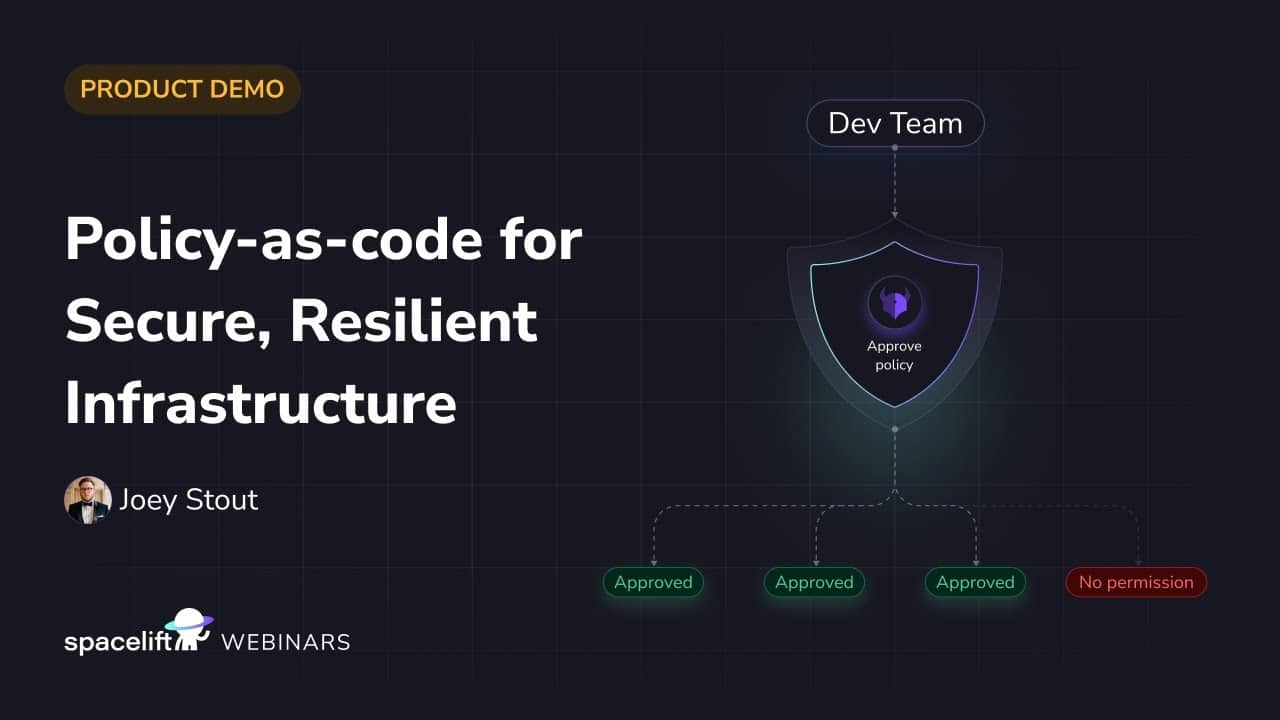
You can try Spacelift for free by creating a trial account or booking a demo with one of our engineers.
Key takeaways
RBAC is a fundamental concept in access management on modern cloud platforms.
A role represents a collection of permissions that grant an identity the right to perform these permissions on the given platform. Permissions are granted on a specific scope (e.g., an Azure resource group, an AWS S3 bucket, a Google Cloud project).
Cloud platforms offer predefined and built-in roles to simplify the use of the platform, but you can also implement custom roles for your specific needs.
The exact details of how RBAC is implemented differ between providers, but the concepts are similar. In this blog post, we saw examples for how to implement RBAC with Terraform on Azure, Google Cloud, and AWS.
A few best practices to keep in mind when implementing RBAC are:
- Use the principle of least privilege. Only assign permissions that a role actually needs to perform its job. Only assign roles at the lowest possible scope.
- Do not assign permissions directly to human users, as this bypasses RBAC.
- Avoid using custom roles if possible to simplify RBAC management. Prefer using built-in roles.
- Use roles for specific purposes. Do not create a single master-role used for every purpose.
- Monitor and continuously evaluate roles and their permissions.
Manage Terraform better with Spacelift
Orchestrate Terraform workflows with policy as code, programmatic configuration, context sharing, drift detection, resource visualization, and more.