Kubernetes rolling updates enable you to avoid downtime when deploying new versions of your applications. A rolling update incrementally replaces old Pods with new ones. The old Pods continue to run until their replacements have started, ensuring that no traffic is rejected during the deployment.
In this guide, we will explain the benefits of rolling updates, describe how they work, and provide detailed examples of their use. We’ll also compare how rolling updates stack up against other popular deployment strategies.
What is a Kubernetes rolling update strategy?
Kubernetes rolling update is a mechanism for updating Deployments with zero downtime. They keep your apps highly available as you launch new releases.
More technically, Deployments are high-level Kubernetes objects that manage a set of identical Pods. Rolling updates allow Kubernetes to gradually replace a Deployment’s Pods when you modify its configuration.
Rolling updates allow you to maximize app availability. They prevent the risk of new releases causing disruption. During the rollout, old Pods continue to serve traffic until they are replaced by new ones. This means there’s no reduction in capacity at any point in the process.
Rolling updates also allow you to configure how many Pods can become simultaneously unavailable during a rollout. This gives you greater control over the deployment process, allowing you to precisely balance speed and availability requirements.
How does Kubernetes rolling update work
Kubernetes rolling updates are controlled by the Deployment object. You must wrap your Pods in a Deployment to take advantage of this behavior.
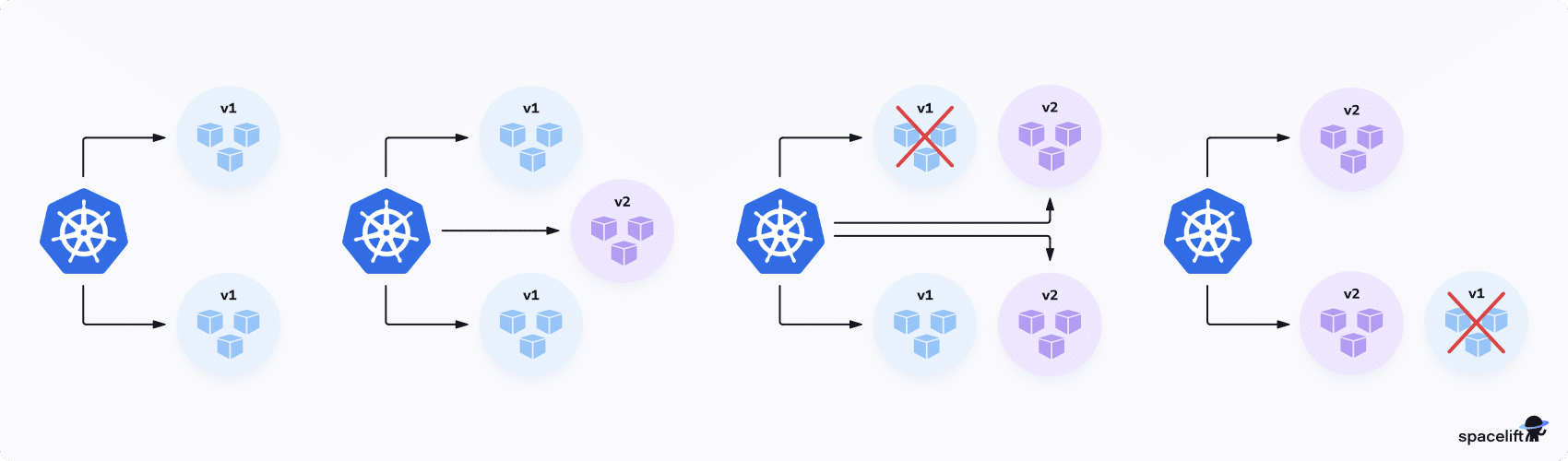
When you change a Deployment’s Pod template, Kubernetes automatically begins a new rollout. The Deployment controller creates a new ReplicaSet to run the new Pods. The cluster will start scheduling new Pods onto available Nodes, while the old Pods will remain untouched until the new ones are started.
Whenever a new Pod passes its health checks and enters the Running state, an old Pod is removed. In this way, all the old Pods are gradually replaced with new ones, but the lifecycles of the old and new Pods briefly overlap.
How to use Kubernetes rolling updates
Let’s examine how to utilize Kubernetes rolling updates in a straightforward application. If you thought rolling updates need complex configuration, you might be surprised: Rolling updates are the default behavior for Deployments.
You can see this in action by creating a test Deployment in your Kubernetes cluster. Copy the following YAML manifest and save it as deployment.yaml:
apiVersion: apps/v1
kind: Deployment
metadata:
  name: demo-deployment
  namespace: default
spec:
  replicas: 3
  selector:
    matchLabels:
      app: demo-deployment
  template:
    metadata:
      labels:
        app: demo-deployment
    spec:
      containers:
        - name: nginx
          image: nginx:latest
Next, use Kubectl to apply the manifest file to your cluster:
$ kubectl apply -f deployment.yaml
deployment.apps/demo-deployment created
After a few moments, you should see the Deployment’s three Pods show as Running:
$ kubectl get deployments
NAME              READY   UP-TO-DATE   AVAILABLE   AGE
demo-deployment   3/3     3            3           34s

$ kubectl get pods
NAME                               READY   STATUS    RESTARTS   AGE
demo-deployment-6749575d9c-67dzh   1/1     Running   0          46s
demo-deployment-6749575d9c-pq759   1/1     Running   0          46s
demo-deployment-6749575d9c-qpmtx   1/1     Running   0          46s
To demonstrate the rolling update feature, try updating the image field on the last line of your manifest file. Change it to httpd:latest, as if you’re releasing a new version of your app with an updated image tag.
Repeat the kubectl apply command to apply the update to your cluster. Next, quickly repeat the kubectl get pods command. This will reveal the changes that the Kubernetes Deployment controller is applying to your Pods:
$ kubectl get pods
NAME                               READY   STATUS              RESTARTS   AGE
demo-deployment-6749575d9c-67dzh   1/1     Running             0          3m9s
demo-deployment-6749575d9c-pq759   1/1     Running             0          3m9s
demo-deployment-6749575d9c-qpmtx   1/1     Running             0          3m9s
demo-deployment-c48c485cc-qwc2k    0/1     ContainerCreating   0          2s
The output above shows that the three original Pods are still Running, but a new Pod has also been created. This shows rolling updates in action. Kubernetes applies the change by incrementally creating a new Pod and then removing the old one. When the rollout completes, you’ll be left with just the three new Pods running:
$ kubectl get pods
NAME                              READY   STATUS    RESTARTS   AGE
demo-deployment-c48c485cc-6645b   1/1     Running   0          29m
demo-deployment-c48c485cc-cn22r   1/1     Running   0          29m
demo-deployment-c48c485cc-qwc2k   1/1     Running   0          29m
The process attempts to ensure that the number of replicas specified for the Deployment, three in this case, remains running throughout the rollout. An increasing amount of traffic will be served by the new Pods, but some will still be directed to the old Pods until they’ve all been replaced.
Kubernetes rolling updates: advanced options
Kubernetes Deployments support two config options to fine-tune the behavior of rolling updates. These properties can be set in your Deployment’s manifest file:
.spec.strategy.rollingUpdate.maxSurge: This property sets the maximum number of new Pods that can be created, above the desired number of Pods specified in the Deployment. For instance, if the desired number of replicas is3andmaxSurgeis2, then up to5Pods may temporarily exist in the cluster during a rollout. The surge capacity lets Kubernetes add new Pods while the old ones are still running.- .spec.strategy.rollingUpdate.maxUnavailable: This option caps the number of unavailable Pods allowed to exist during the rollout. For example, if there are three replicas and
maxUnavailableis1, then Kubernetes guarantees that at least two Pods will serve traffic throughout the rollout.
Here’s an example of a Deployment manifest that includes both these properties:
apiVersion: apps/v1
kind: Deployment
metadata:
  name: demo-deployment
  namespace: default
spec:
  replicas: 3
  selector:
    matchLabels:
      app: demo-deployment
  template:
    metadata:
      labels:
        app: demo-deployment
    spec:
      containers:
        - name: nginx
          image: httpd:latest
  strategy:
    rollingUpdate:
      maxSurge: 2
      maxUnavailable: 1
Using maxSurge and maxUnavailable lets you customize the balance between rollout speed, efficiency, and safety. By default, both values are calculated as 25% of the desired number of Pod replicas.
If you prioritize rollout safety, then you can set maxUnavailable to 0. This provides a strong guarantee that the desired number of replicas will be maintained throughout the rollout. Conversely, if your cluster is low on resources, then you may need to use a higher maxUnavailable, or lower maxSurge, so that all the new Pods can schedule successfully.
How to roll back rolling updates
Using Kubernetes Deployment objects has other benefits beyond rolling updates: it also allows you to quickly roll back a malfunctioning update. Rollbacks are compatible with rolling updates; the Deployment controller will simply initiate a new rollout using the previous configuration. The rollout will be processed as a new rolling update.
You can trigger a rollback of a rolling update you’ve applied to a Deployment using the kubectl rollout undo command:
$ kubectl rollout undo deployment/demo-deployment
deployment.apps/demo-deployment rolled back
Just like a regular update, Kubernetes will incrementally create new Pods with the previous configuration, then remove the existing ones.
$ kubectl get pods
NAME                               READY   STATUS              RESTARTS   AGE
demo-deployment-6749575d9c-6w95x   1/1     Running             0          3s
demo-deployment-6749575d9c-hzqpz   0/1     ContainerCreating   0          1s
demo-deployment-6749575d9c-tlkp8   1/1     Running             0          6s
demo-deployment-c48c485cc-6645b    1/1     Running             0          61m
You can also roll back to specific older revisions. You can view the available revisions by running kubectl rollout history:
$ kubectl rollout history deployment/demo-deployment
deployment.apps/demo-deployment
REVISION  CHANGE-CAUSE
2         <none>
3         <none>
Once you know which revision to restore, specify it using the kubectl rollout undo command’s --to-revision flag:
$ kubectl rollout undo deployment/demo-deployment --to-revision=2How to pause rolling updates
Each time you change a Deployment object, a new rolling update will begin. Sometimes, you may want to prevent this from happening.
For example, you could be debugging problems in a Pod. In this scenario, you may need to block new updates to prevent them from replacing the Pod.
The kubectl rollout pause command lets you pause new updates so they’re not applied. Kubernetes will stop reconciling the Deployment’s Pod states. Existing Pods will still function, but changes made to the Deployment’s configuration will have no effect.
$ kubectl rollout pause deployment/demo-deployment
deployment.apps/demo-deployment paused
When you’re ready to begin rolling out changes again, run the kubectl rollout resume command. This will enable the Deployment’s rolling updates to proceed once more.
$ kubectl rollout resume deployment/demo-deployment
deployment.apps/demo-deployment resumedDisabling Kubernetes rolling updates
We noted above that Kubernetes Deployments enable rolling updates by default. However, you can opt out of using rolling updates by setting a Deployment’s .spec.strategy.type field to Recreate:
apiVersion: apps/v1
kind: Deployment
metadata:
  name: demo-deployment
  namespace: default
spec:
  replicas: 3
  selector:
    matchLabels:
      app: demo-deployment
  template:
    metadata:
      labels:
        app: demo-deployment
    spec:
      containers:
        - name: nginx
          image: nginx:latest
  strategy:
    type: Recreate
Note: Setting the field to RollingUpdate will explicitly enable rolling updates.
With the Recreate option enabled, Kubernetes will destroy all the Deployment’s existing Pods before it begins creating new ones. This means there’ll be a brief period when no Pods are running.
You should generally only use Recreate when your old and new Pods cannot coexist. For instance, you may deploy breaking API changes or database schema migrations that must be applied immediately to all traffic.
The Recreate strategy can also be useful in small test clusters that lack enough resources to allow scheduling new Pods alongside old ones.
What is the difference between rolling update and canary deployment?
Rolling updates aren’t the only way to manage deployments in Kubernetes. Canary deployments are an alternative strategy that provides even more control over the deployment process.
Whereas rolling updates incrementally replace all the Pods in your Deployment, canary updates let you operate both releases side by side. You can direct a configurable amount of traffic to the new canary Pods, then ramp the percentage over time until you reach a full rollout.
For example, you could start by sending 10% of traffic to the updated Pods, then 20%, 50%, and finally 100%. This improves release safety by letting you reduce the reach of errors. If problems occur during an early rollout stage, you can abort the release before it affects your wider user base.
Kubernetes doesn’t natively support canary deployments, but you can easily implement them using advanced tools such as Argo Rollouts.
What is the difference between rolling updates vs blue-green deployments?
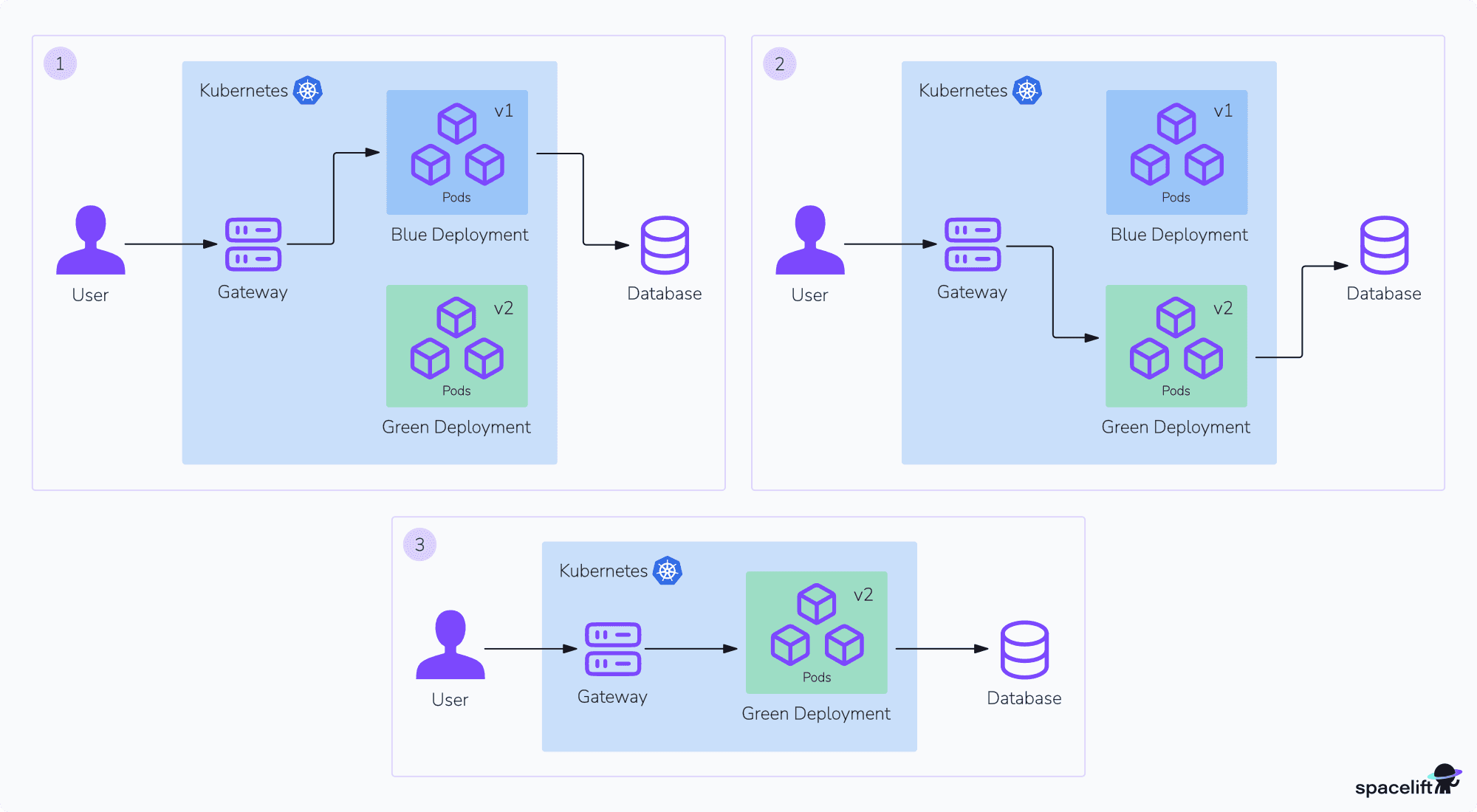
The blue-green model is another popular deployment strategy used instead of rolling updates. This approach runs the new and old releases side by side, but initially continues to send all the traffic to the old “blue” Pods. Developers and other stakeholders can then safely test the new “green” release before switching traffic over. Rolling updates don’t accommodate this workflow because all the old Pods are automatically replaced.
Blue-green rollouts are another way to add resiliency to your deployment process, but like canary rollouts, they’re not supported in standard Kubernetes. You’ll need Argo Rollouts or an alternative like Flux to configure them.
Should I use the Kubernetes rolling update deployment strategy?
Using Kubernetes rolling updates is a best practice strategy for reliable deployments in Kubernetes. What’s more, you don’t need to do anything special to enable them: If your Pods are controlled by a Deployment, then they’ll use rolling updates by default.
In certain situations, you may want to opt out of rolling updates by using the Recreate Deployment strategy. However, this is rarely suitable for production workloads. It’s only helpful when you’re making breaking changes and can already tolerate some downtime.
Remember that while rolling updates are adequate for many real-world services, advanced alternatives like canary and blue-green releases offer more options for large-scale deployments. You can find out more about these methods and others in our Kubernetes Deployment strategies guide.
Common pitfalls of Kubernetes rolling updates
Rolling updates in Kubernetes feel safe because they’re gradual — but they can still break production if the details are off. Most outages don’t occur because “Kubernetes is broken.” They occur because of how we configure health checks, capacity, compatibility, and observability around a rollout.
Here are five common pitfalls teams run into:
- Misconfigured health checks (readiness and liveness) – Readiness probes that are too strict or too frequent can cause pods to oscillate between ready/unready, creating traffic churn and error spikes. Missing or overly permissive readiness checks can direct traffic to pods that are still warming up. Overly aggressive liveness probes restart pods for transient hiccups, turning a small slowdown into a restart storm.
- Breaking changes without backward compatibility – Rolling out a version that assumes a new database schema, API contract, or event format while older versions are still running can cause subtle failures mid-rollout. Some pods speak “v2,” others “v1,” and users feel the impact.
- Unsafe rollout settings and strategy – Generic defaults for
maxSurge/maxUnavailablemay not align with your capacity headroom or startup time, which can overload a cluster or reduce serving capacity too far. Furthermore, for stateful, leader-based, quorum-sensitive, or connection-heavy workloads, a vanilla rolling update without workload-specific coordination (draining, ordering, quorum rules) can turn routine deploys into recurring incidents. - No graceful shutdown or connection draining – Pods can be terminated while still handling traffic, and long-lived connections like gRPC or WebSockets can be cut mid-stream. Even after a pod goes NotReady, there can be propagation delays and existing connections may keep flowing. Without
preStophooks, a saneterminationGracePeriodSeconds, and application-level shutdown/drain logic, every rollout becomes a mini outage. - Treating “rollout succeeded” as “everything is fine” – Kubernetes may report the Deployment as updated, but without gating on service signals, error rates, latency, saturation, resource usage, you’re flying blind. Combine that with slow or manual rollbacks, and a bad release can fully roll out before anyone notices.
- Insufficient capacity (and slow scaling) during surge – Rolling updates may temporarily run extra pods (
maxSurge). If the cluster has little headroom, or the HPA/cluster autoscaler is slow, new pods remain in a Pending state, and traffic accumulates on fewer ready pods, causing latency and errors (often worsened by slow image pulls/cold starts).
Why use Spacelift to manage your Kubernetes resources?
If you need help managing your Kubernetes projects, consider Spacelift. It brings with it a GitOps flow, so your Kubernetes Deployments are synced with your Kubernetes Stacks, and pull requests show you a preview of what they’re planning to change.
With Spacelift, you get:
- Policies to control what kind of resources engineers can create, what parameters they can have, how many approvals you need for a run, what kind of task you execute, what happens when a pull request is open, and where to send your notifications
- Stack dependencies to build multi-infrastructure automation workflows with dependencies, having the ability to build a workflow that can combine Terraform with Kubernetes, Ansible, and other infrastructure-as-code (IaC) tools such as OpenTofu, Pulumi, and CloudFormation.
- Self-service infrastructure via Blueprints, enabling your developers to do what matters – developing application code while not sacrificing control
- Creature comforts such as contexts (reusable containers for your environment variables, files, and hooks), and the ability to run arbitrary code
- Drift detection and optional remediation
If you want to learn more about Spacelift, create a free account today or book a demo with one of our engineers.
Key points
Kubernetes rolling updates improve application availability during release processes. They allow old Pods to continue serving traffic until the new ones have started. The Pods are replaced incrementally, preventing disruption for your users.
In this guide, we’ve shown how to enable rolling updates using the Deployment object. We’ve also discussed how the maxSurge and maxUnavailable config options let you precisely manage Pod availability during rollouts.
You’re now ready to implement rolling updates in your Kubernetes cluster, but you should also consider other options, such as canary and blue-green releases, to determine the best rollout solution for your specific needs.
Manage Kubernetes easier and faster
Spacelift allows you to automate, audit, secure, and continuously deliver your infrastructure. It helps overcome common state management issues and adds several must-have features for infrastructure management.
Frequently asked questions
What is the difference between rolling updates and recreate deployments?
Rolling updates replace application instances gradually, keeping the service available while updating one or a few instances at a time. Recreate deployments stop all existing instances before starting new ones, which is simpler but causes downtime and is mainly suited for non-critical or state-incompatible updates.
What do maxSurge and maxUnavailable mean in a rolling update?
In a rolling update, maxSurge defines the maximum number of extra pods that can be created temporarily above the desired replica count, allowing faster rollouts. maxUnavailable defines the maximum number of pods that can be taken offline simultaneously, controlling availability during updates and limiting service disruption.