![How to Troubleshoot Common Kubernetes Errors [2026 Guide]](/_next/image?url=https%3A%2F%2Fsecure.gravatar.com%2Favatar%2F402ba26575ce7909a6b670410ee12eda9ce420710cc68c3f05adc425d2ba9acb%3Fs%3D96%26d%3Dmm%26r%3Dg&w=96&q=75)
Kubernetes has transformed how cloud applications are deployed and run, but it doesn’t always work perfectly. Kubernetes clusters have a large surface area with many moving parts, creating multiple ways for things to go wrong.
Kubernetes troubleshooting is the process of investigating and fixing these problems. It’s how you approach debugging Pod failures, connectivity issues, and other faults that arise in your cluster.
In this guide, we will walk you through the key tools and techniques that enable effective Kubernetes troubleshooting at scale. We’ll also provide actionable tips for resolving some of the most common issues you may encounter. We’ll then wrap up by discussing some troubleshooting best practices that’ll help you resolve incidents faster.
What we’ll cover:
How to troubleshoot Kubernetes?
Kubernetes can feel complex to troubleshoot. The system’s distributed architecture means there are many different components to inspect. Some of the ways in which Kubernetes clusters can experience problems include:
- Control plane failures: Issues with the control plane can prevent you from managing your cluster, such as if the API server becomes unavailable.
- Node failures: Unavailable Nodes reduce your cluster’s capacity, preventing Pods from scheduling correctly.
- Pod/application failures: The containerized apps running in your Pods may experience errors, causing your services to become unavailable.
- Networking failures: Misconfigured networking features can prevent your services from communicating with each other.
- Storage failures: Storage volumes may fail to provision correctly or become fully utilized.
Implementing a methodical troubleshooting strategy is the most effective way to efficiently debug the various types of issues you could face. You should start troubleshooting by identifying the problem and then looking for the most probable cause. You can then use dedicated tooling to conduct detailed investigations before you attempt to apply a fix.
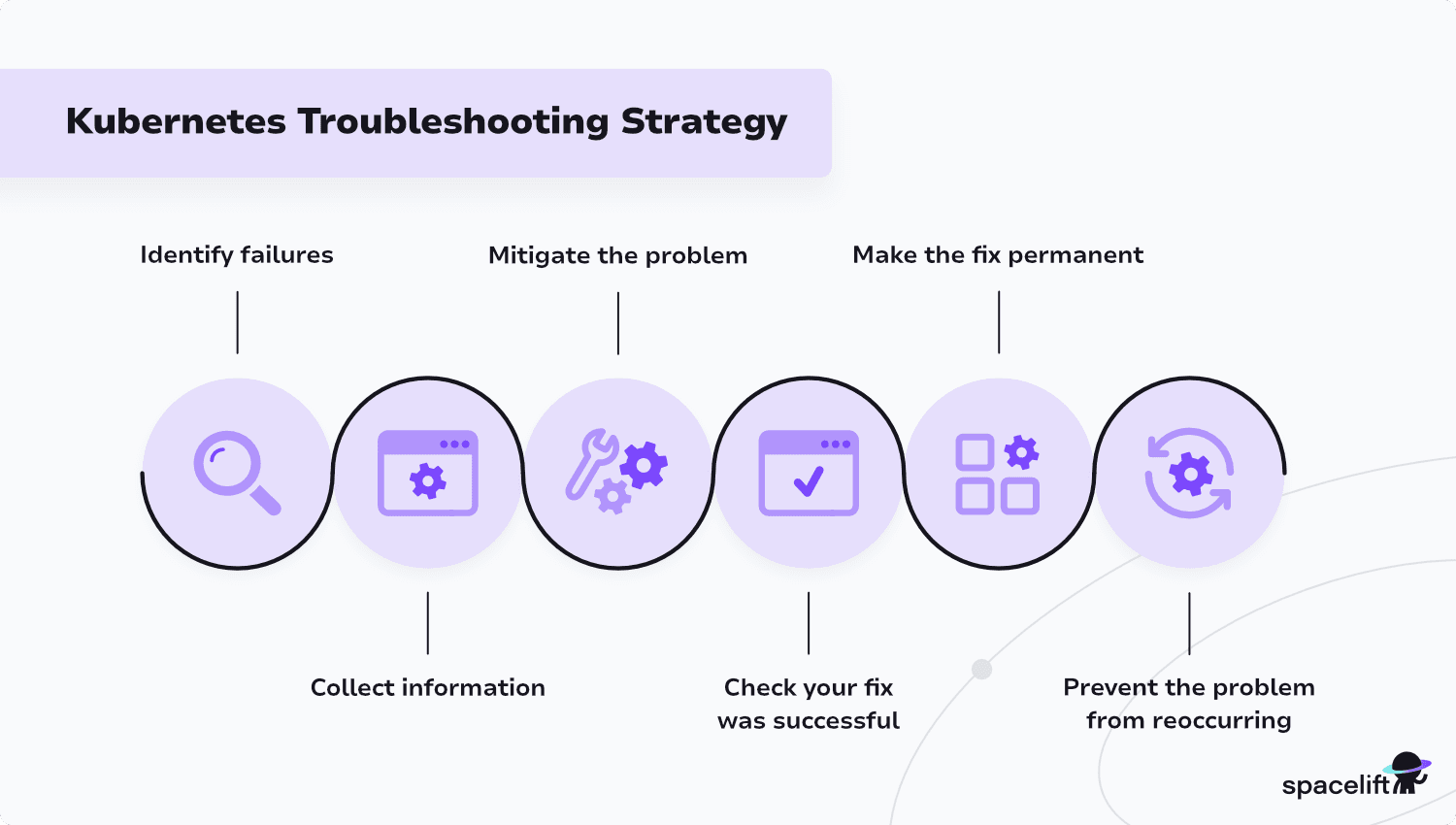
Here’s a high-level Kubernetes troubleshooting strategy to follow as you debug your clusters:
- Identify failures: Use automated alerts and anomaly detection tools to flag emerging problems in your cluster.
- Collect information: Use tools, including Kubectl and observability platforms, to gather information about the problem, such as the components it affects, when the problem began, and the events that preceded it.
- Mitigate the problem: Analyze the information you’ve gathered to identify the fault and implement changes that resolve it.
- Verify that your fix was successful: Prove your fix by verifying that the cluster has returned to a healthy state.
- Make the fix permanent: At this point, you can take more time to analyze the root cause and implement a permanent fix. For instance, you may need to update your manifest files, Helm charts, or IaC configs to include any temporary hotfixes made using Kubectl.
- Prevent the problem from reoccurring: Finally, you should implement any additional protections that will prevent the problem from reoccurring or make it easier to resolve in the future. This could include preparing documentation runbooks that explain how to solve similar issues.
Keep these steps in mind as you troubleshoot your Kubernetes environments. They provide structure to stop you from becoming overwhelmed as you fire-fight urgent issues.
Let’s now look at 11 notable troubleshooting tools and techniques.
Kubernetes troubleshooting tools and processes
The following list outlines some key high-level processes that enable you to debug various types of problems in Kubernetes clusters.
If you’re seeking advice on how to solve particular issues, skip ahead to the next section, where we’ll discuss 12 specific problems in detail.
1. Use kubectl
Kubectl, the official Kubernetes CLI, is one of the tools you’ll use most often when investigating problems. It allows you to easily list the objects in your cluster, inspect error states, and retrieve logs and event histories.
Key commands to learn include:
kubectl get <objects>: List objects of a certain type, such as kubectl get pods. The command displays the status information associated with each object, allowing you to easily spot resources with problems.kubectl describe <object-type> <object>: Displays detailed information about a specific object, e.g., kubectl describe pod my-pod. The information includes a complete event history, allowing you to view the times when objects have transitioned between statuses.kubectl top nodeandkubectl top pod: View live cluster resource consumption information from Kubernetes Metrics-Server. This can help you spot bottlenecks and performance issues.
Kubectl also provides many other important troubleshooting features, including access to logs, exit codes, and debug containers. We’ll look at some of these in more detail below.
2. Check Pod probe (health check) results
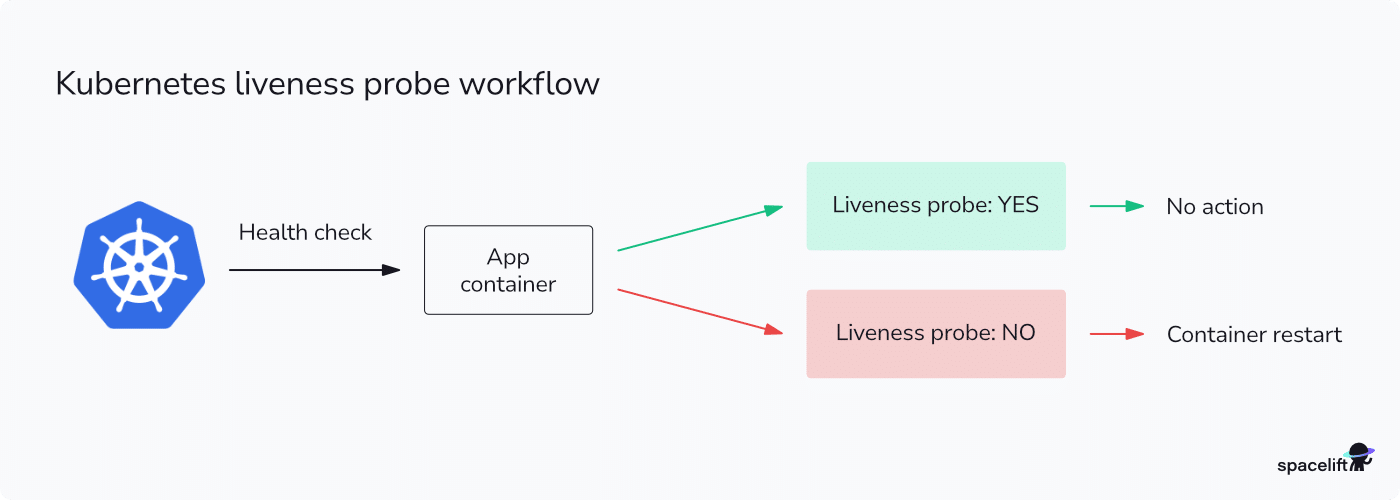
Kubernetes liveness, readiness, and startup probes let containers inform Kubernetes whether they’re healthy and able to handle traffic.
Pods that fail probe checks will be marked as unhealthy, causing Kubernetes to stop sending traffic to them. You can view Pod statuses and probe results using the kubectl get pods command. This lets you troubleshoot Kubernetes Pods and identify those that may be experiencing an internal issue.
3. Retrieve logs from Pods, kubelet, and the cluster control plane
Logs provide vital context to guide your troubleshooting process. Pod logs, accessed via the kubectl logs command, allow you to view the output from the apps running in your containers.
Kubernetes also maintains various system-level logs. Logs from the Kubelet process that runs on Nodes can explain Node-level failures, while logs from control plane components like the API Server and Scheduler can help you investigate cluster-level issues.
4. Analyze the metrics in your observability platforms
Kubernetes observability platforms allow you to view exactly what’s happening in your cluster. They collect metrics, logs, and traces, allowing you to centrally analyze cluster activity.
This data enables you to identify anomalies that may reveal the root causes of problems, such as an influx of traffic preceding a Pod failure.
5. Check your cloud provider dashboards
Cloud provider dashboards are another source of observability information for managed Kubernetes clusters.
Cloud control panels typically provide their own observability data, which surfaces infrastructure-level insights in addition to cluster-level ones. This can reveal more information about your cluster’s performance.
Your provider’s dashboard may also detail active incidents that could be affecting your operations.
6. Inspect Pod container exit codes
Container exit codes can guide you to the causes of errors. These codes are emitted when a container’s foreground process stops. Apps that emit different exit codes depending on their status allow you to pinpoint why they stopped.
You can retrieve exit codes using Kubectl’s describe command:
$ kubectl describe pod demo-pod -n demo-namespace | grep "Exit Code"
Reason: OOMKilled
Exit Code: 137
A 0 exit code indicates the process ended normally, with no errors.
In Kubernetes, you’ll normally see 0 exit codes when looking at Pods from completed Jobs. Exit codes higher than 0 indicate an error occurred. In the example above, 137 is a standard exit code that indicates the process was terminated because it tried to use too much memory and was OOM-killed.
7. View the events stored against affected objects
Kubernetes events record the key state transitions in an object’s life. They allow you to see exactly what’s happened to objects such as Pods, Deployments, and ReplicaSets since they were created.
Events are displayed at the bottom of the kubectl describe command’s output:
$ kubectl describe pod demo-pod
Events:
  Type    Reason     Age   From               Message
  ----    ------     ----  ----               -------
  Normal  Scheduled  34s   default-scheduler  Successfully assigned default/demo-pod to minikube
  Normal  Pulling    34s   kubelet            Pulling image "nginx:latest"
Error events will be noted in the list alongside the standard Normal events. This lets you see what Kubernetes is trying to do and why the operation is failing.
8. Investigate inside containers using kubectl exec
It’s often useful to get inside containers when debugging application-level problems. This allows you to inspect the container’s file system state and run any debugging tools available within the container.
The kubectl exec command connects your terminal to a container’s input and output streams. Use the -it flag to set up interactive access:
$ kubectl exec -it demo-pod -n demo-namespace -- bashThe example above will run bash inside the first container in the demo-pod Pod. The Bash session will run inside the container and be connected to your terminal instance. If the Pod contains multiple containers, you can specify the one to exec into using the -c flag:
# Connect to the "sidecar" container
$ kubectl exec -it demo-pod -n demo-namespace -c sidecar -- bash
9. Directly connect to Pods and Services using kubectl port-forwarding
Kubectl port-forwarding lets you access Pod and Service ports in your cluster using a local port on your machine. It allows you to directly connect to services inside your cluster, without having to expose them to the internet.
Port-forwarding can aid troubleshooting by allowing you to remove load balancers, Ingresses, and other traffic routing systems from the equation when you’re checking if a service is up.
Use the kubectl port-forward command to open a port-forwarding session. The following example forwards the local port 8080 to port 80 of the web-api Kubernetes Service:
$ kubectl port-forward svc/web-api 8080:80Requests to localhost:8080 will now target the web-api Service in your cluster. You can port-forward to a Pod instead of a Service by using the kubectl port-forward pod/<pod-name> syntax, instead of kubectl port-forward svc/<service-name>.
10. Start an ephemeral debug container
Ephemeral debug containers are a Kubernetes feature available from v1.25. They let you add new containers to an existing Pod for debugging purposes. Debug containers are automatically removed after you finish your debugging session.
Use the kubectl debug command to create a new debugging container. The following command adds a debugging container to the Pod called demo-pod. The -it flag specifies that your shell’s input stream will be connected to the foreground process running in the debug container:
$ kubectl debug demo-pod -it --image=busybox:latest --target demo-podNote: The --target flag is required to enable process namespace sharing between the Pod’s existing containers and the debug container.
Debug containers are useful when you need to run commands in Pods that use minimal base images. Containers that lack a shell can be challenging to debug, for example. However, debug containers allow you to temporarily run a different base image that includes a full set of debugging utilities.
11. Use AI-powered troubleshooting assistants or AIOps tools
AI-powered assistants and AIOps tools can act like an extra SRE who never gets tired. They help you move from “what is going on” to “here is what to fix” much faster. They work best when they are integrated into your Kubernetes and observability stack and used within your existing guardrails.
Use them to:
- Speed up root cause analysis – Feed them Pod events, logs, and YAML so they can summarize symptoms, suggest likely causes, and propose next checks — without you manually stitching everything together.
- Automate routine diagnostics – For recurring issues such as CrashLoopBackOff or failing probes, let AIOps tools collect describes, logs, node status, and recent deploys and post a ready-to-read bundle into Slack or your incident channel.
- Correlate signals across tools – With access to metrics, logs, traces, and cluster state, these tools can highlight patterns such as “errors spiked right after this deployment” or “these Pods are failing on only one node pool.”
- Make Kubernetes errors understandable – AI can turn cryptic messages and conditions into clear explanations with practical fixes. This helps with onboarding, postmortems, and communicating impact to non-Kubernetes stakeholders.
Always keep humans in control. Treat AI suggestions as hypotheses to validate, and apply changes through GitOps or your standard review process rather than giving any tool direct write access to production.
Kubernetes troubleshooting guide: Common problems and how to solve them
Now we’ve discussed the high-level techniques you can use to debug Kubernetes, let’s take a closer look at some of the top problems you might face. Here are 12 common issues and their corresponding troubleshooting steps.
1. NotReady Nodes
Kubernetes Nodes displaying a NotReady status are unhealthy Nodes that can’t be used to run your Pods. Seeing this status indicates a serious cluster problem with capacity and performance implications.
The NotReady status shows up when you use Kubectl to list the Nodes in your cluster:
$ kubectl get nodes
NAME        STATUS    ROLES           AGE   VERSION
minikube    Ready     control-plane   70d   v1.31.0
demo-node   NotReady  <none>          10m   v1.31.0
Nodes can be NotReady due to many different faults.
For instance, the Kubelet worker process could have failed, the Node may have run out of hardware resources, or the Node may have lost network connectivity to the Kubernetes control plane. Newly provisioned Nodes will also be NotReady until they’ve fully started up.
To debug a NotReady Node, first check the Node’s resource usage to ensure it has enough free memory. Next, try manually checking the Kubelet service’s status by running systemctl status kubelet on the affected Node. The Kubelet process logs may also contain valuable information: you can access them using journalctl -u kubelet on the Node.
2. Kubernetes cluster unreachable
A Kubernetes cluster that is completely unreachable indicates a fault with a control plane component, such as the API server. Your workloads may still be running, but you won’t be able to interact with Kubernetes objects using the API.
You can debug cluster connectivity problems by first checking for any network issues between your machine and your cluster’s endpoints. Next, review the Kubernetes API server logs (/var/log/kube-apiserver.log) and controller manager logs (/var/log/kube-controller-manager.log) to identify any reported errors affecting startup.
Don’t forget the basics, too: If you often work with multiple Kubernetes clusters, ensure you’re using the right Kubectl context for the cluster you’re trying to reach.
3. Pods stuck in a Pending or FailedScheduling state
Pods displaying a Pending status are waiting to be scheduled onto a Node:
$ kubectl get pods
NAME       READY   STATUS    RESTARTS   AGE
demo-pod   0/1     Pending   0          27s
If a Pod remains stuck in the Pending status for an extended time, it means Kubernetes can’t schedule the Pod. This is often because there are no Nodes with enough free resources to fulfill the Pod’s resource requests. However, Pods may also fail to schedule if you’ve specified affinity, node selector, or taint/toleration settings that can’t be matched by a Node.
You can obtain more information by accessing the affected Pod’s events using kubectl describe. Pods stuck Pending will show a related FailedScheduling event:
$ kubectl describe pod demo-pod
...
Events:
  Type     Reason            Age   From               Message
  ----     ------            ----  ----               -------
  Warning  FailedScheduling  27s   default-scheduler  0/1 nodes are available: 1 node(s) didn't match Pod's node affinity/selector. preemption: 0/1 nodes are available: 1 Preemption is not helpful for scheduling.
The event’s message explains why the Pod can’t be scheduled. In this case, it has an affinity or node selection rule that isn’t matched by any of the Nodes in the cluster.
4. Pods Stuck in a PodInitializing or Init State
Pods that are stuck with one of these statuses have been successfully created and scheduled, but are failing to initialize correctly. This happens when the Pod has misconfigured init containers that never exit successfully.
The following kubectl get pods output shows a Pod with a crashing init container:
$ kubectl get pods
NAME        READY   STATUS                  RESTARTS      AGE
demo-pod    0/1     Init:CrashLoopBackOff   2 (11s ago)   24s
You can identify the affected init container using the event history provided by kubectl describe. The following event history shows the error is occurring in an init container called init-startup. The container’s configured to run the demo command, but this doesn’t exist in the container.
$ kubectl describe pod demo-pod
...
Events:
  Type     Reason     Age                From               Message
  ----     ------     ----               ----               -------
  Normal   Scheduled  63s                default-scheduler  Successfully assigned default/demo-pod to minikube
  Normal   Pulled     23s (x4 over 63s)  kubelet            Container image "busybox:1.28" already present on machine
  Normal   Created    23s (x4 over 63s)  kubelet            Created container init-startup
  Warning  Failed     23s (x4 over 63s)  kubelet            Error: failed to start container "init-startup": Error response from daemon: failed to create task for container: failed to create shim task: OCI runtime create failed: runc create failed: unable to start container process: exec: "demo": executable file not found in $PATH: unknown
5. Pods with a CreateContainerError or CreateContainerConfigError
CreateContainerError and CreateContainerConfigError are other Pod statuses that can appear in the kubectl get pods command’s output:
NAME    READY   STATUS                  RESTARTS        AGE
nginx   0/1     CreateContainerError    0               90s
They both indicate Kubernetes was unable to create a container within the Pod, but they have slightly different causes:
CreateContainerConfigErrormeans the configuration requested by the container couldn’t be created. This is usually because you’ve referenced a ConfigMap or Secret that doesn’t exist.CreateContainerErrorhappens later in the container creation process. It means the container could not be created due to a runtime error, such as specifying an invalid command to run.
Troubleshoot these problems by listing the Pod’s events using kubectl describe pod <my-pod>. The error event will contain a detailed message explaining what you need to do next:
$ kubectl describe pod demo-pod
Warning Failed 10s (x2 over 35s) kubelet  Error: configmap "demo-configmap" not found
The example above shows the Pod is trying to use a ConfigMap that doesn’t exist.
Read more: Fixing Kubernetes CreateContainerConfigError & CreateContainerError
6. Pods with an ImagePullBackOff error
ImagePullBackOff is one of the most commonly seen Kubernetes errors. It’s reported as a Pod status when there’s a problem pulling a container image used by the Pod. Pods cannot start until the images they use are available, so Kubernetes will repeatedly back off and attempt another pull after an increasing delay.
$ kubectl get pods
NAME    READY   STATUS             RESTARTS        AGE
nginx   0/1     ImagePullBackOff   0               90s
There are two main causes of ImagePullBackOff problems:
- Registry inaccessible: If the image registry is unavailable or inaccessible, Kubernetes will be unable to pull the image. The problem should resolve itself once the registry is back up.
- Incorrect image reference: Pull errors can also occur if you’ve specified an image that doesn’t exist or is no longer available. For instance, you may have a typo in your image name.
Solve this problem by using kubectl describe pod to check the events that have been stored. The event history will include the name of the image that Kubernetes is trying to pull. You should check that the name’s correct and the registry is accessible.
7. Pods with a CrashLoopBackOff error
CrashLoopBackOff errors are another common Pod failure status. The error means the Pod has repeatedly crashed and been restarted. Kubernetes will try to restart the Pod again after an increasingly long delay.
Pod crash loops can be caused by many different problems:
- The application within the container may crash due to a bug.
- The Pod may be running out of memory.
- Aspects of the Pod’s configuration may be incorrect.
- The Pod’s liveness probes could be failing.
To troubleshoot this error, start by running kubectl describe pod <pod-name>. Check the events displayed to see what’s happening before the Pod crashes. If the crash is being caused by a problem inside your app, then use kubectl logs <pod-name> to inspect the container’s error log stream.
8. Pods restarting with OOMKilled errors
Pod OOMKilled errors are one of the main causes of unexpected Pod restarts. This error occurs when a Pod tries to use more memory than its assigned memory limit allows. This makes it eligible to be terminated when the Node is experiencing high memory usage.
Sporadic OOMKilled errors can be identified by using Kubectl to look for Pods that have experienced restarts:
$ kubectl get pods
NAME    READY   STATUS         RESTARTS         AGE
nginx   0/1     Running        68 (4m53s ago)   19h
You can then check whether the restart was caused by an OOMKilled error by using kubectl describe. The error will appear as the Reason for the Pod previously transitioning into the Terminated state. A 137 exit code will be reported to.
$ kubectl describe pod demo-pod -n demo-namespace | grep Reason
Last State: Terminated
Reason: OOMKilled
Exit Code: 137
Regular OOMKilled errors typically indicate that the Pod needs more memory to run reliably. You should increase the memory limit you’ve configured in the Pod’s manifest file.
However, if you believe the existing memory limit should be adequate, you may need to optimize your containerized app to reduce runtime memory consumption. Use logs and traces to monitor the activity leading up to OOMKilled events.
9. Deployment failure after rollout
Failures that occur immediately after releasing a new deployment are typically due to errors introduced by the new code. If a deployment’s not gone the way you expected, you should first follow the tips above to check the Pod’s logs and exit code. This should guide you to the cause of the problem.
You can then use Kubectl to rollback the deployment to its previous version:
$ kubectl rollout undo deployment/<my-deployment>Kubernetes will automatically restore the previous Pod configuration, hopefully bringing your service back up. You can then take more time to prepare a new release that fixes the root cause of the issue.
10. Kubernetes Service connection problems
Kubernetes Service problems are often caused by incorrect selector configurations. If requests to a Service aren’t reaching the expected Pods, then you should check the selector set on the Service before trying anything else.
The following example demonstrates a Service that routes traffic to Pods labelled app: demo-app. If this label’s incorrect, or you’ve forgotten to apply it to your Pods, then your requests won’t be routed correctly.
apiVersion: v1
kind: Service
metadata:
  name: demo-service
spec:
  type: ClusterIP
  selector:
    app: demo-app
  ports:
    - port: 8080
      targetPort: 80
Service connection issues can also occur if you use the wrong Service type or specify an incorrect target port. Finally, incorrect cluster DNS configuration can prevent Pods from resolving Service names.
11. Cluster performance problems
Kubernetes performance issues can arise for many different reasons. However, they’re usually connected to the resources available on your Nodes. If workloads are running slowly, it’s a sign you should provision more Nodes, or vertically scale your existing ones with more powerful CPUs.
Cluster performance can also be impacted by congestion on the API server. Very busy clusters with high Node and Pod counts can experience bottlenecks due to the amount of traffic passing through the API server. This may cause delays when scheduling Pods or processing API server requests, such as scaling a Deployment.
Monitoring your Kubernetes control plane metrics using an observability platform can help you investigate the causes of slowdowns.
12. Kubernetes tool compatibility issues
Unexplained Kubernetes errors can sometimes be caused by incompatible tool versions, such as an older version of Kubectl with a newer Kubernetes release. Officially, your Kubernetes and Kubectl version numbers should be within one minor release of each other.
The kubectl version command lets you check whether your versions are compatible:
$ kubectl version
Client Version: v1.34.1
Kustomize Version: v5.7.1
Server Version: v1.31.0
Warning: version difference between client (1.34) and server (1.31) exceeds the supported minor version skew of +/-1
In the above example, Kubectl is warning that the difference between the Kubernetes API server and the Kubectl version is too great. You might experience incompatibilities when using certain features. Similarly, you should verify that any third-party tools you’re using, such as Helm, IaC tools, and observability platforms, fully support your Kubernetes release.
Best practices and tips for easy Kubernetes troubleshooting
Before we wrap up this Kubernetes troubleshooting guide, let’s recap a few best practices that can make your debugging faster, clearer, and a lot less painful:
- Identify the right resources first – Don’t jump to conclusions. When a new error appears, confirm which resources are actually involved (Pods, Services, Nodes, etc.) before you start digging deep.
- Use pod logs and exit codes early – For application-level issues, pod logs and exit codes are often the fastest route to understanding what went wrong inside your containers.
- Leverage Kubernetes’ self-healing – Remember that Kubernetes is built to recover from failures. Sometimes the simplest fix is letting it do its job, like deleting a bad Pod so it’s recreated or recycling a problematic Node.
- Start with the simplest possible fix – Always rule out easy wins first. If a pod is being OOMKilled, for example, try increasing its memory limit before diving into complex investigations.
- Consider that multiple issues may interact – In a distributed system, failures can cascade. If you’re stuck, step back and examine how components interact with each other, such as scheduling failures caused by a broken Kubelet, which in turn stems from flaky API server connectivity.
Kubernetes troubleshooting cheat sheet
As you’ve seen throughout this guide, Kubernetes troubleshooting spans multiple layers, each with its own failure modes and diagnostic paths. To help you streamline that workflow, the following cheat sheet distills the most common Kubernetes problems into a fast, actionable reference:
| Problem | Quick checks (Commands) | Likely cause | Fix / Next steps |
| Failed / NotReady Node | kubectl get nodes • kubectl describe node <node> |
Kubelet down, CPU/mem pressure, disk pressure, network issue, CNI failure | Check node health & kubelet logs (journalctl -u kubelet) • Verify disk + CPU • Check CNI pods on that node • Cordon & drain if needed; restart kubelet or node. |
| Kubectl can’t reach cluster | kubectl cluster-info • kubectl config view --minify |
Wrong context, expired credentials, API server unreachable, VPN/SG/Firewall | Ensure correct context: kubectl config use-context <ctx> • Refresh auth (cloud provider login) • Check network path to API server (ping/curl) • Verify kubeconfig. |
| Pods stuck Pending / FailedScheduling | kubectl get pods -A • kubectl describe pod <pod> |
Not enough CPU/mem, nodeSelectors / affinity too strict, missing tolerations, PDB, quota | From describe look for “0/… nodes are available” message • Relax resource requests or constraints • Add nodes / scale cluster • Fix taints/tolerations and quotas. |
| CreateContainerConfigError / CreateContainerError | kubectl describe pod <pod> |
Bad pod spec: wrong env refs, missing ConfigMap/Secret, bad volume mounts, invalid securityContext | Look at Events in describe • Ensure ConfigMaps/Secrets/Volumes exist & names match • Fix image command/args and security options. |
| ImagePullBackOff | kubectl describe pod <pod> |
Wrong image name/tag, registry auth failure, private registry, rate limits | Verify image exists and tag is correct • Check imagePullSecrets and registry creds • Try docker/podman pull from node • Fix image path (incl. registry hostname). |
| CrashLoopBackOff | kubectl logs <pod> -c <container> • add --previous if needed |
App exits quickly: bad config, missing deps, failing migrations, wrong command/args | Inspect logs for stack trace • Revert bad config/env • Run image locally with same args • Add readiness/liveness probes only after app is stable. |
| Service unreachable (DNS / name issues) | kubectl get svc -A • kubectl get endpoints <svc> • kubectl exec <pod> -- nslookup <svc>.<ns> |
Wrong Service name/namespace/port, no endpoints (selectors don’t match), CoreDNS issues | Confirm you’re using svc.namespace.svc.cluster.local correctly • Fix labels or Service selectors • Check CoreDNS pods (kube-system) and logs. |
| Pods stuck PodInitializing / Init | kubectl describe pod <pod> • kubectl logs <pod> -c <init-container> |
Init containers failing, image pulls for init, slow volumes, CSI issues | Fix init container command/config • Verify volumes (PVCs bound? kubectl get pvc) • Check CSI driver pods & events • Ensure init image is accessible. |
| Pod OOMKilled | kubectl get pod <pod> -o wide • kubectl describe pod <pod> |
Container uses more memory than limit; memory leak; too low limits | Check Last State: OOMKilled in describe • Increase memory limit/request • Optimize app memory usage • Split workload into smaller pods. |
| Slow cluster / poor performance | kubectl top nodes & kubectl top pods (if metrics server) • kubectl get events -A |
Node resource saturation, noisy neighbor pod, too many small objects, overloaded API server, storage latency | Scale nodes or critical workloads • Throttle heavy jobs • Fix unbounded label/ConfigMap/Secret growth • Check storage (PVC, disk IOPS) and network. |
| Toolchain / version incompatibilities | kubectl version • helm version • check CRDs |
kubectl too new/old vs server, Helm chart incompatible, deprecated APIs removed | Keep kubectl within ±1 minor of cluster version • Upgrade Helm + charts • Replace deprecated APIs in manifests (apps/v1 etc.) • Reinstall or update CRDs. |
| Rollback a failed Deployment | kubectl rollout status deploy/<name> • kubectl rollout history deploy/<name> |
Bad image/config in latest rollout | Roll back: kubectl rollout undo deploy/<name> or ... --to-revision=<n> • Confirm with kubectl get pods and kubectl rollout status • Fix manifest before redeploy. |
Managing Kubernetes resources with Spacelift
When something breaks in Kubernetes, you need more than logs and dashboards. You need your infrastructure to be predictable, repeatable, and safe to change under pressure. That is where Spacelift helps your Kubernetes troubleshooting workflow.
Spacelift is an IaC management platform that enables you to provision and manage Kubernetes clusters and related cloud resources with OpenTofu, Terraform, Pulumi, Ansible, and more. Automating how you define, change, and govern your infrastructure makes Kubernetes issues easier to debug and fix.
With Spacelift, you get:
- Policies to control what kind of resources engineers can create, what parameters they can have, how many approvals you need for a run, what kind of task you execute, what happens when a pull request is open, and where to send your notifications
- Stack dependencies to build multi-infrastructure automation workflows with dependencies, having the ability to build a workflow that can combine Terraform with Kubernetes, Ansible, and other infrastructure-as-code (IaC) tools such as OpenTofu, Pulumi, and CloudFormation.
- Self-service infrastructure via Blueprints, enabling your developers to do what matters – developing application code while not sacrificing control
- Creature comforts such as contexts (reusable containers for your environment variables, files, and hooks), and the ability to run arbitrary code
- Drift detection and optional remediation
If you want to learn more about Spacelift, create a free account today or book a demo with one of our engineers.
Key points
Kubernetes clusters can develop various types of faults. From failed Pods to unavailable Nodes, your cluster’s stability depends on resolving these issues quickly.
The tools, techniques, and processes we’ve explained in this article will help you build reliable Kubernetes troubleshooting runbooks. They enable you to rapidly diagnose failures, find affected resources, and apply successful resolutions. However, remember that effective troubleshooting is more than just solving individual incidents: Following up with root cause analysis and then designing permanent mitigations prevents costly outages from recurring.
Ready to learn more Kubernetes tips? Check out our list of 17 best practices for Kubernetes application development, governance, and cluster configuration. The list will show you how to build resilient Kubernetes environments that are less likely to need regular troubleshooting.
Manage Kubernetes easier and faster
Spacelift allows you to automate, audit, secure, and continuously deliver your infrastructure. It helps overcome common state management issues and adds several must-have features for infrastructure management.
Frequently asked questions
What is the first step in troubleshooting Kubernetes?
The first step in troubleshooting Kubernetes is identifying the scope and source of the issue by checking the status of cluster components using kubectl.
What are the best tools for Kubernetes troubleshooting?
The best tools for Kubernetes troubleshooting include kubectl, k9s, stern, kube-ops-view, Lens, and Prometheus with Grafana.
How do I check Kubernetes logs for errors?
To check Kubernetes logs for errors, use the kubectl logs command on the relevant pod, optionally filtering output for error-related terms.
Run kubectl logs <pod-name> [-c <container-name>] [–namespace <namespace>] to retrieve logs. Append | grep -i error to filter for error messages.
What causes ImagePullBackOff in Kubernetes?
An ImagePullBackOff error in Kubernetes occurs when a pod fails to pull a container image from the specified registry. This is a temporary state following repeated image pull failures.