
Ansible Lightspeed is a purpose-built tool that leverages generative AI to speed up the otherwise lengthy process of creating extensive playbooks. This guide explores Ansible Lightspeed’s AI-powered capabilities, setup process, practical use cases, and how it compares to other AI coding assistants. Whether you’re just starting with Ansible or you’ve been writing playbooks for years, this tool can make your work faster.
What we’ll cover:
Prerequisites
Before getting started with Ansible Lightspeed, ensure you have the following in place:
- A Visual Studio Code installation on your workstation
- An Ansible installation on your local machine or control node
- A GitHub account for authentication with the Ansible Lightspeed service
- An active Ansible Automation Platform subscription or free trial
- An IBM watsonx Code Assistant subscription for cloud deployments (Lite, Essential, or Standard)
- A basic understanding of Ansible’s architecture and playbook structure
What is Ansible Lightspeed?
Ansible Lightspeed with IBM watsonx Code Assistant is a generative AI service built into Red Hat’s Ansible Automation Platform. It helps automation teams create, adopt, and maintain Ansible content more efficiently by providing AI-powered code recommendations directly in your development environment.
Unlike general-purpose AI coding assistants, Ansible Lightspeed is trained specifically on Ansible content from trusted sources, including Ansible Galaxy, public Git repositories, and Red Hat subject matter expert examples. This focused training helps it generate code that follows Ansible best practices.
Ansible Lightspeed consists of two main components:
- The coding assistant: This works with Visual Studio Code through the Ansible VS Code extension, helping developers generate single tasks, multiple tasks, or entire playbooks from natural language prompts.
- The intelligent assistant: This is built into the Ansible Automation Platform UI, providing context-based support to help administrators install, configure, and troubleshoot the platform.
Pricing
To use Ansible Lightspeed, you need two subscriptions: an active Ansible Automation Platform subscription from Red Hat (paid or trial) and a subscription to IBM watsonx Code Assistant for the AI capabilities.
IBM watsonx Code Assistant offers consumption-based pricing:
- Pay-as-you-go: There is no monthly instance fee for unlimited users. You pay a small amount for a set number of Ansible task prompts. This model works well for teams just getting started or those with occasional usage.
- Standard plan: This includes a fixed allotment of task prompts per month for unlimited users, with additional prompts available at a small per-prompt rate. The plan includes model customization features billed hourly for fine-tuning the AI with your organization’s playbooks.
- Trial options: New users can access a free trial of the Ansible Automation Platform, which includes Ansible Lightspeed. You must also activate an IBM watsonx Code Assistant trial subscription. This gives you time to evaluate the service before committing to a paid plan.
- On-premise deployments: This is available via Red Hat OpenShift operator and IBM Cloud Pak for Data. Pricing details are available from IBM. This option is for organizations with air-gapped environments or strict data-residency requirements.
Key features of Ansible Lightspeed
The following are the main capabilities that make Ansible Lightspeed valuable for automation teams:
- Natural language to code translation: You write task descriptions in plain English, and the AI generates the corresponding Ansible code. You don’t need to remember exact module names or parameter syntax. For example, typing “Install nginx and start the service” generates the complete task with the right modules and parameters.
- Full playbook generation: It creates complete playbooks from a single prompt through a guided chat interface. This works well when starting new automation projects or quickly prototyping solutions. The interactive chat lets you adjust the playbook outline before generating the final code.
- Multi-task generation: It lets you create multiple related tasks in sequence by chaining prompts with ampersands within a comment line. This speeds up complex playbook creation by generating multiple tasks simultaneously.
- Code explanation: It helps you understand existing playbooks by selecting any task and requesting an explanation. This is helpful when maintaining code written by others or learning Ansible concepts as you work.
- Source attribution: It shows you the potential training sources for each code recommendation, including the original Ansible content, authors, and licenses. This transparency helps verify code quality and check licensing compliance before using generated code in production.
- Model customization: It lets organizations fine-tune the IBM watsonx Code Assistant model using their own Ansible content. This improves accuracy to match specific automation patterns and coding standards. The more you train it with your playbooks, the better it understands your team’s conventions.
- Intelligent assistant for administrators: It provides a chat assistant in the Ansible Automation Platform UI where administrators can ask questions about platform features, configuration options, and troubleshooting. You get answers with references to documentation, making it easier to learn and solve problems.
- Privacy and security safeguards: It anonymizes all personally identifiable information, and your code isn’t used to train the general model unless you explicitly opt in. This means your organization’s automation logic stays private.
How to install and set up Ansible Lightspeed
Now that you understand what Ansible Lightspeed offers, let’s walk through the installation and setup process. Setting this up involves installing the Ansible VS Code extension, configuring it, and connecting to the AI service.
This section covers both cloud-based and on-premise deployments.
Step 1. Install the Ansible VS Code extension
The Ansible VS Code extension is your gateway to using Ansible Lightspeed. Here’s how to install and configure it:
Open Visual Studio Code and navigate to the Extensions marketplace by clicking the Extensions icon in the left sidebar or pressing Ctrl+Shift+X (Windows/Linux) or Cmd+Shift+X (Mac).
Then, search for “ansible” in the marketplace. Select the result published by Red Hat. Look for the extension titled “Ansible” with Red Hat listed as the publisher.
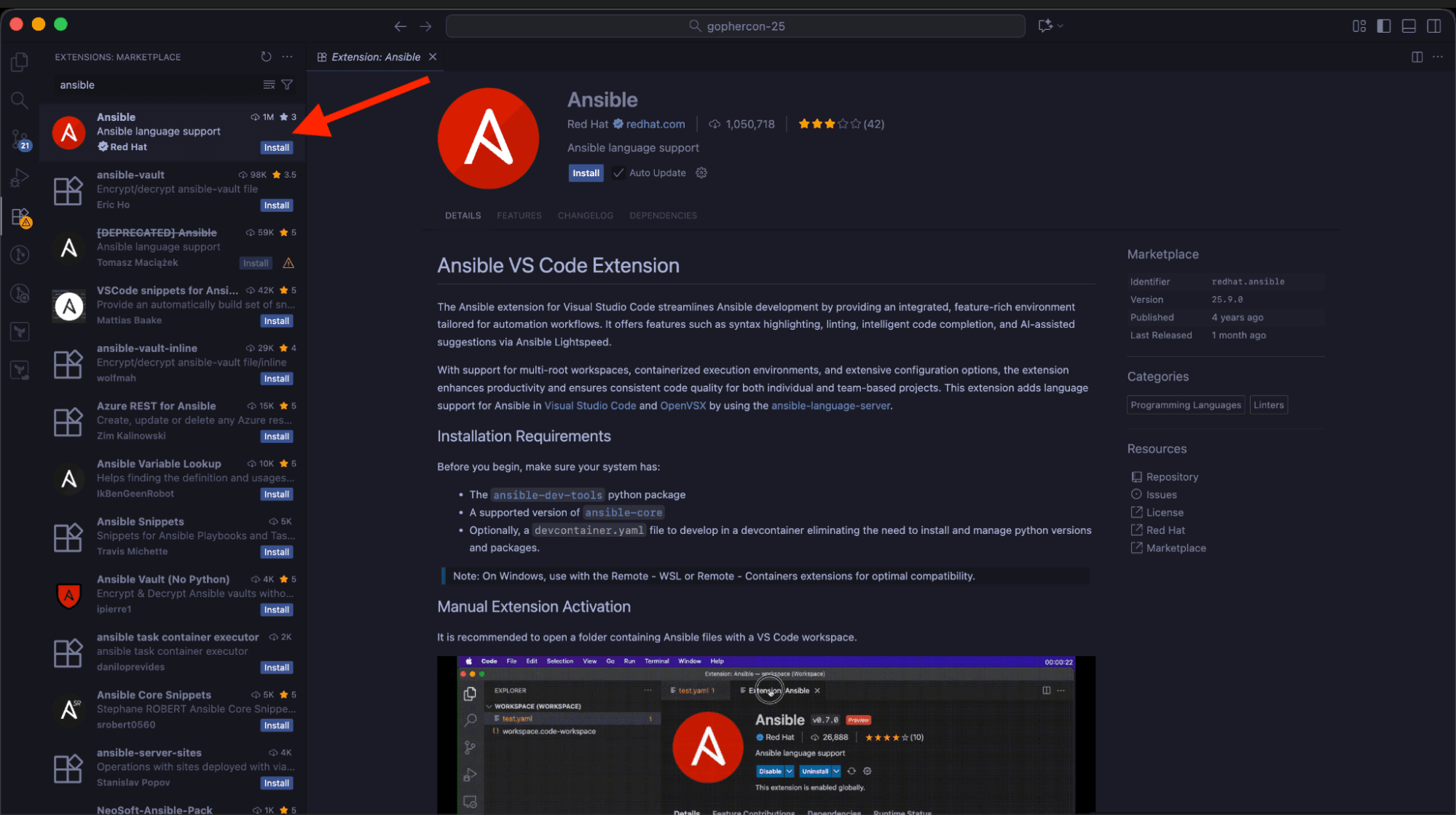
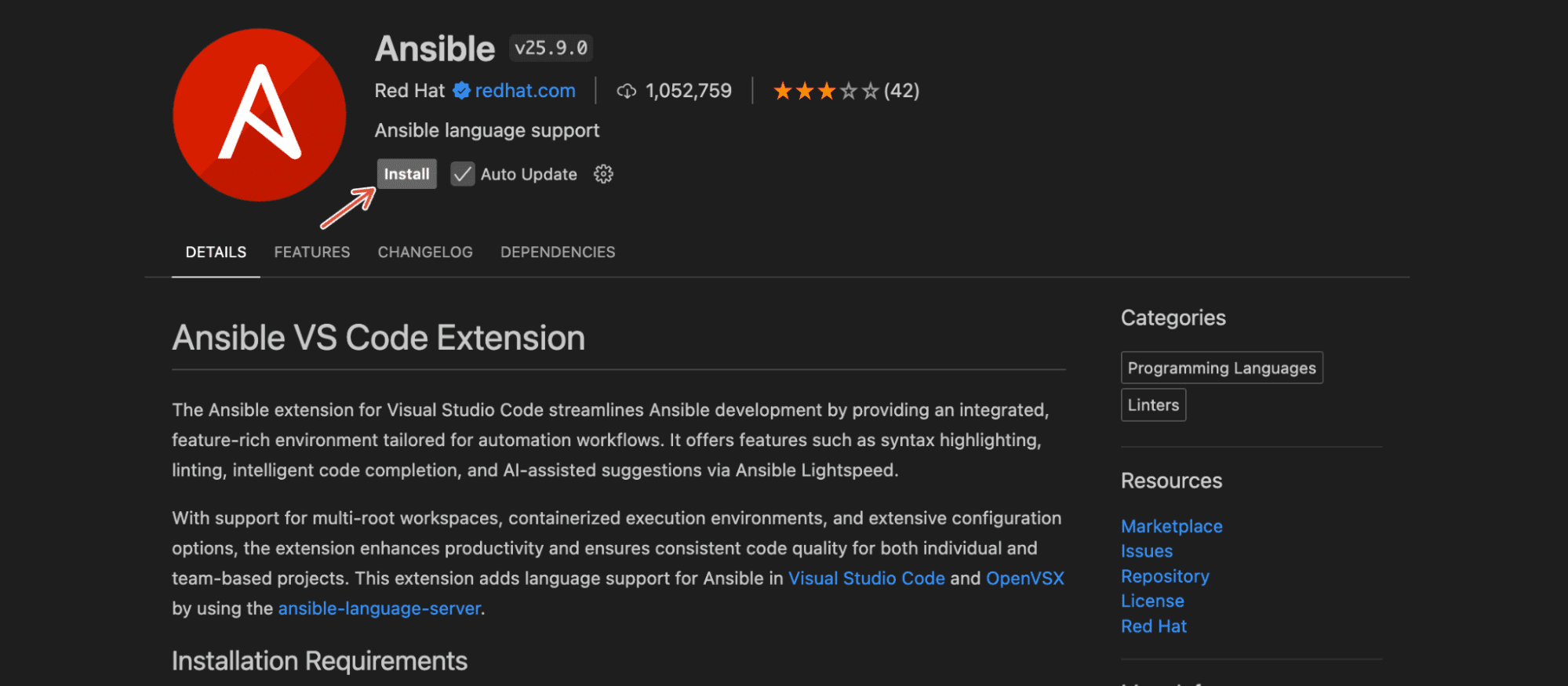
Click the Install button. The extension will take a few seconds to install, and you’ll see a notification once it’s complete.
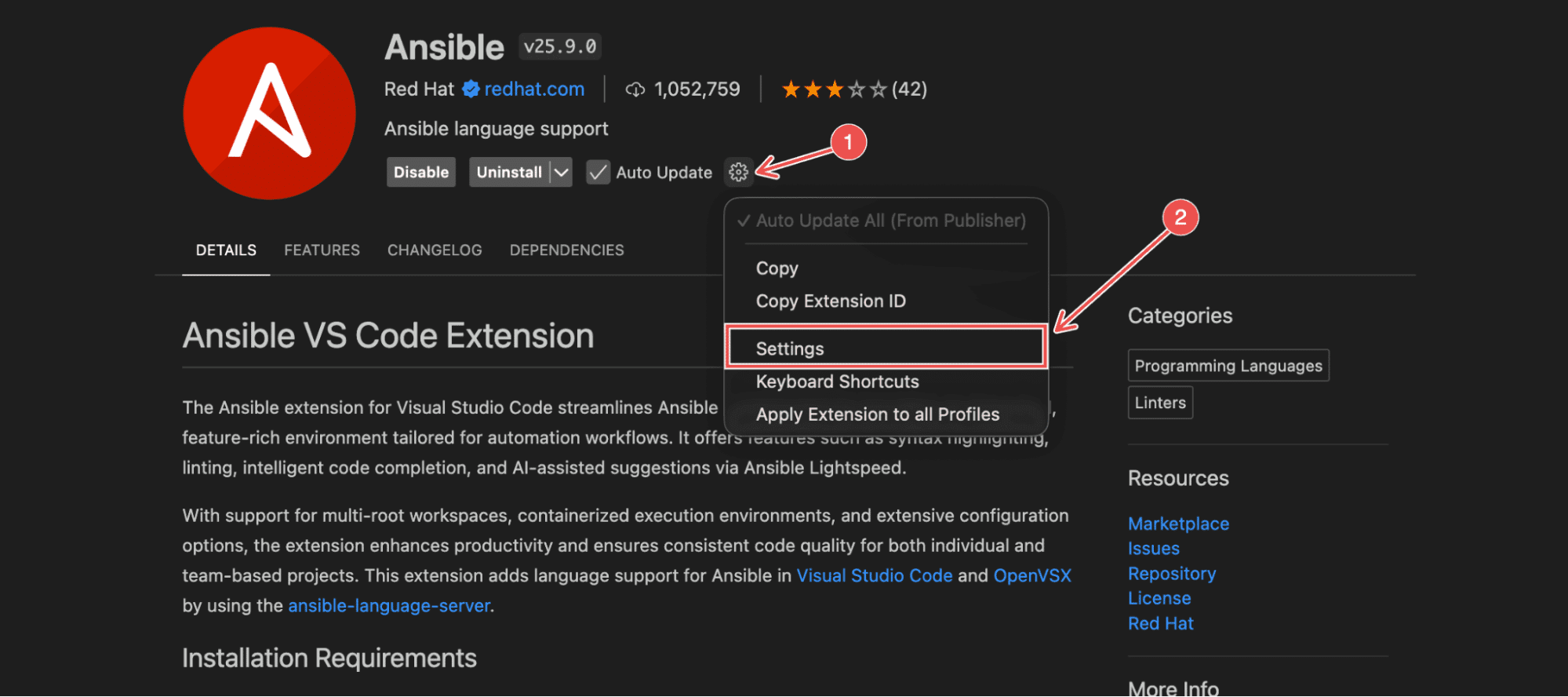
Once installed, enable Ansible Lightspeed within the extension settings. Click the gear icon next to the Ansible extension in your Extensions list and select Extension Settings.
In the settings panel, scroll down to find the Ansible Lightspeed section. You’ll see several configuration options here. Enable these two checkboxes:
- Ansible Lightspeed enabled: This activates the Ansible Lightspeed service
- Enable Ansible Lightspeed with Watson Code Assistant inline suggestions: This enables real-time AI-powered code suggestions as you type
Here’s what these settings look like:
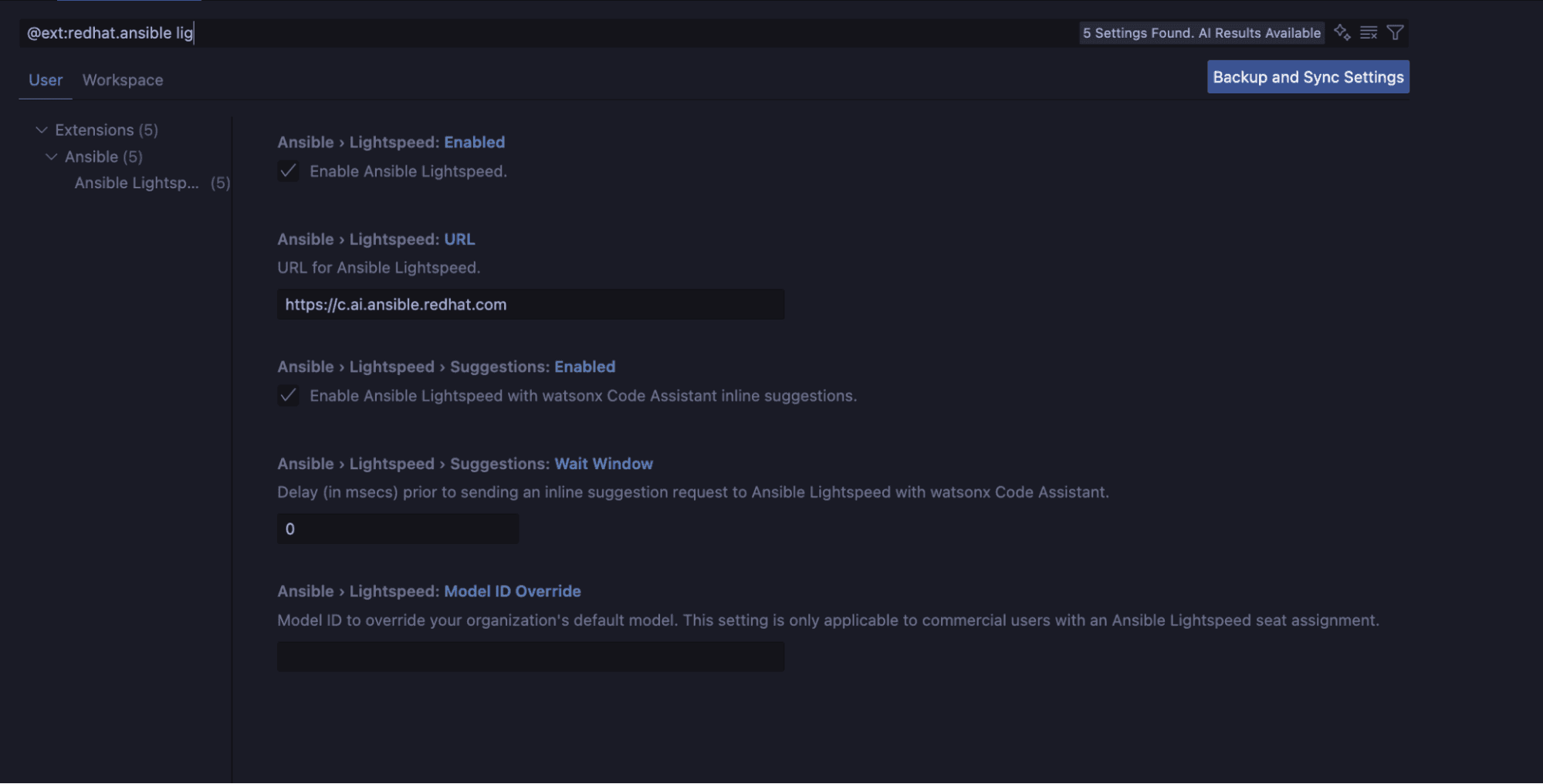
Ansible: Lightspeed
☑ Ansible Lightspeed enabled
☑ Enable Ansible Lightspeed with Watson Code Assistant inline suggestions
You can configure these settings at the User level (applies to all your VS Code projects) or the Workspace level (applies only to the current project). For most users, User-level settings work best.
Step 2. Connect to Ansible Lightspeed
With the extension installed and configured, you now need to connect it to the AI service. This establishes the authentication between your VS Code environment and the Ansible Lightspeed backend.
Click the Ansible “A” icon in the VS Code activity bar on the left side of your editor. This opens the Ansible extension panel.
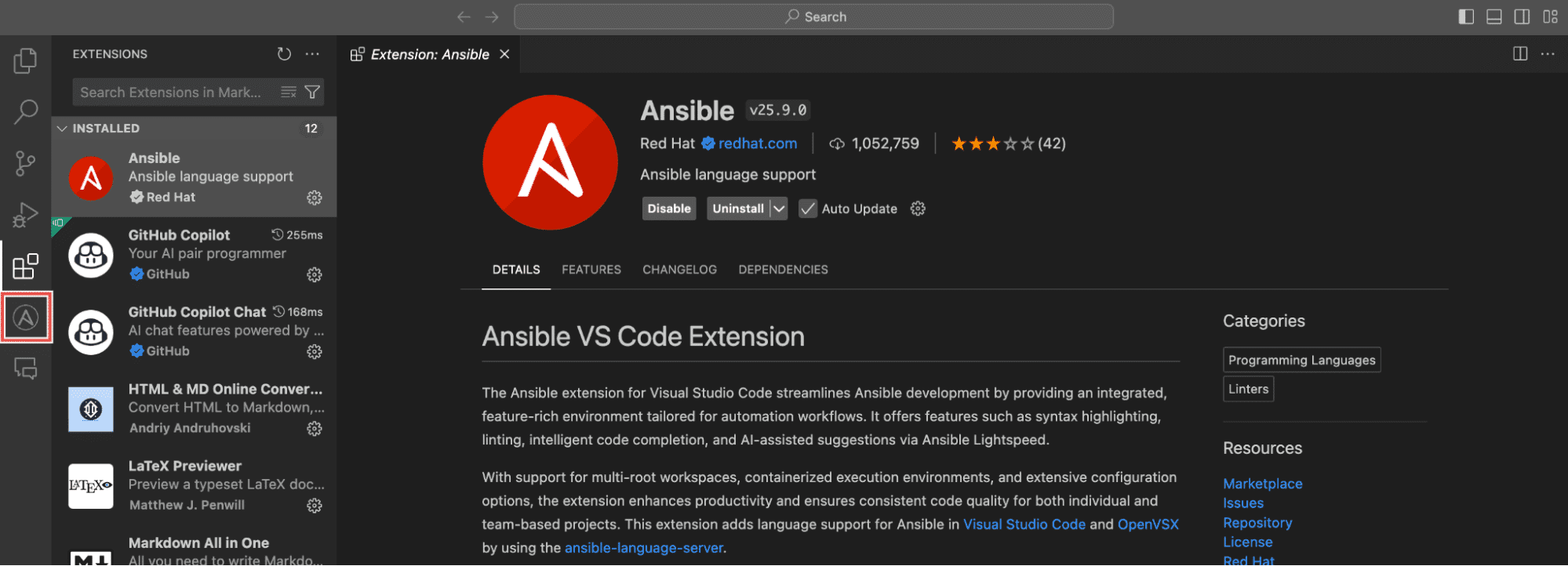
In the extension panel, you’ll see a Connect button. Click it to begin the authentication process.
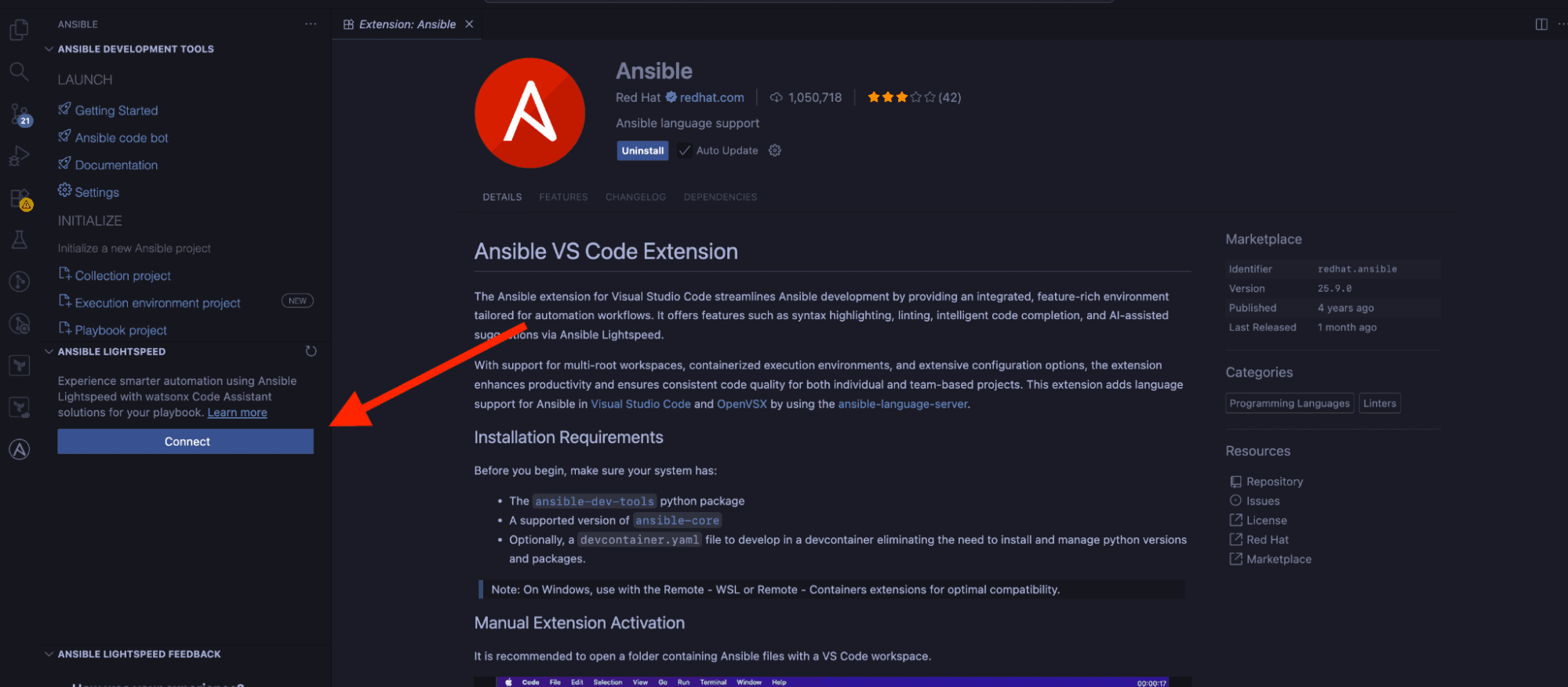
Your default web browser will open automatically with a GitHub login page. Log in using your GitHub credentials (username and password), or use your preferred authentication method if you have enabled two-factor authentication.
After successfully logging in to GitHub, you’ll be redirected to a page displaying the Ansible Lightspeed technical preview terms and conditions. Review these terms carefully, then click the Agree button to proceed.
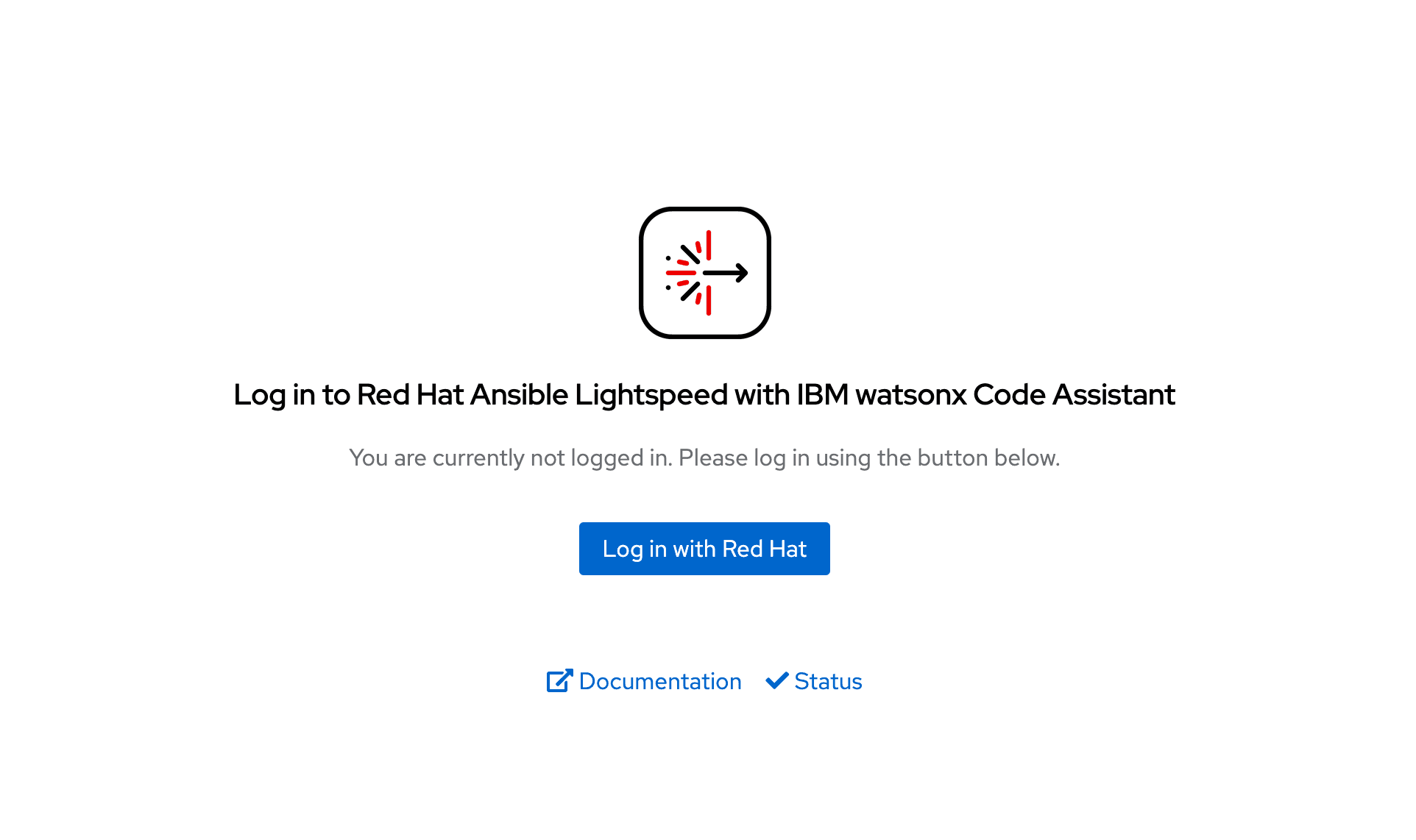
You’ll see an authorization screen asking you to authorize Ansible Lightspeed for VS Code. This gives the extension permission to communicate with the Ansible Lightspeed service using your GitHub identity. Click Authorize.
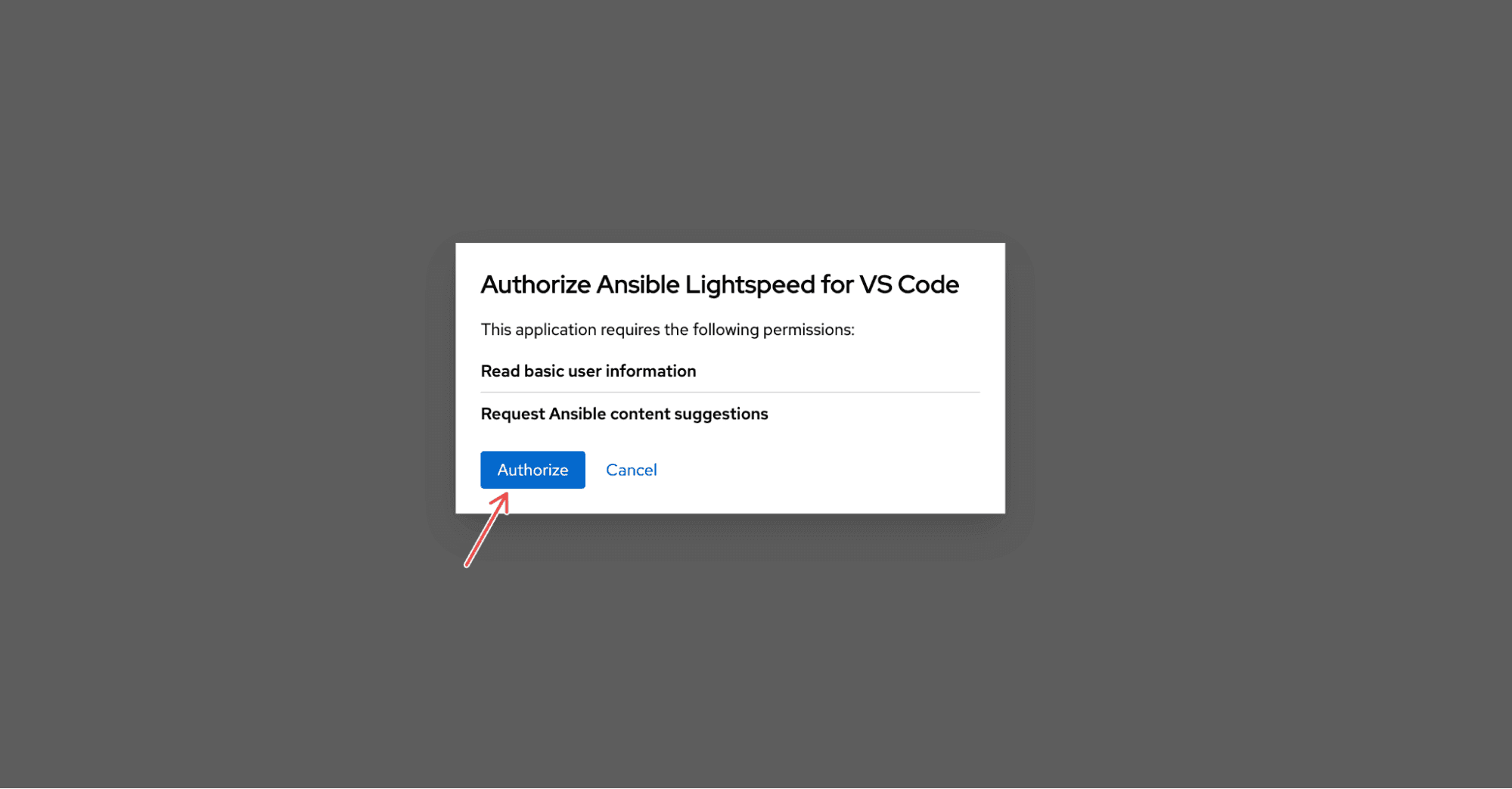
Your browser will display a confirmation message and attempt to redirect you to VS Code. You may see a dialog asking if you want to allow the browser to open Visual Studio Code.
Click Open or Allow to complete the connection.

Back in VS Code, verify that Ansible Lightspeed is properly connected by checking the VS Code status bar at the bottom of your editor window. You should see an Ansible Lightspeed indicator showing that the service is active and connected.
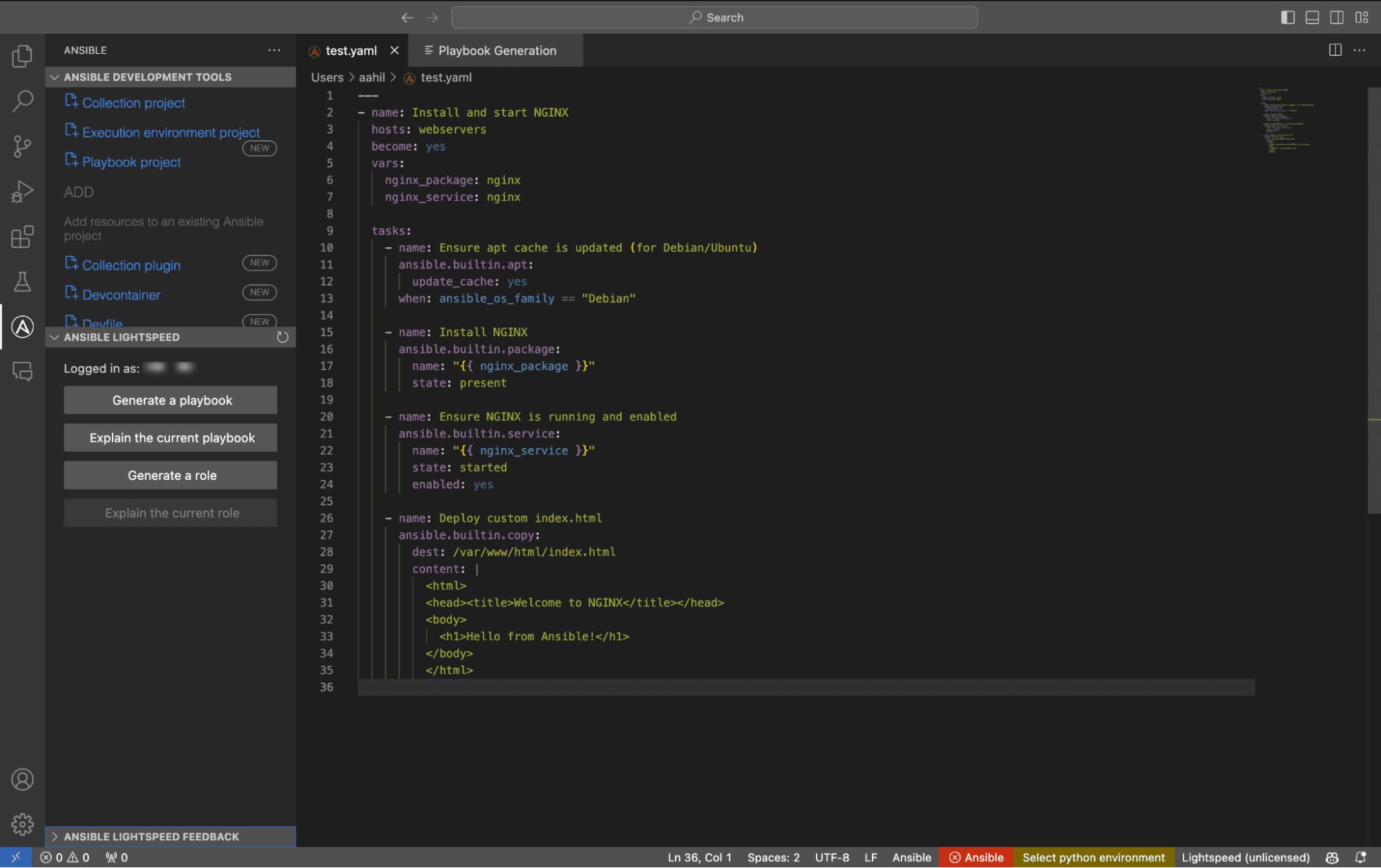
You can confirm the extension is working by opening or creating an Ansible YAML file. You’ll be able to see the options available for Ansible LightSpeed activated, indicating that you are connected to the AI service.
Step 3. Set up on-premise deployments
For organizations with air-gapped environments or strict data residency requirements, Ansible Lightspeed can be deployed on-premise. Here’s how to set it up:
Install the Ansible Automation Platform operator on Red Hat OpenShift Container Platform and create a Kubernetes secret containing your IBM watsonx Code Assistant API key and model ID.
Configure the Ansible Automation Platform custom resource to enable Lightspeed:
spec:
  lightspeed:
    disabled: false
    model_config_secret_name: <secret-name>
Save the changes. The service will take a few minutes to become available.
Individual users must install the Ansible VS Code extension and configure it to connect to your on-premise deployment.
You’ll also need IBM watsonx Code Assistant installed on Cloud Pak for Data. Check the Red Hat documentation for system requirements.
How does Ansible Lightspeed work
Understanding how Ansible Lightspeed works behind the scenes helps you to use it more effectively and troubleshoot any issues. Let’s explore the architecture and look at a practical example.
Demo scenario: Setting up a PostgreSQL database
For this demonstration, let’s assume you’re setting up PostgreSQL on your database servers for a new application. You need to install the database software, initialize it, and ensure the service is running. This is a common task that Ansible Lightspeed can help you automate quickly.
The three-layer architecture
Ansible Lightspeed’s architecture consists of three layers working together:
- The developer interface layer: This is what you interact with directly in VS Code. When you type a task description and press Enter, this layer captures your prompt along with the surrounding playbook context and sends it to the service layer.
- The service layer: This acts as the bridge between VS Code and the AI engine. Hosted by Red Hat, it handles authentication, processes your requests, ensures the generated code adheres to proper YAML syntax, and adds source attribution, showing where recommendations originated.
- The generative AI engine layer: Powered by IBM watsonx Code Assistant, this contains the trained language models. These models analyze your prompt and the playbook context to generate syntactically correct Ansible code that follows best practices.
Using Ansible Lightspeed: A practical example
Let’s walk through a real example to see how Ansible Lightspeed works in action. Suppose you want to install and configure PostgreSQL on your servers.
Step 1: Create a new file in VS Code called setup-database.yml. Start with the basic playbook structure:
---
- name: Setup PostgreSQL database
  hosts: database_servers
  become: true
  tasks:
Step 2: Use Ansible Lightspeed to generate the first task. Type the task name describing what you want:
- name: Install PostgreSQL server packagePress Enter at the end of the line. After a moment, Ansible Lightspeed will display a grayed-out suggestion showing the generated code:
 - name: Install PostgreSQL server package
    ansible.builtin.package:
      name: postgresql-server
      state: present
Here’s what happened behind the scenes:
- Context analysis: Ansible Lightspeed examined your playbook and saw you’re targeting
database_serverswith elevated privileges (become: true). - AI processing: The service sent your task description to the AI engine, which recognized this as a package installation task.
- Code generation: The AI generated the appropriate task using the
ansible.builtin.packagemodule, which works across different operating systems. - Display: The suggestion appeared in your editor as grayed-out text.
If the suggestion looks good, press Tab to accept it. The code becomes part of your playbook.
Step 3: Add another task. Type the next task description:
- name: Initialize PostgreSQL databasePress Enter, and Ansible Lightspeed generates:
 - name: Initialize PostgreSQL database
    ansible.builtin.command:
      cmd: postgresql-setup --initdb
      creates: /var/lib/pgsql/data/PG_VERSION
Notice how the AI:
- Selected the
commandmodule for running the initialization command - Added the
createsparameter to make the task idempotent (it won’t run if the database is already initialized) - Understood the context that you’re setting up PostgreSQL based on the previous task
Step 4: Continue building your playbook with more tasks:
- name: Start and enable PostgreSQL servicePress Enter, and you’ll get:
 - name: Start and enable PostgreSQL service
    ansible.builtin.service:
      name: postgresql
      state: started
      enabled: true
The AI recognized this as a service management task and generated code using the appropriate module with the correct parameters.
Full playbook generation
For more complex scenarios, you can use the full playbook generation feature. Click the Ansible icon in the VS Code sidebar and select “Playbook with Ansible Lightspeed”.
In the guided chat interface, describe your goal in natural language:
Create a playbook to deploy a web application with nginx on Ubuntu servers.
Install nginx, copy the application files from a local directory,
configure SSL with Let's Encrypt, and ensure the service is running.
Ansible Lightspeed will respond with an outline:
1. Update apt cache
2. Install nginx and certbot
3. Copy application files to /var/www/html
4. Generate SSL certificate with certbot
5. Configure nginx with SSL
6. Start and enable nginx service
7. Configure firewall to allow HTTP and HTTPS
You can refine this outline by asking follow-up questions:
Add a health check to verify nginx is respondingThe outline has been updated to include a health check task. Once you’re satisfied, click Generate Playbook, and Ansible Lightspeed creates the complete playbook with all tasks properly structured.
How context improves suggestions
Ansible Lightspeed gets smarter as you add more context to your playbook. Let’s see how this works.
If you define variables at the top of your playbook:
 vars:
    app_user: webadmin
    app_directory: /opt/myapp
And then create a task:
- name: Create application directory with proper ownershipAnsible Lightspeed will generate a suggestion that uses your defined variables:
 - name: Create application directory with proper ownership
    ansible.builtin.file:
      path: "{{ app_directory }}"
      state: directory
      owner: "{{ app_user }}"
      group: "{{ app_user }}"
      mode: '0755'
The AI recognized your variables and incorporated them into the generated code, making your playbook more maintainable.
Understanding what you accept
When you accept a suggestion, you can hover over any module or parameter to see VS Code’s built-in documentation. This helps you learn while you work. If you want more details about where a suggestion originated, Ansible Lightspeed often includes source attribution in the suggestion metadata, showing which Ansible Galaxy collection or GitHub repository influenced the recommendation.
Use cases for Ansible Lightspeed
Ansible Lightspeed serves various scenarios across the automation lifecycle, from initial learning to production maintenance. Understanding these use cases helps you identify where the service can provide the most value in your workflow.
Below are the most common use cases where Ansible Lightspeed can change your automation process:
- Onboarding new team members: Reduces the ramp-up time for new engineers from weeks to days by letting them describe automation in plain English and learn from generated code
- Rapid prototyping: Let’s teams turn ideas into working automation in minutes, experiment quickly, and avoid getting bogged down in syntax
- Standardizing automation practices: Fine-tuned models ensure all newly generated playbooks follow your organization’s standards (naming, structure, error handling), which is huge for maintainability.
- Multi-cloud infrastructure provisioning: Describe the infrastructure you need across AWS, Azure, or Google Cloud, and Ansible Lightspeed generates tasks using the correct cloud-specific modules.
- Security compliance automation: Converts natural-language compliance requirements into security-focused tasks (firewalls, SELinux, hardening), directly supporting risk reduction and audit readiness
- Cross-team collaboration: Developers, ops, and security can all “speak their own language,” and the AI turns it into consistent Ansible code, breaking down silos and miscommunication.
Ansible Lightspeed vs other AI code assistants
When you compare Red Hat Ansible Lightspeed with IBM watsonx Code Assistant to general-purpose AI code assistants like GitHub Copilot, the main difference is specialization vs. generalization.
Tools like Copilot are designed as AI-powered pair programmers for many languages and frameworks. They’re great for day-to-day software development in Python, JavaScript, Go, and dozens of other languages, helping you write code faster, generate boilerplate, and explore unfamiliar APIs.
However, for infrastructure automation, general assistants can sometimes generate Ansible YAML that “works” but doesn’t consistently follow Ansible best practices or your team’s standards, so you often need extra review and refactoring.
Ansible Lightspeed takes a more specialized approach. It focuses specifically on Ansible automation and is powered by models trained on large amounts of Ansible content and patterns.
It can also be customized using your existing playbooks and roles, so over time, its recommendations can better reflect your preferred modules, patterns, and workflows. That means suggestions are not only syntactically correct, but designed to align with common Ansible practices and your organization’s conventions.
Many teams will still use a general AI assistant for application code and Ansible Lightspeed for automation. But if Ansible is central to your infrastructure strategy, Lightspeed adds something generic tools typically don’t: an AI experience purpose-built for Ansible that helps you create more consistent, maintainable automation that fits naturally into existing pipelines — while still keeping a human-in-the-loop to review and approve changes.
Read more: 20 Best AI-Powered Coding Assistant Tools
Why use Spacelift for your Ansible projects?
Spacelift’s vibrant ecosystem and excellent GitOps flow are helpful for managing and orchestrating Ansible. By introducing Spacelift on top of Ansible, you can easily create custom workflows based on pull requests and apply any necessary compliance checks for your organization.
Another advantage of using Spacelift is that you can manage infrastructure tools, such as Ansible, Terraform, Pulumi, AWS CloudFormation, and even Kubernetes, from the same place and combine their stacks with building workflows across tools.
You can bring your own Docker image and use it as a runner to speed up deployments that leverage third-party tools. Spacelift’s official runner image can be found here.
Our latest Ansible enhancements solve three of the biggest challenges engineers face when they are using Ansible:
- Having a centralized place in which you can run your playbooks
- Combining IaC with configuration management to create a single workflow
- Getting insights into what ran and where
Provisioning, configuring, governing, and even orchestrating your containers can be performed with a single workflow, separating the elements into smaller chunks to identify issues more easily.
When it comes to AI, Spacelift offers its own AI assistant called Saturnhead AI. Saturnhead AI is built with a singular focus on making the day-to-day lives of DevOps practitioners easier. It’s an enterprise-grade AI assistant designed to enable your DevOps engineers to shift from being troubleshooters to an enablers.
We have also recently introduced Spacelift Intent – an early-access AI capability that enables your team to provision and manage cloud infrastructure with natural language, securely integrated with Spacelift’s policy-as-code, approvals, and audit trails.
You describe the outcome (“spin up a QA environment,” “add a read replica,” “tear down this demo stack”), and Intent provisions the change directly in your cloud via Terraform providers, while inheriting the same governance and security controls as your existing Spacelift IaC workflows without writing or maintaining Terraform or OpenTofu.
If you want to learn more about using Spacelift with Ansible, check our documentation, read our Ansible guide, or book a demo with one of our engineers.
Key points
Ansible Lightspeed with IBM watsonx Code Assistant changes how automation teams create and maintain Ansible content through AI-powered code generation from natural language descriptions.
The service works with both developers (via VS Code) and administrators (via the platform UI). Setup requires two subscriptions with consumption-based pricing, and organizations can start with a free 60-day trial.
Compared to general-purpose AI assistants, Ansible Lightspeed has higher acceptance rates, shows you where its suggestions come from, and lets you train it on your own playbooks. If your team works primarily with Ansible, it’s a solid option.
Accelerate Developer Velocity
Overworked Infrastructure teams slow down projects. Give developers the ability to self-provision with controls that reduce bottlenecks and time to market. Spacelift helps orchestrate your entire infrastructure pipeline (Terraform, OpenTofu, Ansible and more) to deliver secure, cost-effective, and high-performance infrastructure.
Frequently asked questions
Is Ansible written in Python or YAML?
Ansible is written in Python, but its playbooks and configuration files are written in YAML.
Python is used to build Ansible’s core engine, modules, and plugins. This allows Ansible to interface with systems, manage tasks, and extend functionality. YAML (a human-readable data serialization format) is used by users to define automation instructions, such as tasks, roles, and variables, because it is easy to write and understand.
Is Ansible Lightspeed free?
Ansible Lightspeed is not free, as it is a commercial product offered by Red Hat. While Ansible itself remains open-source and free to use, Lightspeed is part of Red Hat’s enterprise-grade tooling and is integrated with IBM watsonx Code Assistant, which requires a subscription. Access typically involves licensing through Red Hat’s Ansible Automation Platform, and pricing is based on usage and deployment scale.
How accurate is the AI-generated code?
AI-generated code is generally accurate for well-defined, common tasks but less reliable for complex, domain-specific, or security-sensitive applications. Its accuracy depends on the clarity of the prompt, the complexity of the logic, and how well the task aligns with patterns seen in the training data.