
A key element of a successful developer self-service journey is an internal developer platform (IDP). The IDP centralizes self-service workflows for building, deploying and managing software and infrastructure. It can visualize your environment and clearly show ownership of, and relationships between, different systems.
Backstage has become one of the most popular open-source tools for building IDPs. A common use case is to integrate Terraform with Backstage to enable self-service workflows for infrastructure. Users get a no-code experience for creating cloud infrastructure, while Terraform continues to manage the infrastructure underneath.
This blog post explores Backstage and how to integrate Terraform with it. Note that most of the content is also applicable to OpenTofu if you prefer an open-source alternative to Terraform.
TL;DR
Backstage does not run Terraform. It collects the request and hands execution to something that does. There are three ways to connect them:
- The software catalog models stacks, spaces, and modules as entities, so developers can see what exists and who owns it.
- Software templates turn a form into generated Terraform, a pull request, and a new catalog entry.
- Plugins such as the Spacelift one list stacks and trigger runs from inside the portal.
Keep version control as the source of truth. Everything here applies to OpenTofu too.
What is Backstage?
Backstage is an open-source framework for building IDPs originally developed by Spotify and open-sourced in 2020. It is a Cloud Native Computing Foundation (CNCF) incubation project.
Since Backstage is a framework for building IDPs, it is not an IDP out of the box. It ships with tools that help you build your IDP:
- A software catalog, which is a central database of all your software (e.g., applications, platforms, code libraries, custom AI models, and more). It tracks metadata and ownership of your software and helps teams keep track of the software that they own, and makes this software and metadata easily accessible to the rest of your organization.
- A tool for creating and managing software templates, allowing you to build standardized software projects following your organizational best practices.
- TechDocs is a documentation-as-code component based on markdown that allows you to easily create and maintain good-looking technical documentation for your software components within Backstage.
- An ecosystem of open-source plugins that allows you to easily integrate your Backstage environment with third-party tools and platforms.
Backstage also includes other core features for authentication, identity, permissions, notifications, and search, and it has a close integration with Kubernetes to visualize service health for any Kubernetes cluster.
The Backstage SaaS offering named Spotify Portal for Backstage is a great alternative if you want to focus on using Backstage to build an IDP without having to manage the software and the underlying infrastructure.
Why integrate Terraform with Backstage?
A developer needs a database, so they open a ticket. Someone on the platform team writes the Terraform, applies it, and replies two days later. Multiply that across every team, and the platform team spends its week fulfilling requests instead of building the platform.
Terraform is the right tool for provisioning, but it’s the wrong interface for the person asking. Backstage closes that gap. A software template turns the request into a form, generates Terraform from a reviewed skeleton, and opens a pull request. The developer gets the database, and the platform team keeps the module, the defaults, and the review.
The catalog adds visibility. Resource and Component entities show who owns each stack, what depends on it, and where its documentation lives, so nobody has to ask in Slack.
What you get:
- Self-service for developers who never touch Terraform
- Standard modules instead of copied code
- Ownership and dependencies in one catalog
- Every change still arriving as a pull request
One caveat shapes everything below: Backstage does not run Terraform. It collects the request, renders the code, and hands execution to a pipeline or orchestration platform.
How to integrate Terraform with Backstage
You can integrate Terraform with Backstage in different ways, depending on your goal.
In the following sections, we will explain how to install Backstage, configure integration between Backstage and other systems (e.g., GitHub and Spacelift Deploy), visualize Terraform infrastructure in the software catalog, create software templates, use Backstage plugins, and manage Backstage with Terraform.
Use the following sections as inspiration for integrating Terraform with Backstage, but note that the possibilities are almost endless if you dig deeper.
Install and run Backstage
The easiest way to get started with Backstage is to run a Backstage instance locally. This allows you to test out your integrations before you deploy Backstage to production.
The documentation has detailed prerequisites and steps required to run Backstage as a standalone installation on your local system. In summary, you will need Docker, Node.js and yarn installed on your system. Initialize a new Backstage project using the following command:
$ npx @backstage/create-app@latestAnswer the questions to set up your project. Then switch to your new project directory and start Backstage using the following command:
$ yarn startBackstage starts up at http://localhost:3000.
For production installations, a common approach is to run Backstage as a container on a Kubernetes cluster. See the documentation for details.
How to configure Backstage
You configure Backstage through YAML files. The entry point is a file named app-config.yaml in the root of the project. You can configure local overrides in a file named app-config.local.yaml, and environment-specific configuration overrides in files named e.g. app-config.development.yaml and app-config.production.yaml (these must be passed in using the --config flag at startup).
The following sections cover parts of the configuration that go into app-config.yaml and related configuration files. However, the full details of how to configure Backstage are out of scope for this blog post.
How to configure authentication, identities, teams, and ownership
Backstage has integrations for a large number of identity providers for authentication. Examples include Microsoft Entra ID, Auth0 and Okta. For your production Backstage instance, you should configure your identity provider for authentication.
When experimenting with a local Backstage instance, you can use the built-in guest authentication provider that comes preconfigured in app-config.yaml:
auth:
  providers:
    guest: {}
Components in Backstage are owned by groups of users. You can use your identity provider to synchronize users and groups to Backstage and use these when configuring ownership.
For the local Backstage instance used in this blog post, we will use a static configuration of groups and users. Groups and users are examples of Backstage catalog entities. Catalog entities are defined in YAML similar to Kubernetes object manifests. We can load catalog entities from separate files by adding them to catalog.locations in app-config.yaml:
catalog:
  locations:
    # File locations are relative to the backend (packages/backend).
    - type: file
      target: ../../organization.yaml
Groups can contain other groups, and each group has a type attribute that you can use to model your organization. The type attribute has no specific schema; it accepts any string value. We start by creating a group for a business unit (type: business-unit) named engineering in our organization.yaml file:
apiVersion: backstage.io/v1alpha1
kind: Group
metadata:
  name: engineering
  title: Engineering
spec:
  type: business-unit
  profile:
    displayName: Engineering
  children: [platform-team, team-a, team-b, team-c]
This group contains a number of child groups as seen in the spec.children property. Each child group has a configuration similar to the engineering business unit, but uses type: team to indicate that these are teams of users. We can add users to a team using the User catalog entity:
apiVersion: backstage.io/v1alpha1
kind: User
metadata:
  name: alice
spec:
  profile:
    displayName: Alice
    email: alice@example.com
  memberOf: [team-a]
The user named Alice is a member of team-a as configured in the spec.memberOf property.
With users and groups in place, we can configure ownership for other types of catalog entities we add. A truncated example of how to assign ownership to the platform-team is shown in the following example for a Component catalog entity:
apiVersion: backstage.io/v1alpha1
kind: Component
metadata:
  name: example-component
spec:
  owner: group:platform-team
  # …
In the Backstage portal, go to the catalog and filter Kind on Group to see your different groups. In this example, we have the following groups:

Configure a system
A system is a catalog entity that groups resources and components. You should add a system for each platform or application that you intend to build software templates and documentation for.
In this example, we will add a system for Spacelift Deploy:
apiVersion: backstage.io/v1alpha1
kind: System
metadata:
  name: spacelift-deploy-platform
  title: Spacelift Deploy
  description: Spacelift Deploy organization.
  tags: [terraform, opentofu, spacelift]
  links:
    - url: https://<spacelift deploy org name>.app.spacelift.io
      title: Spacelift
      icon: cloud
spec:
  owner: group:platform-team
The system catalog entity and all the following entities described in this blog post are added to one or more YAML files that are loaded in the main app-config.yaml file, similar to what we did for the organization.yaml file in the previous section. This configuration is omitted here for brevity.
Visualize Terraform infrastructure with resource entities
We can visualize the infrastructure we manage with Terraform using resource entities in our Backstage catalog.
For instance, to visualize a space and stack on Spacelift Deploy, we can add two resource entities. We can also define ownership of the resources and connect them to the Spacelift Deploy system. First, the space:
apiVersion: backstage.io/v1alpha1
kind: Resource
metadata:
  name: spacelift-space-team-a
  title: 'team-a'
  description: Space for Team A.
  tags: [spacelift]
spec:
  type: spacelift-space
  owner: group:team-a
  system: spacelift-deploy-platform
Then we define the stack:
apiVersion: backstage.io/v1alpha1
kind: Resource
metadata:
  name: spacelift-stack-team-a
  title: 'team-a-management'
  description: Management stack for Team A.
  tags: [spacelift]
  links:
    - url: https://<spacelift deploy org name>.app.spacelift.io/stack/team-a-management
      title: Spacelift stack
      icon: cloud
spec:
  type: spacelift-stack
  owner: group:team-a
  system: spacelift-deploy-platform
  dependsOn:
    - resource:spacelift-space-team-a
With these two resource entities registered the software catalog displays them:
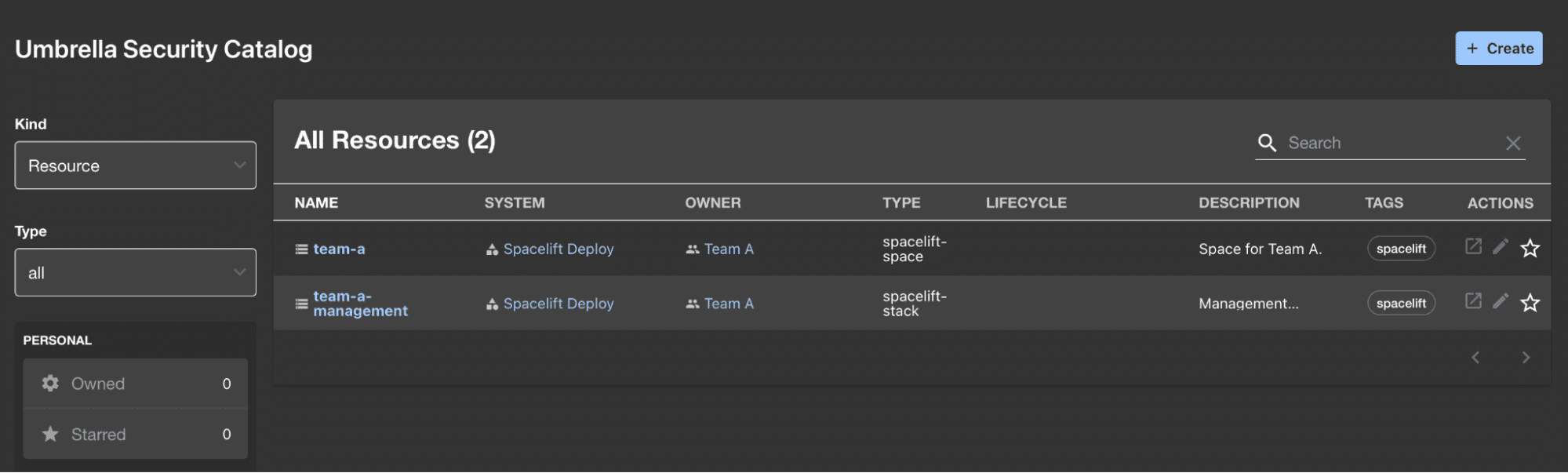
When you have many resources, you can start filtering by type, or filter by team or tags, etc.
Of course, the resource entity is not limited to only infrastructure created by Terraform. You can describe anything using the same entity type. This allows you to visualize dependencies across systems, teams, and more.
Configure software templates for self-service infrastructure
Software templates allow you to set up self-service workflows for software and infrastructure.
As an example, we will add a software template for creating a new Terraform module with a dedicated GitHub repository with a set of standardized Terraform module files.
The first step is to add a template catalog entity. The template entity configures a self-service form that appears in the Backstage UI as well as the steps that process the request once the form is submitted. Let’s walk through the template entity configuration in parts.
Similar to other catalog entities, we define its metadata and ownership:
apiVersion: scaffolder.backstage.io/v1beta3
kind: Template
metadata:
  name: terraform-module
  title: Create a new Terraform module
  tags: [terraform, opentofu]
spec:
  owner: group:platform-team
  type: terraform-module
Next, we add a parameter property nested under the spec property. Each item in parameters appears as a page in the form in the UI, each asking for a number of properties that the consumer has to specify (note that much of the code is omitted for brevity; see the documentation for how to configure properties):
  parameters:
    - title: Module details
      required: [name, description, owner, provider]
      properties:
        name: # …
        description: # …
        owner: # …
        provider: # …
        terraformVersion: # …
    - title: Repository
      required: [repoUrl, visibility]
      properties:
        repoUrl: # …
        visibility: # …=
We have defined two parameter sections. In the UI, these are rendered like this:
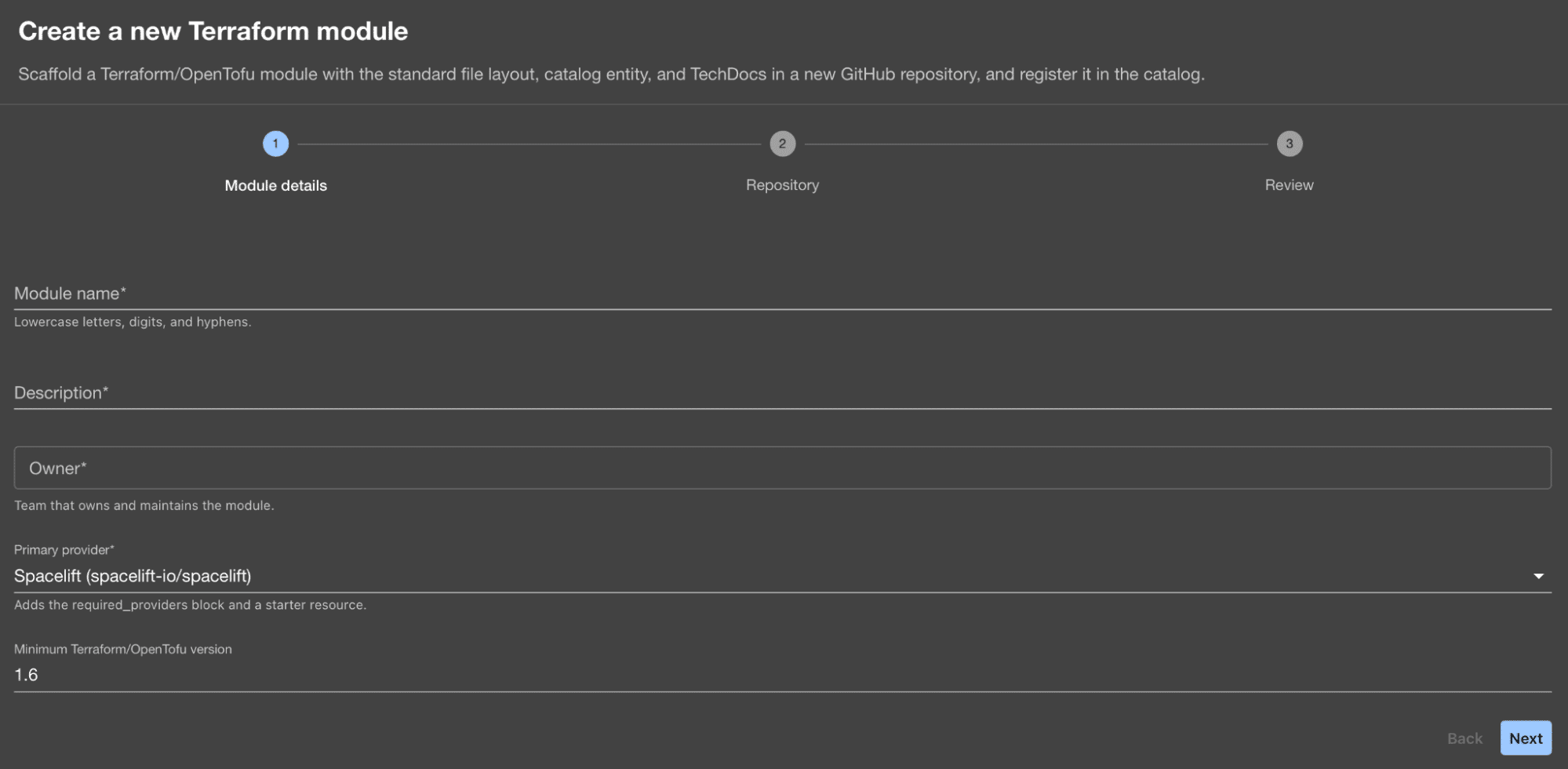
The third “Review” page is added automatically for all software templates.
Finally, add a steps property as a nested object of the spec property. The steps property defines the steps to process the user input and produce the desired output (in this case a GitHub repository):
  steps:
    - id: fetch
      name: Render module skeleton
      action: fetch:template
      input:
        url: ./skeleton
        values:
          name: ${{ parameters.name }}
          # …

    - id: publish
      name: Create GitHub repository
      action: publish:github
      input:
        repoUrl: ${{ parameters.repoUrl }}
        # …

    - id: register
      name: Register in the catalog
      action: catalog:register
      input:
        repoContentsUrl: ${{ steps['publish'].output.repoContentsUrl }}
        catalogInfoPath: /catalog-info.yaml
This workflow consists of three steps:
- Render the Terraform source code for the module. This is done using a skeleton directory where we have the desired files written in a combination of Terraform HCL code and a templating language (e.g. using
${{ values.x }}syntax to substitute with values from the form). - Publish the generated code to a GitHub repository.
- Register the new Terraform module as a catalog entity in Backstage.
The integration with GitHub is configured in app-config.yaml as follows:
integrations:
  github:
    - host: github.com
      token: ${GITHUB_TOKEN}
This configuration is for github.com using a personal access token. You can also use a GitHub app for authentication, and you can use a GitHub Enterprise Cloud (ghe.com) environment but this requires additional configuration.
A consumer can now go to Backstage, click on Create in the menu, and select from the available templates for self-service:
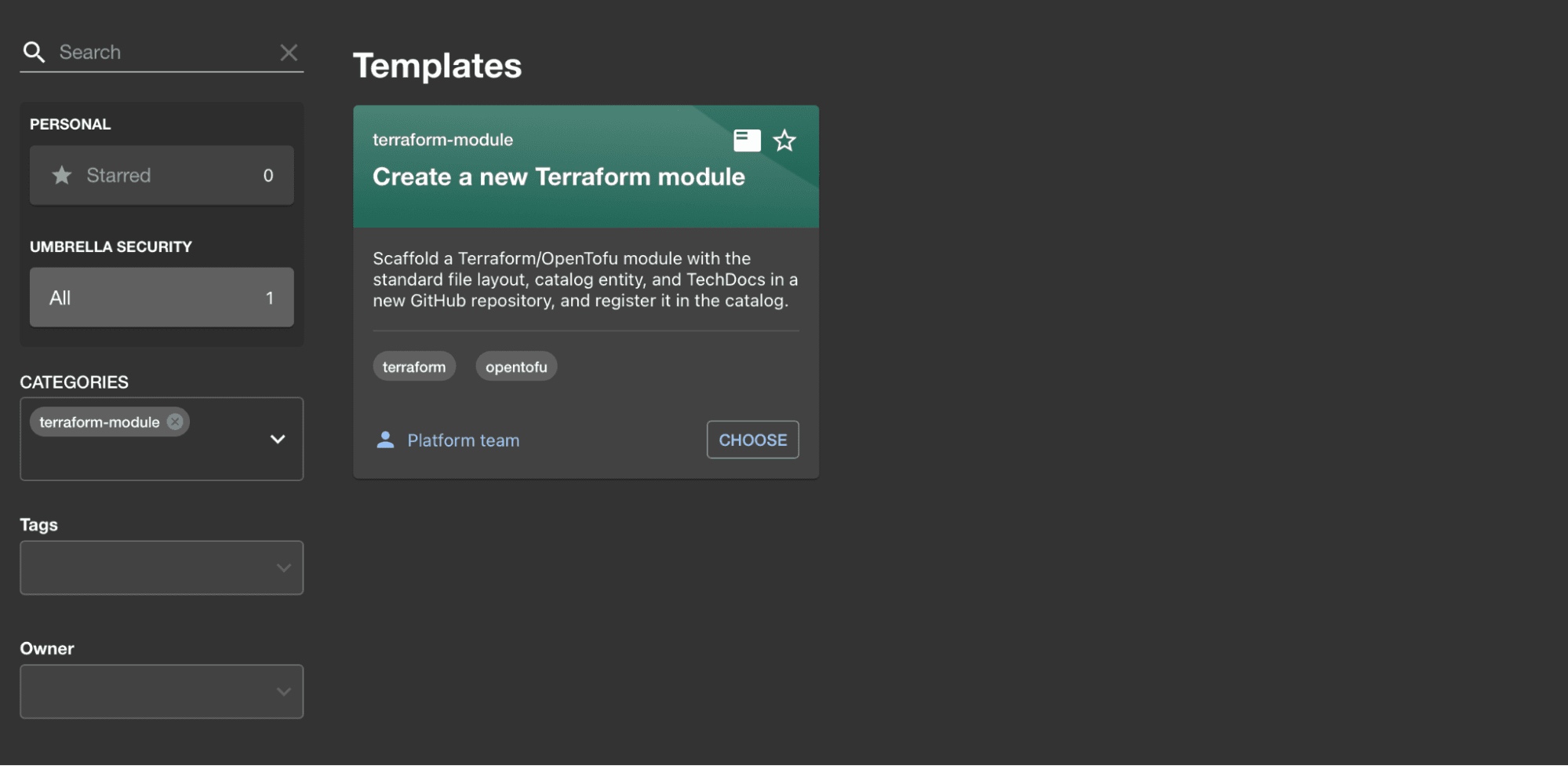
Click on Choose and fill in the requested information:
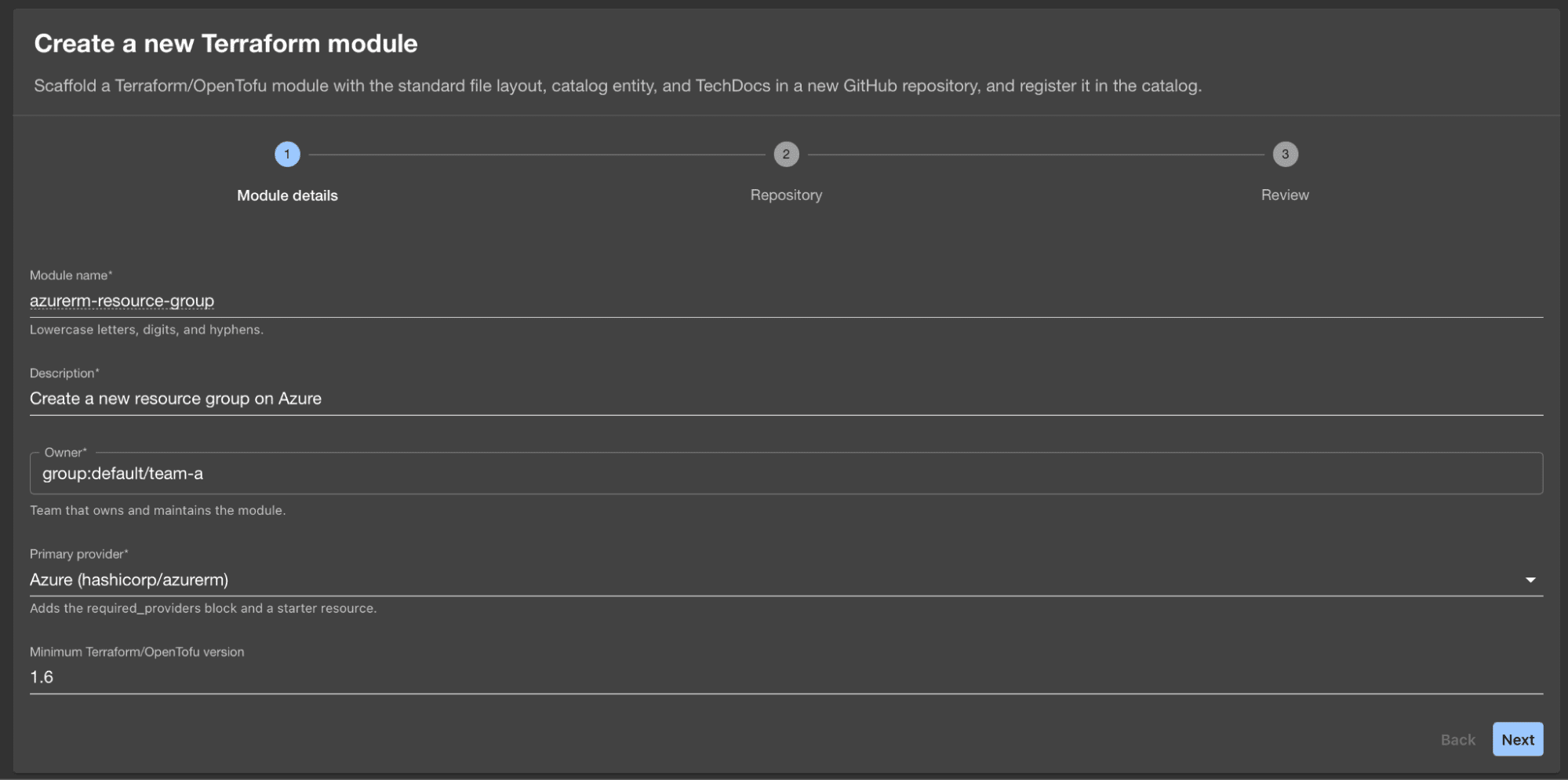
At the last step you can review the information you have provided and click on Create to start processing the request. This brings you to a status page that shows the progress of the request:
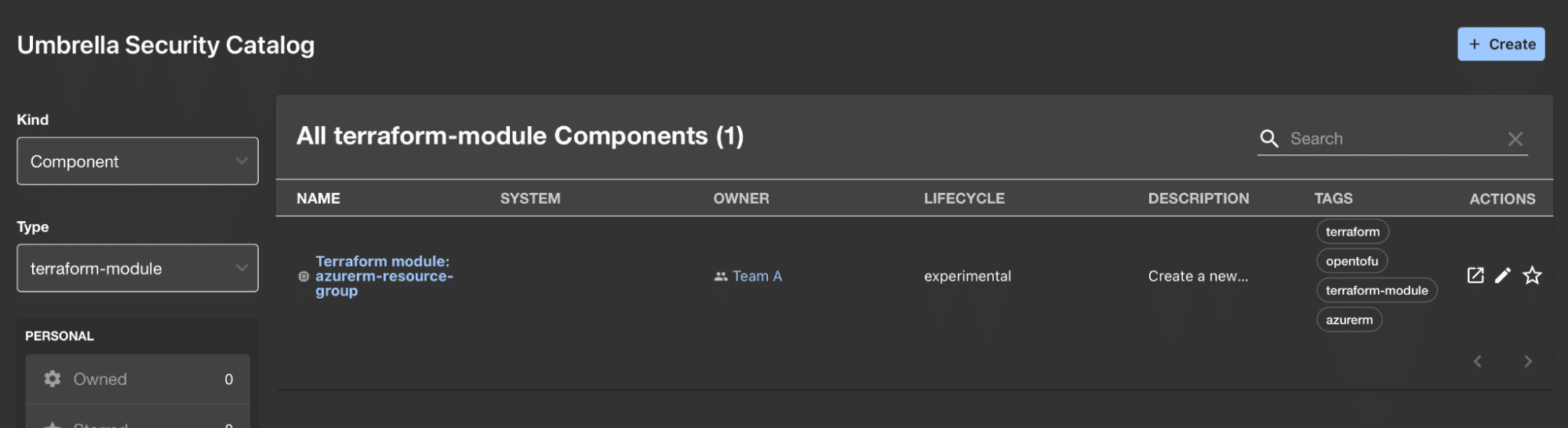
Back in the software catalog you can now see the new Terraform module appear as a component entity:
Extend Backstage with Terraform and IaC platform plugins
If you do not want to build the integration with Terraform with the raw building blocks of Backstage, you can use a plugin for the system you want to work with. The plugin page lists 258 third-party plugins at the time of writing.
Here are some plugins related to Terraform:
- Facets.cloud platform: visualize your Terraform environment from the facets.cloud platform in your Backstage environment.
- HashiCorp Terraform: visualize HCP Terraform or Terraform Enterprise workspace status directly in Backstage. Note that this is not an official plugin developed by IBM/HashiCorp.
- Spacelift.io: visualize your Spacelift Deploy stacks and trigger runs directly from Backstage.
In this section, we will focus on the plugin for Spacelift Deploy.
Install the frontend and backend plugins for Spacelift in your Backstage instance by running the following commands from the root of the project:
$ yarn --cwd packages/backend add @spacelift-io/backstage-integration-backend
$ yarn --cwd packages/app add @spacelift-io/backstage-integration-frontend
Add the plugin to the backend in packages/backend/src/index.ts:
backend.add(import('@spacelift-io/backstage-integration-backend'));The frontend plugin will automatically be registered.
In your app-config.yaml file (or in the relevant app-config.<environment>.yaml file) add the following configuration for the Spacelift plugin:
spacelift:
  hostUrl: <organization name>.app.spacelift.io
  apiKey: ${SPACELIFT_API_KEY}
  apiSecret: ${SPACELIFT_API_SECRET}
  readOnly: false # set to true to hide the "trigger run" button
To create the required API key and secret, follow these steps:
- In your Spacelift Deploy account, go to Integrations and find Backstage.
- Click on Create integration.
- Give your integration a name (e.g. “local-backstage”), select the space where the integration should be created, and provide an optional description.
- Click on Create.
Your integration API key and secret are downloaded as a file. The file looks like the following (note that these are fake values for illustrative purposes):
[credentials]
api_key_id     = 01A2CD3456EFGHI7JKLMNO
api_key_secret = 1112ab34c5678d9e
Set these values as local environment variables and start Backstage:
$ export SPACELIFT_API_KEY=01A2CD3456EFGHI7JKLMNO
$ export SPACELIFT_API_SECRET=1112ab34c5678d9e
$ yarn start
A new “Spacelift” option is now available in the menu on the left-hand side. Selecting this option brings you to an overview page of the stacks available at (and below) the scope where you installed the Backstage integration:
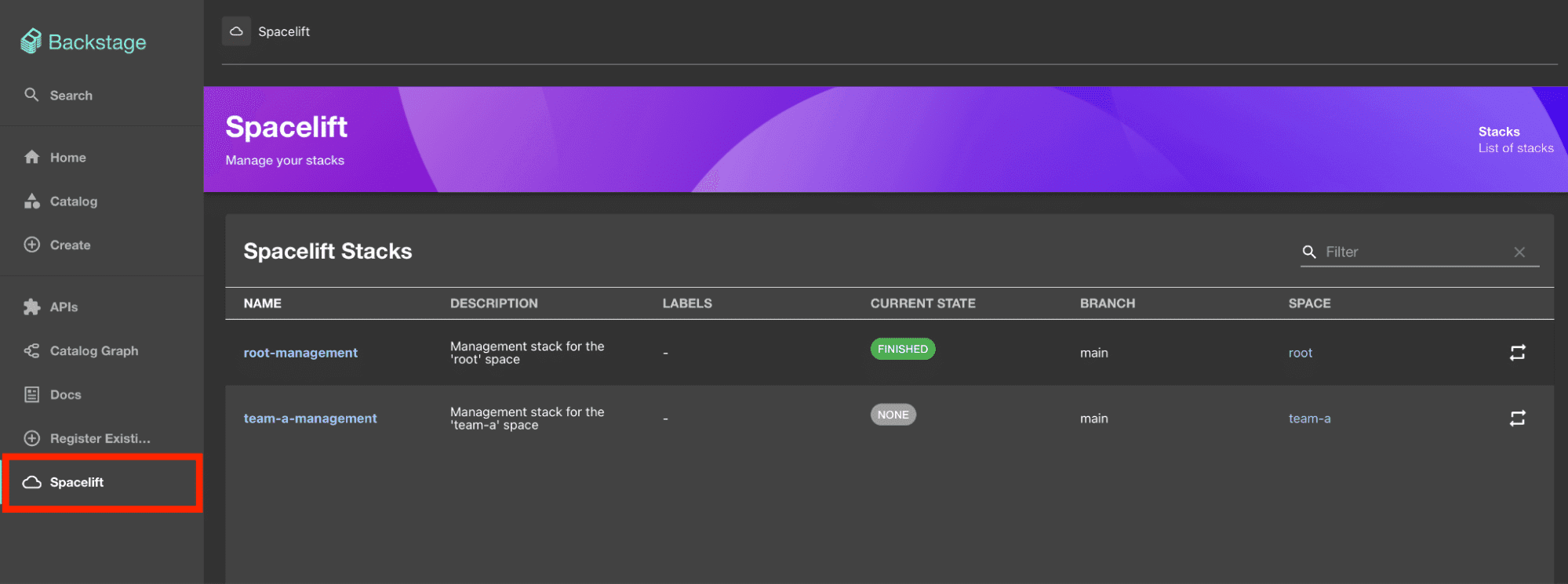
Clicking on the name of the stack brings you to its landing page on Spacelift Deploy. Clicking the icon to the right on a stack will trigger a new run.
Note that the Backstage integration with Spacelift does not support granular permissions and team ownership. All users allowed to see the stack overview page will see all stacks and they will be able to trigger runs in any of these stacks.
To circumvent this issue, you can install the integration at an appropriate space (in the example above it is installed in the root space for demonstration purposes), and you can set readOnly: true in the plugin configuration to remove the possibility to trigger runs.
How to manage Backstage with Terraform
There is no official Backstage provider for Terraform by Spotify. However, a third-party provider named datolabs-io/backstage is available in the Terraform registry.
To use this provider, add it to your required_providers block in your Terraform configuration and configure it with a base URL for the Backstage backend (not the same port as the frontend, by default, it uses port 7007) and an authentication header:
terraform {
  required_providers {
    backstage = {
      source  = "datolabs-io/backstage"
      version = "3.3.0"
    }
  }
}

provider "backstage" {
  base_url = "http://localhost:7007"
  headers  = {
    Authorization = "Bearer myS3cr3tT0k3n"
  }
}
When running locally, you can configure a static token in app-config.local.yaml that you use to authenticate the provider:
backend:
  auth:
    externalAccess:
      - type: static
        options:
          token: myS3cr3tT0k3n
          subject: terraform
See the provider documentation for further details on what you can do with this provider. Note that it only has a single resource backstage_location used to register a location where entity definitions should be loaded from.
Best practices for integrating Terraform with Backstage
Keep the following best practices in mind when integrating Terraform with Backstage:
1. Let version control be the source of truth
It is a best practice to use software templates to generate Terraform code and create pull requests with the change instead of directly calling underlying APIs (e.g., directly calling an Azure API to create a resource group).
Following this guidance gives you all the benefits of infrastructure-as-code and version control, including the ability to roll back changes easily, having an audit trail of who changed what and when it happened, and more.
2. Automate updates to the software catalog
Build your software templates for Terraform using Backstage configuration files that can be registered automatically when the template is used. This keeps the software catalog up to date. If you depend on manual registration, your Backstage environment will quickly become out of date.
3. Provide the right level of abstraction in your software templates
Your software templates for self-service should simplify your consumers’ lives. This means they should provide sensible default values for most properties and hide unnecessary details from view if possible.
You can build highly dynamic forms for Backstage software templates. For instance, you can show or hide other inputs in the form based on the value a user selects in a drop-down..
4. Treat Backstage as a product
An important best practice is to treat your IDP as a product. Start by building at least one software template to cover high-value workflows. Measure its adoption and continuously improve. Increase the number of workflows over time.
Another important point is that you should avoid making Backstage yet another IDP your organization uses. If it is, it probably won’t benefit your developers. Work towards consolidating your IDPs into one.
5. Use least privilege for third-party integrations
If you follow the best practice of using your version control system as the source of truth, your main integration will be between Backstage and your version control system. This integration should use least-privilege permissions, allowing it to create a pull request in target repositories and possibly create new repositories.
If possible, avoid giving Backstage credentials for any other third-party system unless it provides value to your Backstage users. One example that could be valuable is the Spacelift Deploy integration to visualize stacks. However, if you want to restrict who can see and do what, you need to build a custom integration because the existing plugin does not support granular access controls.
How Spacelift fits into Backstage integration
Backstage collects the request. Something else runs the plan, holds the state, enforces policy, and reports drift. In this post that something is Spacelift Deploy, so it is worth separating what each side does.
The plugin covered earlier handles visibility: stacks and their status inside the portal, with a trigger button unless you set readOnly: true. It does not check its own user permissions. Everyone who can open the page acts as the integration key, which has admin access on the Space you chose at setup. The Space sets the ceiling, and your Backstage permissions decide who gets under it.
Access control and policy stay in Spacelift. Spaces scope who sees which stacks, OPA policies gate what a run can do, and drift detection catches manual changes. A Backstage template that opens a pull request against a repository connected to a Spacelift stack inherits all of it, and the portal does not need to know the rules.
For self-service, Spacelift Templates are an alternative to writing a scaffolder action. A Template exposes approved infrastructure as a parameterized form with policy checks attached, so the Golden Path is defined once in Spacelift rather than repeated across software templates.
Spacelift Flows handles the steps a software template cannot express. The Backstage app in Flows registers any flow containing a Backstage Entrypoint block as a software template. The entrypoint block defines the form, and the blocks after it run the workflow: Branch on the input, wait for a Slack approval, deploy a Spacelift Template, and then message the requester with the connection details. Installing the app takes a one-time change to the Backstage configuration.
After that, adding a workflow requires no custom TypeScript action nor any Backstage redeploy. Each execution produces a log of who asked, who approved, and what ran.
Both integrations are documented: Backstage integration and Extending Backstage with Flows.
Key takeaways
This blog post covered how to integrate Terraform with Backstage.
Backstage is a framework for building IDPs for your organization. It ships with a software catalog, software templates and TechDocs for documentation.
You configure Backstage and entities within your Backstage environment using YAML files. In this blog post, we saw a few different entities: User, Group, Template, Resource, and System. There are many more for other use cases.
We explored how to create a self-service workflow using a software template. The template consists of a form and a workflow processing the input provided in the form. The example we reviewed was a template for scaffolding a new Terraform module as a dedicated GitHub repository with the typical Terraform module files.
We also outlined how to install a Backstage plugin for Spacelift Deploy to visualize stacks and allow users to trigger runs directly from within Backstage. Finally, we briefly covered how to manage Backstage using a third-party Terraform provider.
Solve your infrastructure challenges
Spacelift is a flexible orchestration solution for IaC development. It delivers enhanced collaboration, automation, and controls to simplify and accelerate the provisioning of cloud-based infrastructures.
Frequently asked questions
What is Backstage used for?
Backstage is an open-source developer portal framework, originally built at Spotify, that centralizes service catalogs, technical documentation, software templates, and internal tooling into one unified interface for engineering teams.
Can Backstage run Terraform directly?
No, Backstage does not execute Terraform itself. It triggers runs through external systems such as CI/CD pipelines, Terraform Cloud, or platforms like Spacelift using plugins or scaffolder actions.
Do I need Terraform Cloud to integrate Terraform with Backstage?
No, Terraform Cloud is not required. Integrations can run through GitHub Actions, GitLab CI, self-hosted runners, or managed platforms like Spacelift, each with their own Backstage plugins.
How does Backstage handle Terraform state?
Backstage does not manage Terraform state. State remains with whichever backend handles execution (S3, Terraform Cloud, Spacelift, or another remote backend), while Backstage only surfaces outputs and workspace status.
Can Backstage work with OpenTofu?
Yes. Because Backstage delegates execution to external runners, any OpenTofu-compatible backend (like Spacelift) can be wired into Backstage through scaffolder templates or community plugins.