Managing infrastructure as code (IaC) at scale often exposes the limits of manual execution. When teams rely on engineers running Terraform locally or on isolated CI pipelines, visibility drops, state conflicts become more likely, and unreviewed infrastructure changes can reach production.
A common way to improve that workflow is to move Terraform execution into the pull request process with Atlantis and use GitHub Actions to enforce validation and quality gates. This PR-driven approach helps teams review and test infrastructure changes with the same discipline they apply to application code.
In this guide, we’ll discuss the challenges of traditional Terraform workflows, explain how an Atlantis integration typically works, and walk through how to build a secure, automated infrastructure pipeline on Kubernetes.
What we’ll cover:
What this guide builds end to end
This tutorial will guide you through setting up a complete infrastructure workflow using Atlantis and GitHub Actions.
The key steps we will cover are:
- Repository setup: Creating the necessary GitHub repository.
- GitHub Actions configuration: Setting up a GitHub Action for running
terraform fmtand security checks. - Atlantis deployment: Deploying Atlantis on a Kubernetes cluster and connecting it to GitHub using webhooks.
- Workflow walkthrough:
- Opening a Pull Request (PR).
- Monitoring the GitHub Actions checks.
- Reviewing the Atlantis plan output.
- Merging the code with an
atlantis applycomment.
Challenges of traditional Terraform deployments
Terraform is the standard choice for provisioning cloud resources, but executing it manually across a growing engineering organization creates bottlenecks.
Here are the common challenges most platform teams eventually face:
- Lack of visibility: When developers run Terraform locally, the rest of the team has no insight into the changes being applied. Unless an engineer explicitly copies and pastes their terminal output into a Slack channel or a pull request, reviewers are forced to guess what the code will actually do to the live environment.
- Concurrent state conflicts: Traditional setups struggle when multiple engineers try to deploy changes to the same environment at the same time. If two people run
terraform applyagainst the same state file without strict locking mechanisms, the state can become corrupted, or changes can overwrite each other. - Inconsistent execution environments: Administrator laptops represent fundamentally disparate environments. One engineer might run Terraform version 1.4 on a Mac, while another runs Terraform version 1.5 on Linux. Small differences in local plugin caches, environment variables, or provider versions can lead to “it-works-on-my-machine” infrastructure failures.
To solve these issues, Terraform execution must be removed from local workstations and centralized in the version control system.
Why Use Atlantis with GitHub Actions?
Pairing Atlantis with GitHub Actions splits the responsibility for your infrastructure pipeline into two parts: Atlantis handles Terraform operations, and GitHub Actions handles code quality checks.
Before looking at the technical setup, let’s break down what each tool actually does.
What does Atlantis do?
Atlantis is an application you host yourself that moves Terraform execution out of local terminals and into pull requests. It gives your team a single, consistent way to plan and apply infrastructure changes.
Once it’s set up, Atlantis handles a few key things:
- PR-driven execution: Atlantis listens for GitHub webhooks. When someone opens a pull request, it runs
terraform planand comments the output back on the PR thread. - Directory locking: When a PR triggers a plan, Atlantis locks that specific directory. If someone else opens a PR that touches the same files, Atlantis prevents them from running a plan until the first PR is merged or the lock is manually removed. This solves the concurrent state issue.
- Apply requirements: You can configure Atlantis to block the
atlantis applycommand unless the PR has an approval and all other status checks are green. - Centralized cloud credentials: Because Atlantis runs the Terraform commands, it’s the only thing that needs your AWS, GCP, or Azure credentials. Your developers don’t need highly privileged access keys on their laptops.
What GitHub Actions adds to Atlantis workflows
Atlantis is great at running Terraform, but it isn’t a continuous integration tool. You don’t want Atlantis attempting to run a plan against invalid HCL or code that violates your company’s security policies.
GitHub Actions serves as a fast quality gate that catches bad code before it reaches Atlantis. Using Actions for these checks gives you a few major advantages:
- Formatting validation: You can run
terraform fmt -checkin an Action to reject poorly formatted code early. - Security scanning: Adding a tool like tfsec or Checkov as a required Action job helps prevent engineers from accidentally pushing insecure infrastructure, like a public S3 bucket.
- Cost estimation: Tools like Infracost run well inside Actions, dropping a quick cost estimate comment on the PR before the plan is even reviewed.
- Policy enforcement: Open Policy Agent (OPA) can evaluate the code against your organization’s custom rules and block the PR if a violation is found.
Step-by-step guide to running Atlantis with GitHub Actions
The following guide walks you through setting up a cluster, deploying Atlantis using Helm, authenticating to GitHub, and triggering the end-to-end pull request workflow.
Prerequisites
To follow this tutorial, we will need:
- A dedicated GitHub repository created for this demo (e.g., named atlantis-demo-infra), where we will store our Terraform code.
- A Kubernetes cluster. You can use EKS, GKE, AKS, or install kind (Kubernetes in Docker) for local testing.
- Helm 3.x installed locally to manage the Atlantis deployment.
- A publicly accessible URL to expose the Atlantis server. For local testing, we will use ngrok.
Step 1: Set up the Kubernetes cluster and deploy Atlantis
We will start by provisioning a local Kubernetes cluster using kind. kind creates a lightweight, fully functional cluster perfectly suited for testing deployments before promoting them to a cloud environment.
Install kind
First, download and install the kind binary to your local machine:
# For AMD64 / x86_64
[ $(uname -m) = x86_64 ] && curl -Lo ./kind https://kind.sigs.k8s.io/dl/v0.22.0/kind-linux-amd64

chmod +x ./kind
sudo mv ./kind /usr/local/bin/kind
Once you execute the code above, you should see an output like this:
 % Total    % Received % Xferd  Average Speed   Time    Time     Time  Current
                                 Dload  Upload   Total   Spent    Left  Speed
100    98  100    98    0     0    937      0 --:--:-- --:--:-- --:--:--   942
100 6608k  100 6608k    0     0  9352k      0 --:--:-- --:--:-- --:--:-- 9352k
Create a local cluster
Once installed, run the following command to create a cluster named atlantis-demo:
kind create cluster --name atlantis-demo --wait 60sYou should see a similar output indicating the cluster is provisioning its control plane and nodes:
Creating cluster "atlantis-demo" ...
 ✓ Ensuring node image (kindest/node:v1.29.2) 🖼
 ✓ Preparing nodes 📦
 ✓ Writing configuration 📜
 ✓ Starting control-plane 🕹️
 ✓ Installing CNI 🔌
 ✓ Installing StorageClass 💾
 ✓ Waiting ≤ 1m0s for control-plane = Ready ⏳
 • Ready after 22s 💚
Once the cluster is ready, verify that your node is successfully registered:
kubectl get nodesAfter which, you should get a similar output:
AME                  STATUS   ROLES           AGE   VERSION
atlantis-demo-control-plane   Ready    control-plane   78s   v1.29.2
With the cluster running, we can deploy the Atlantis application via its official Helm chart. While there are several ways to run Atlantis, deploying it via Helm is the recommended pattern because it simplifies storage and service configuration.
Create a namespace
First, create a dedicated namespace to isolate Atlantis from other workloads in your cluster:
kubectl create namespace atlantisThis should be your output:
namespace/atlantis createdAdd the Helm repository
Next, add the official Atlantis Helm charts repository so your local Helm client knows where to fetch the package:
helm repo add runatlantis https://runatlantis.github.io/helm-charts
helm repo update
The output confirms the repository was successfully added and the charts are available locally:
"runatlantis" has been added to your repositories
Hang tight while we grab the latest from your chart repositories...
...Successfully got an update from the "runatlantis" chart repository
Update Complete. ⎈Happy Helming!⎈
Configure the values.yaml file
Before installing the chart, we must configure the values.yaml file. This declarative file governs how Atlantis behaves within the cluster.
For this deployment, we need to ensure that Atlantis uses persistent storage so it does not have to re-download massive Terraform provider plugins when the pod restarts. We also need to restrict which GitHub repositories Atlantis is allowed to process.
Create a values.yaml file with this baseline configuration:
orgAllowlist: github.com/<YOUR_USERNAME>/atlantis-demo-infra

volumeClaim:
  enabled: true
  dataStorage: 5Gi
  storageClassName: standard
  accessModes: ["ReadWriteOnce"]

replicaCount: 1

service:
  type: ClusterIP
  port: 80
  targetPort: 4141
Setting orgAllowlist is a critical security step. It ensures your Atlantis server will only respond to webhooks originating from your specific repository.
Install Atlantis
With the configuration saved, install Atlantis using the Helm CLI:
helm install atlantis runatlantis/atlantis \
  --namespace atlantis \
  -f values.yaml
The output confirms the deployment was successfully dispatched to the cluster:
NAME: atlantis
LAST DEPLOYED: Mon Feb 19 14:15:22 2024
NAMESPACE: atlantis
STATUS: deployed
REVISION: 1
TEST SUITE: None
NOTES:
Atlantis is running!
Verify the pod is running
This creates a Deployment, Service, and PersistentVolumeClaim in the atlantis namespace. Once the installation completes, verify that the Kubernetes pod has successfully initialized by checking its status:
kubectl get pods -n atlantisYou should see your atlantis pod listed with a Runningstatus, indicating the container successfully pulled the image and started the application:
NAME                        READY   STATUS    RESTARTS   AGE
atlantis-6d4b55c687-9k2x4   1/1     Running   0          45s
Expose the Atlantis service
Because Atlantis needs to receive webhook payloads from GitHub over the public internet, we must expose the service. If you are deploying to a cloud cluster like EKS, you would typically configure an Ingress controller.
However, for the purpose of this demonstration running on a local cluster, we can securely tunnel traffic using ngrok.
Start a port-forward in your terminal to map your localhost port 4141 to the Atlantis service inside the cluster:
kubectl port-forward svc/atlantis 4141:80 -n atlantisYou should then get a similar output:
Forwarding from 127.0.0.1:4141 -> 4141
Forwarding from [::1]:4141 -> 4141
In a separate terminal window, start the ngrok tunnel to expose port 4141 to the public internet:
ngrok http 4141Ngrok will provide you with a public HTTPS URL (e.g., https://historied-carey.ngrok-free.dev).
ngrok                                                           (Ctrl+C to quit)

Session Status                online
Account                       your-account (Plan: Free)
Version                       3.8.0
Region                        United States (us)
Web Interface                 http://127.0.0.1:4040
Forwarding                    https://historied-carey.ngrok-free.dev -> http://localhost:4141

Connections                   ttl     opn     rt1     rt5     p50     p90
                              0       0       0.00    0.00    0.00    0.00
Keep this terminal open and save the URL, as we will need it to configure our webhooks shortly.
Step 2: Authenticate Atlantis to GitHub
Atlantis cannot function without the ability to clone your repository, read commit data, and post comments on pull requests. To grant Atlantis these permissions, you must authenticate it with GitHub.
For enterprise production deployments, creating a dedicated GitHub App is the preferred approach because it offers expansive rate limits and avoids tying infrastructure automation to a single human user’s account. However, for smaller teams or demonstration environments, generating a fine-grained Personal Access Token (PAT) is significantly faster.
Configure the token
Navigate to your GitHub Developer Settings to generate your token.
Depending on the token type you prefer, assign the following permissions to adhere to the principle of least privilege:
If you’re using a Fine-grained Token (Recommended):
- Commit statuses: Read and write (to post success/failure checks)
- Contents: Read-only (to clone the Terraform code)
- Metadata: Read-only (mandatory supporting permission)
- Pull requests: Read and write (to post the plan outcomes as comments)
If you’re using a Classic Token:
- repo scope: Select the top-level
repocheckbox (which automatically includesrepo:status,repo_deployment,public_repo, andrepo:invite). Atlantis requires this full scope on classic tokens to read, clone, and post comments on repositories.
Generate a webhook secret
After saving the token, you must also generate a secure random string to act as your webhook secret. This secret ensures your Atlantis server can mathematically verify that incoming webhook payloads actually originated from GitHub and not a malicious third party.
You can easily generate a cryptographically secure string in your terminal using OpenSSL:
openssl rand -hex 32You should get a string just like this one:
7c8a49b13919e13d961e68c13f9c6d17df90234a5d7c493cf02b9e6f8d1684faUpdate values.yaml
Update your values.yaml file to include the new credentials block:
github:
  user: <YOUR_GITHUB_USERNAME>
  token: <YOUR_PAT>
  secret: <GENERATED_WEBHOOK_SECRET>
Upgrade the Helm release
Finally, upgrade your existing Helm release so the running pods receive the new authentication configurations. Upgrading the release ensures the pods restart safely with the new environment variables populated from the secret:
helm upgrade atlantis runatlantis/atlantis \
  --namespace atlantis \
  -f values.yaml
Your output should be similar to this:
Release "atlantis" has been upgraded. Happy Helming!
NAME: atlantis
LAST DEPLOYED: Mon Feb 19 14:30:10 2024
NAMESPACE: atlantis
STATUS: deployed
REVISION: 2
Atlantis is now fully authenticated and standing by to receive instructions from GitHub.
Step 3: Configure Atlantis Webhooks
With Atlantis successfully authenticated to your repository, we’ll now configure GitHub to send events outward when developers interact with pull requests.
GitHub uses webhooks to notify external services about repository activity in real time.
Add the webhook URL
- Navigate to your GitHub repository’s Settings menu, select Webhooks, and click Add webhook.
- First, provide GitHub with the Payload URL. This is the address where Atlantis listens for incoming data. Enter the public URL you generated earlier (or your production ingress URL) followed by /events (e.g.,
https://historied-carey-pantheistic.ngrok-free.dev/events). Ensure you select application/json as the content type. - Next, input the webhook secret string you created during the authentication step. GitHub uses this secret to sign the payloads.
Atlantis will independently calculate a signature upon receiving the payload and compare the two; if they do not match, Atlantis immediately drops the request.
Select event triggers
Under the event triggers section, select Let me select individual events, and check exactly these four boxes: – Pushes – Issue comments – Pull requests – Pull request reviews
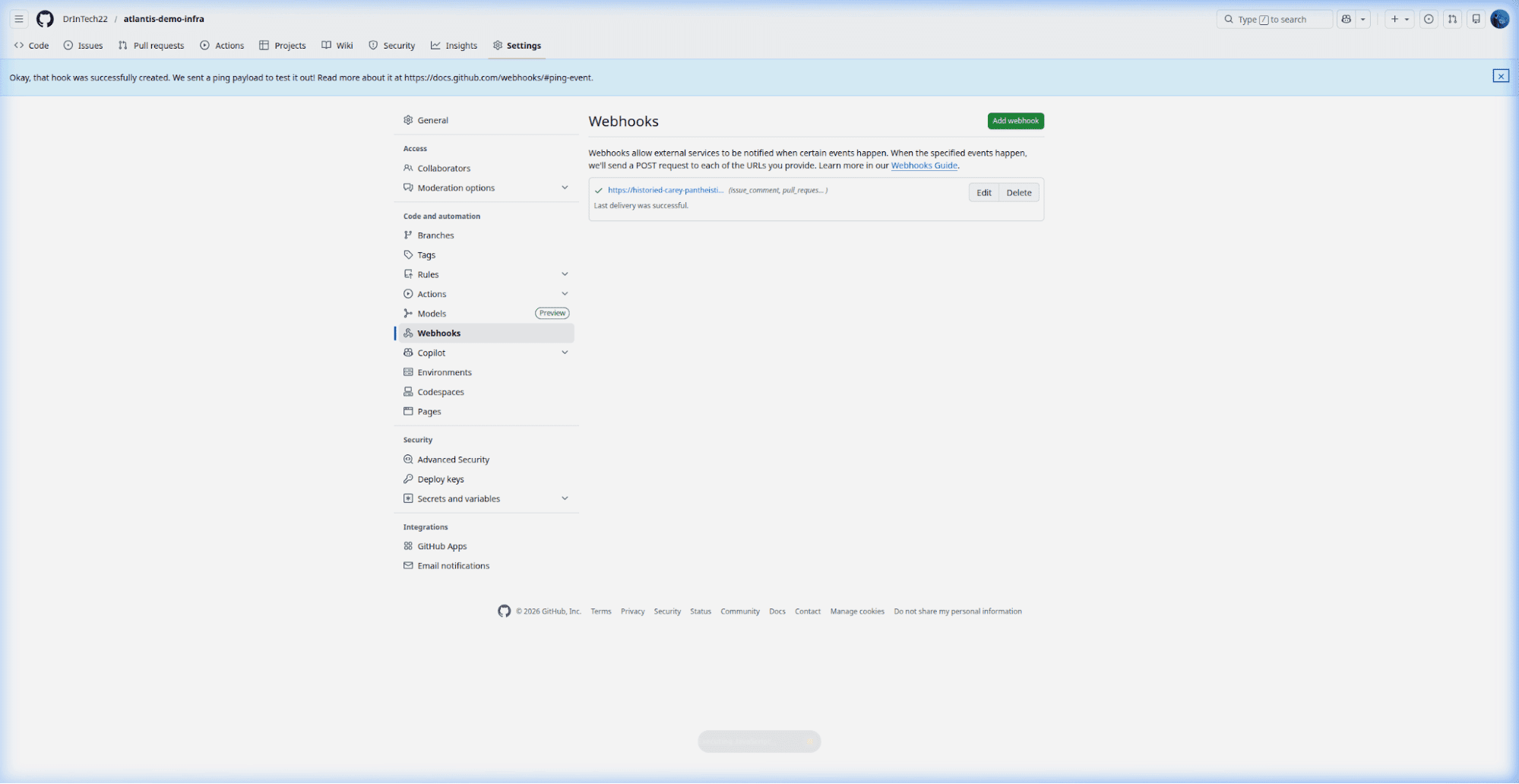
Figure 1: GitHub webhook settings page showing the correct payload URL and selected events
Verify the ping event
Click Add webhook to save your configuration. GitHub instantly sends a test ping event to your Atlantis server to verify connectivity. Navigate to the Recent Deliveries tab on the webhook page to confirm the ping succeeded.
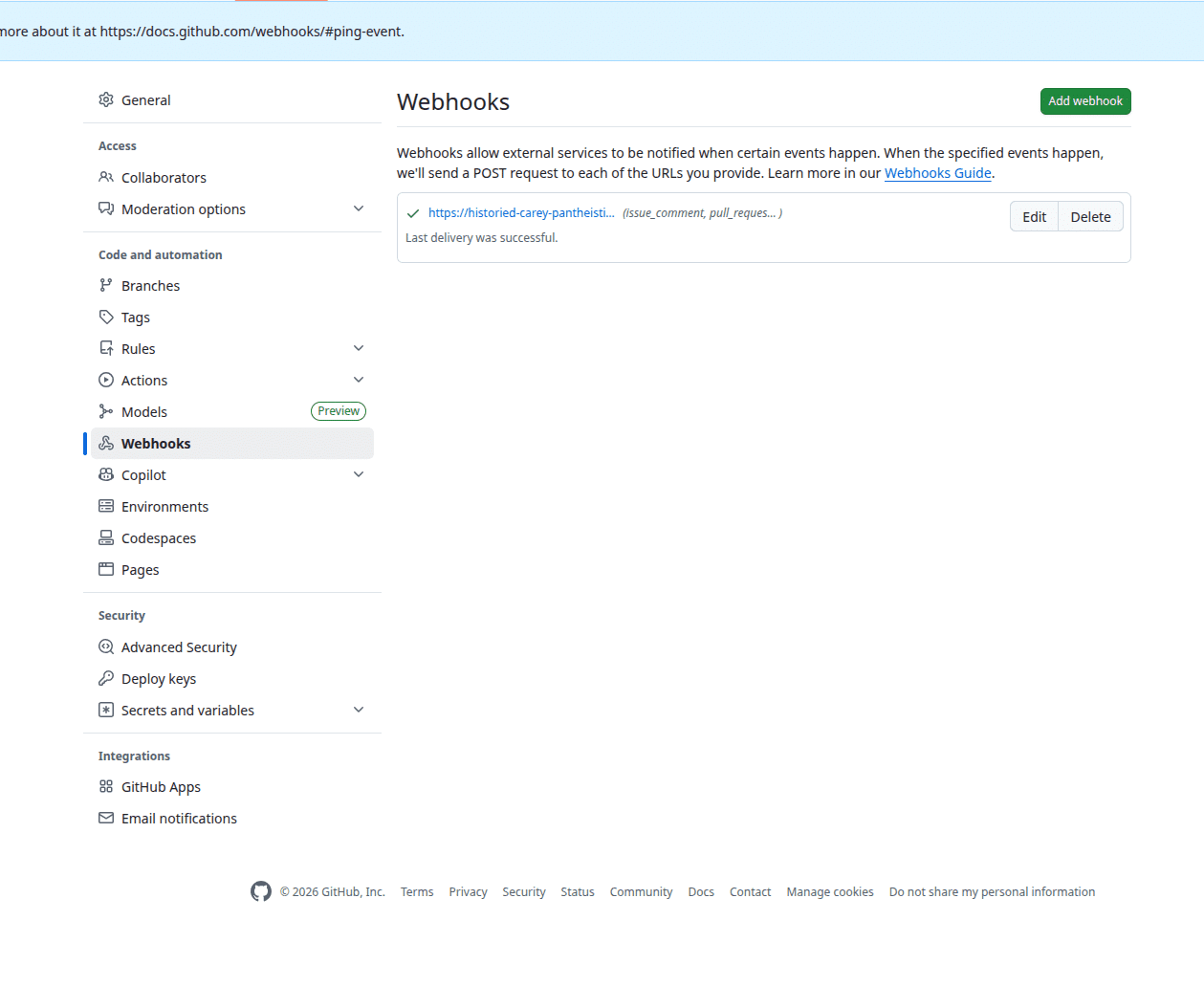
Figure 2: Webhook delivery log showing a successful 200 response code
If you see a green checkmark and a 200 response code, GitHub and Atlantis are now successfully communicating securely over the internet.
Step 4: Create the Terraform project and configure .atlantis.yaml
With our Atlantis server running and webhook delivery confirmed, it is time to give Atlantis some Terraform code to manage.
To illustrate how Atlantis processes code and posts feedback to pull requests, we will create a simple Terraform project.
Instead of provisioning complex cloud infrastructure that might incur costs, or require setting up cloud credentials for this tutorial, we will use the local provider. This effectively allows us to safely generate a text file on the Atlantis pod, perfectly demonstrating the complete GitOps workflow from terraform plan to apply without external dependencies.
Our demo codebase consists of three distinct files. Together, these files accept a cluster name, write that name into a newly created text file named cluster-config.txt, and finally output the resulting file path to the console.
Create variables.tf
First, create variables.tf to define the input string:
variable "cluster_name" {
  description = "The name of the kind cluster to create"
  type        = string
  default     = "atlantis-demo"
}
Create main.tf
Next, create main.tf. This file contains the core logic of the project. It declares the HashiCorp local provider and uses the local_file resource block to generate the cluster-config.txt file directly on the filesystem, injecting the variable we defined above into its contents:
terraform {
  required_version = ">= 1.5"

  required_providers {
    local = {
      source  = "hashicorp/local"
      version = "~> 2.4"
    }
  }
}

resource "local_file" "cluster_config" {
  content  = <<-EOT
    cluster_name = "${var.cluster_name}"
    environment  = "demo"
    managed_by   = "atlantis"
  EOT
  filename = "${path.module}/cluster-config.txt"
}
Create outputs.tf
Finally, create outputs.tf to return the generated data back to the pull request:
output "cluster_name" {
  description = "The name of the cluster configuration"
  value       = var.cluster_name
}

output "config_file_path" {
  description = "Path to the generated cluster config file"
  value       = local_file.cluster_config.filename
}
With the Terraform code in place, Atlantis still does not inherently know when or how to execute it safely.
The .atlantis.yaml file is the configuration heart of your repository. It bridges this gap by instructing Atlantis on how your specific codebase is organized, which directories contain Terraform projects, and what exact conditions must be met before anyone is authorized to execute an apply.
While Atlantis is capable of auto-detecting rudimentary Terraform environments, explicitly defining your projects inside an .atlantis.yaml file is the widely accepted best practice across production environments, especially as your repository scales into a monorepo.
Define rules in .atlantis.yaml
Create a new file named .atlantis.yaml directly in the root of your repository:
version: 3
automerge: false
projects:
  - name: kind-cluster
    dir: .
    workspace: default
    autoplan:
      when_modified:
        - "*.tf"
        - "*.tfvars"
      enabled: true
    apply_requirements:
      - approved
      - mergeable
The configuration block above defines several important rules that prevent accidents.
We intentionally set automerge: false because we want to maintain manual control over when a pull request merges, rather than having Atlantis violently slam it into the main branch the second a Terraform apply finishes.
Under projects, we define the boundaries of our environment. The autoplan directive guarantees that Atlantis behaves proactively; it automatically executes a terraform plan the moment it detects changes to any tf or .tfvars files in the directory.
Finally, the apply_requirements block acts as our absolute fail-safe. By specifying approved, we mechanically block the atlantis apply command until a human peer clicks “Approve” on the pull request. The mergeable tag ensures that all GitHub branch protection rules, such as our mandatory continuous integration checks, are passing green.
Step 5: Implement GitHub Actions quality gates
At this stage, Atlantis is fully configured to execute our Terraform project and post the plans back to GitHub. However, Atlantis excels as a stateful operator for automating applies; it is fundamentally not designed to behave as a general-purpose continuous integration runner.
If an engineer pushes malformed HCL code, hardcodes a cloud provider secret, or commits a glaring security misconfiguration, we do not want that code reaching Atlantis in the first place.
This is where GitHub Actions steps in as our primary line of defense. By configuring GitHub Actions to evaluate the Terraform code before Atlantis evaluates the cloud state, we achieve a powerful defense-in-depth posture.
Create the CI workflow
Create a new continuous integration pipeline in your repository at .github/workflows/terraform-checks.yml:
name: Terraform Quality Gates

on:
  pull_request:
    paths:
      - '**/*.tf'
      - '**/*.tfvars'

jobs:
  validate:
    name: Format and Validate
    runs-on: ubuntu-latest
    steps:
      - uses: actions/checkout@v4
      - uses: hashicorp/setup-terraform@v3
        with:
          terraform_version: 1.5.0

      - name: Terraform Format Check
        run: terraform fmt -check -recursive

      - name: Terraform Init
        run: terraform init -backend=false

      - name: Terraform Validate
        run: terraform validate

  security:
    name: Security Scan
    runs-on: ubuntu-latest
    steps:
      - uses: actions/checkout@v4
      - name: Run tfsec
        uses: aquasecurity/tfsec-action@v1.0.0
        with:
          soft_fail: false
This workflow triggers parallel jobs the moment an engineer opens a pull request containing Terraform changes. The internal validate job proves that the code is syntactically coherent and correctly formatted according to standard community guidelines.
Simultaneously, the security job leverages tfsec to scan the configuration files for easily avoidable cloud misconfigurations, like spinning up an AWS S3 bucket without at-rest encryption or deploying a security group with an unrestricted port 22 open to the world.
Because we configured mergeable as a hard prerequisite in our .atlantis.yaml file, Atlantis completely ignores requests to execute an atlantis apply until these GitHub Actions jobs resolve successfully.
Step 6: Execute the PR workflow commands
With our Terraform project defined, our .atlantis.yaml rules in place, and our GitHub Actions gates standing guard, the architecture is finally complete. We can now exercise the end-to-end pull request lifecycle to see how these systems interact.
Open the pull request
When an engineer commits the three Terraform files we created earlier and opens a pull request, two distinct automated systems spring to life concurrently:
- GitHub Actions initiates its format and security quality gates.
- Atlantis acquires a temporary state lock on the modified directory to ensure exclusive control.
Atlantis evaluates the modified code against the execution environment and posts the complete output of the terraform plan directly as an inline comment on the pull request.
Ran Plan for dir: . workspace: default

Terraform used the selected providers to generate the following execution plan. Resource actions are indicated with the following symbols:
  + create

Terraform will perform the following actions:

  # local_file.cluster_config will be created
  + resource "local_file" "cluster_config" {
      + content              = "cluster_name = \"atlantis-demo\"\nenvironment  = \"demo\"\nmanaged_by   = \"atlantis\"\n"
      + directory_permission = "0777"
      + file_permission      = "0777"
      + filename             = "./cluster-config.txt"
      + id                   = (known after apply)
    }

Plan: 1 to add, 0 to change, 0 to destroy.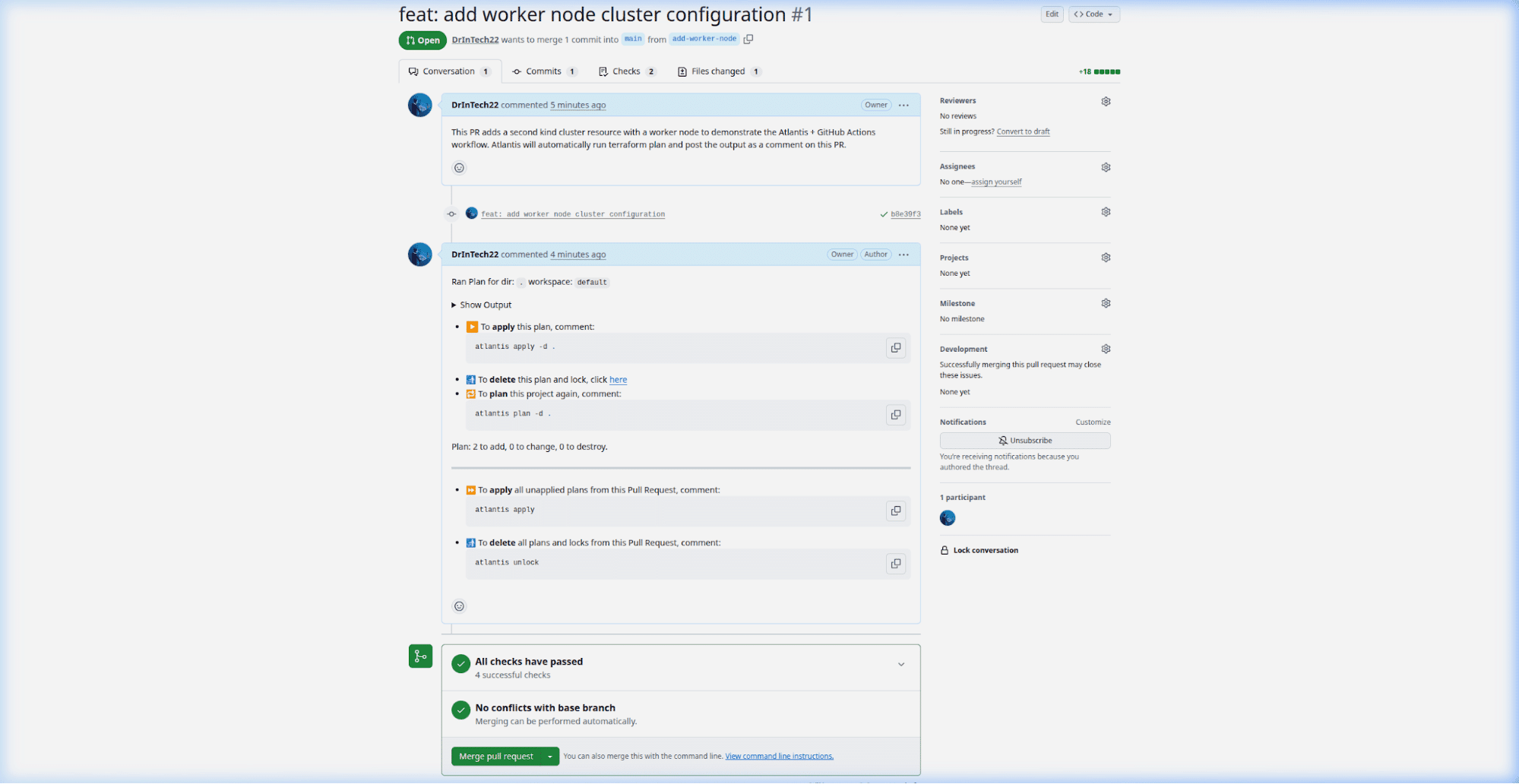
Figure 3: Atlantis bot posting the Terraform plan output directly to the pull request
Human reviewers can now evaluate the proposed code changes in the exact same view as the reported infrastructure drift. This close context makes it significantly simpler to detect potentially harmful changes before they are executed.
Approve the pull request
Once the reviewers examine the plan and verify that the GitHub Actions checks display a green ✅ status, they formally approve the pull request.
Apply the plan
Now, the original author or a reviewer simply comments atlantis apply directly on the pull request thread.
Atlantis receives the webhook trigger, validates that all apply requirements are fully met, executes the changes, and streams the final output to a new comment. The state lock automatically unhooks, leaving the pull request ready for a safe merge.
Ran Apply for dir: . workspace: default

Apply complete! Resources: 1 added, 0 changed, 0 destroyed.

Outputs:

cluster_name = "atlantis-demo"
config_file_path = "./cluster-config.txt"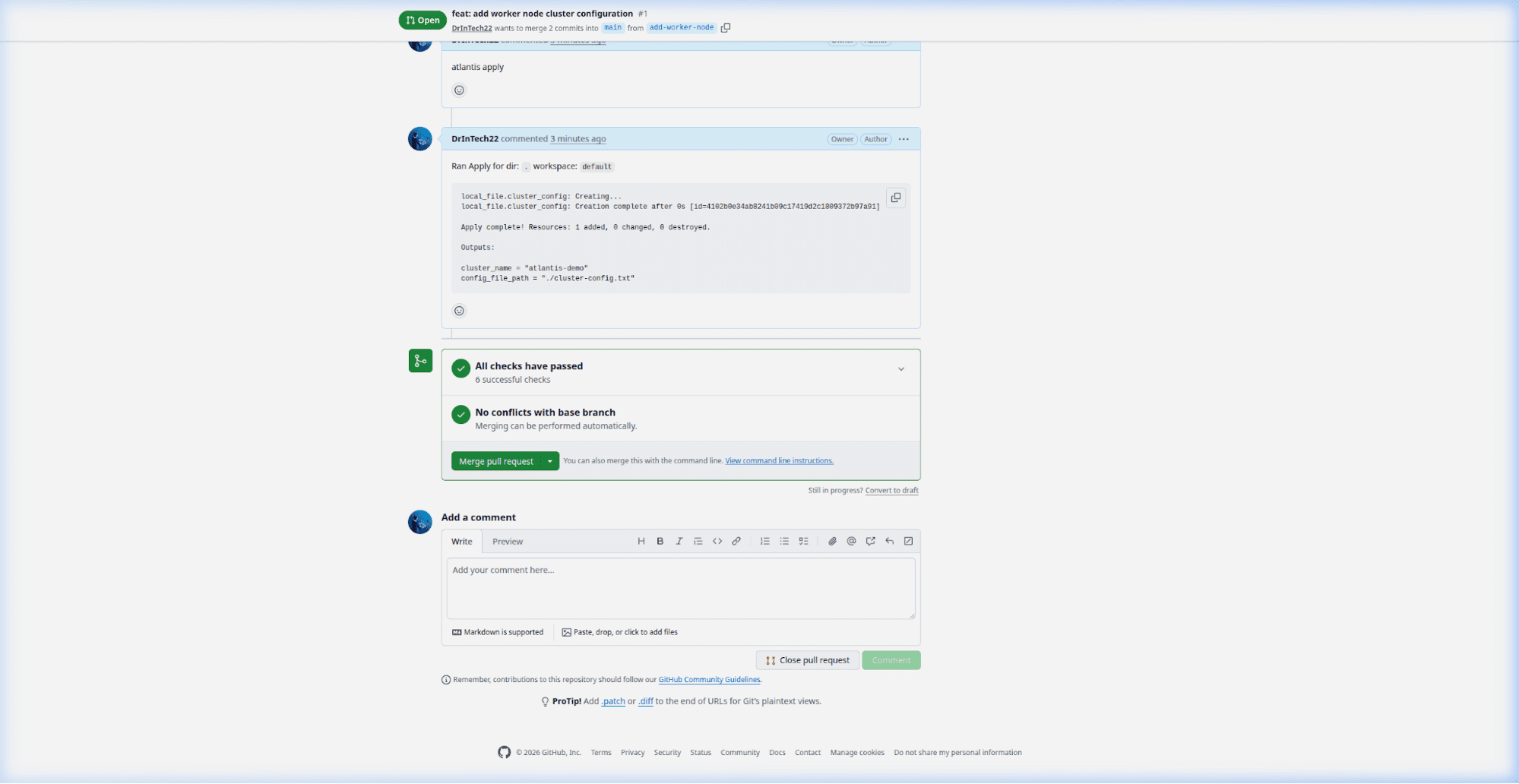
Figure 4: A successful atlantis apply comment confirming resources were provisioned
NOTE: Below is a quick reference table of the core commands you can utilize as pull request comments to steer the Atlantis server:
| Command | Purpose |
atlantis plan |
Forces Atlantis to run a new plan. Useful if you pushed new commits or want to plan a specific project via the -p project-name flag. |
atlantis apply |
Applies the current plan. This command is blocked by default until the plan succeeds, the PR receives approval, and CI checks pass. |
atlantis unlock |
Manually releases the directory state lock. Extremely useful if a pull request is abandoned or stale. |
atlantis help |
Echoes the available commands and their arguments directly into the pull request thread. |
Download the Build vs. Buy Guide to Scaling Infrastructure as Code
Security hardening for Atlantis with GitHub Actions workflow
Running a basic Atlantis installation works well for smaller engineering teams. However, as your infrastructure complexity scales, you must implement advanced configurations specifically tailored around security and persistence.
Deploying Atlantis in a production environment makes it a high-value target. Because the application holds permissions broad enough to modify your production cloud deployments, a compromised Atlantis server effectively compromises your cloud account.
In addition to enforcing webhook secrets, ensure you implement these specific configurations in your Helm values.yaml file:
- Repository allowlisting: Never define
*for the--repo-allowlistserver flag. Always declare precisely which repositories Atlantis is permitted to serve. This prevents bad actors from pointing your webhook URL toward their own malicious repositories.
# Insecure: orgAllowlist: github.com/*
orgAllowlist: github.com/your-org/terraform-infrastructure,github.com/your-org/demo-*- Fork pull request overrides: By default, Atlantis blocks plans from executing on forks. Permitting plans to run automatically from forks (
--allow-fork-prs=true) exposes your internal network to arbitrary code execution by unknown third-party contributors. Ensure this remains disabled in your deployments. - Least privilege IAM roles: Never embed static cloud provider credentials as Kubernetes secrets. Instead, leverage Kubernetes Service Accounts to bind the Atlantis pod to a dedicated, least-privilege cloud identity. Depending on your provider, you can pass these federated identities directly through the Helm chart values:
- AWS: Use IAM Roles for Service Accounts (IRSA) by setting
eks.amazonaws.com/role-arn - Google Cloud: Use Workload Identity by setting
iam.gke.io/gcp-service-account - Azure: Use Workload Identity by setting
azure.workload.identity/client-id
- AWS: Use IAM Roles for Service Accounts (IRSA) by setting
# Example AWS implementation:
serviceAccount:
  create: true
  annotations:
    eks.amazonaws.com/role-arn: arn:aws:iam::123456789012:role/atlantis-least-privilege-role
Scaling best practices
As the volume of engineers pushing Terraform changes increases, the default single-pod deployment becomes a processing bottleneck. While scaling out horizontally helps, it introduces a separate challenge: Terraform provider caching.
Terraform routinely downloads hundreds of megabytes of provider plugins during terraform init. If you run Atlantis as a standard, stateless Deployment, these plugins are lost the moment the pod crashes or reschedules. The subsequent pod has to re-download gigabytes of data over the network, slowing down plan execution times.
By running Atlantis as a Kubernetes StatefulSet backed by a PersistentVolumeClaim, you guarantee that cloned repository data and cached Terraform plugins survive aggressive pod restarts.
You can easily enable this in the official Atlantis Helm chart by setting statefulSet.create to true and defining the storage class:
statefulSet:
  create: true
volumeClaim:
  enabled: true
  dataStorage: 50Gi
  storageClassName: "gp3" # or standard, depending on your cloud provider
This fundamentally accelerates terraform init and plan operations across your engineering floor.
NOTE: Always pair this architecture with a remote state backend (like AWS S3 or HashiCorp Consul). Atlantis explicitly does not manage its own state files, and treating local disk state as permanent is extremely dangerous.
Alternative to Atlantis and GitHub Actions - Spacelift
Spacelift is an infrastructure orchestration platform for teams who have outgrown Atlantis or do not want to build and maintain infrastructure delivery in GitHub Actions.
It provides a dependable CI/CD layer for infrastructure as code and configuration tools, including OpenTofu, Terraform, Pulumi, Kubernetes, and Ansible. Instead of stitching together generic workflows, teams can automate infrastructure delivery in a platform designed specifically for the job.
More flexible workflow orchestration
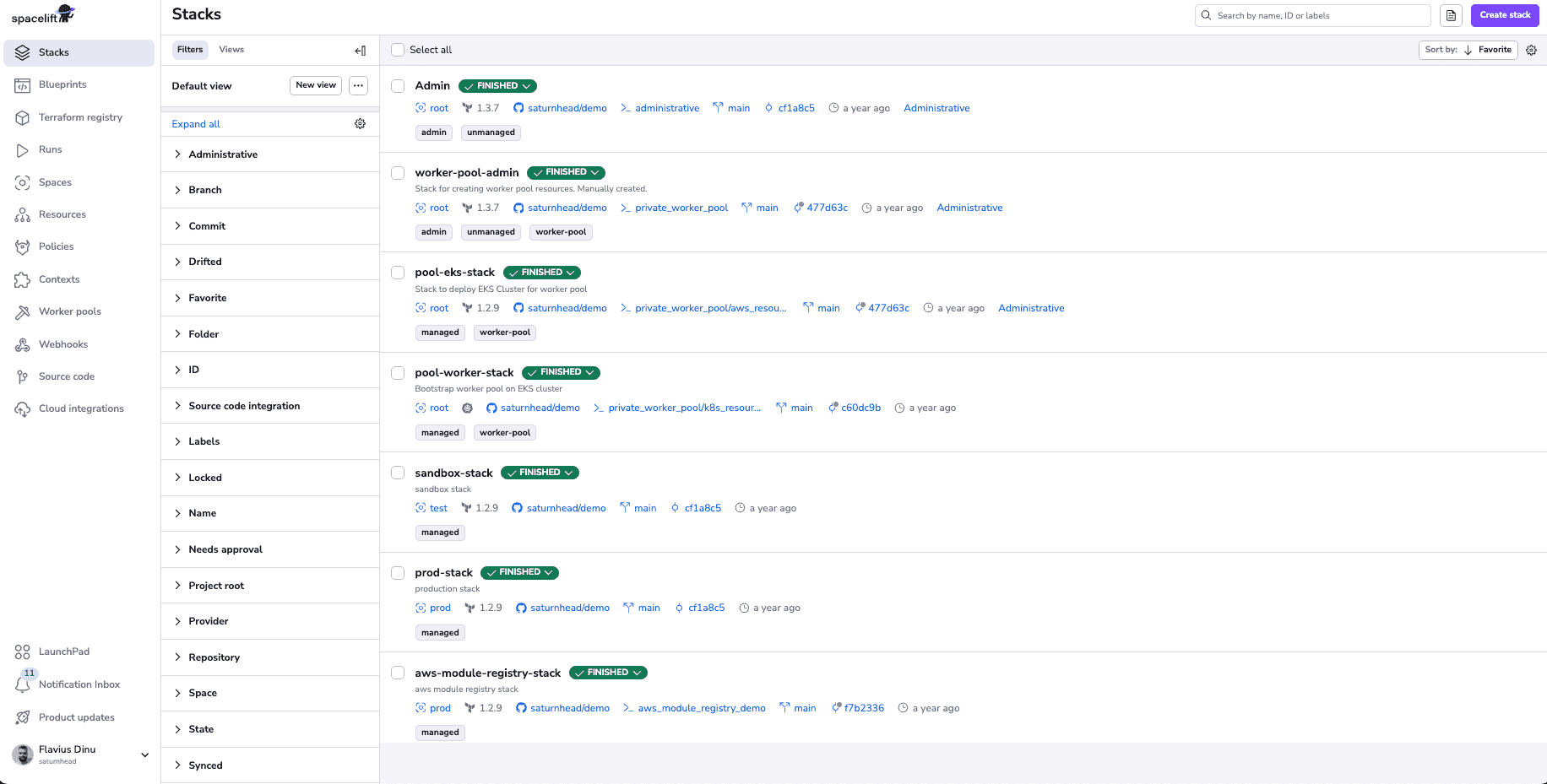
Spacelift stacks let you break infrastructure into smaller, connected units rather than forcing everything through a single workflow.
Its workflow engine is fully customizable, so you can control what happens before and after each run phase, integrate third-party tools, and adapt the process to your team’s requirements. Stack dependencies also make it easier to pass outputs between configurations without relying heavily on Terraform remote state workarounds.
Built-in policy as code and guardrails
Compared with Atlantis, Spacelift makes policy as code a native part of the platform.
With Open Policy Agent (OPA)-based policies, teams can enforce controls at multiple decision points across the workflow. That gives platform teams stronger guardrails, better governance, and more consistent delivery standards without adding separate tooling or extra operational overhead.
Native drift detection and operational visibility
Spacelift also includes native drift detection, scheduled tasks, and stack management capabilities.
That makes it easier to detect changes happening outside your workflow and respond before they become bigger problems. In Atlantis or DIY GitHub Actions pipelines, these capabilities often depend on extra tooling, scripts, and custom maintenance.
Better support for reuse and self-service
Spacelift includes a native module registry, which helps teams manage and reuse shared modules more effectively.
It also supports self-service infrastructure through Blueprints, giving platform teams a practical way to create governed Golden Paths for common infrastructure requests. This helps developers move faster while preserving visibility, governance, and control.
You can see a more detailed comparison between Spacelift and Atlantis here. If you’d rather watch, check out the video below:
Key points
Integrating Atlantis with GitHub Actions delivers a uniquely powerful workflow tailored perfectly for modern infrastructure automation.
To summarize our deployment:
- Visibility via pull requests: Obscure, local terminal interactions are replaced with transparent, team-wide pull requests containing the precise output of upcoming infrastructure changes.
- Strategic defense in depth: GitHub Actions assumes responsibility for extremely fast, stateless linting and code scanning, freeing Atlantis to manage highly stateful, long-running operations.
- Concurrency protections: Through directory locking and state mechanisms, Atlantis effortlessly prevents simultaneous deployments from severely corrupting shared environments.
- Kubernetes advantages: Treating Atlantis as a first-class citizen inside Kubernetes effortlessly solves lifecycle complexities involving high availability and persistent caching.
By keeping infrastructure execution safely within the pull request, this workflow removes the need for engineering teams to run Terraform locally. It gives organizations total visibility into every infrastructure change without requiring them to forfeit reviewer approvals, CI checks, or cloud security.
Atlantis and GitHub Actions can both support infrastructure delivery, but they often require more customization, more maintenance, and more supporting components as teams scale.
Spacelift gives teams a purpose-built platform with orchestration, guardrails, drift detection, and self-service capabilities in one place. To try out Spacelift and further enhance your workflow, create a free account here, and book a demo to speak with one of our engineers.
Automate Terraform deployments with Spacelift
Automate your infrastructure provisioning, build more complex workflows based on Terraform using policy as code, programmatic configuration, context sharing, drift detection, resource visualization, and many more.
Frequently asked questions
Can I run Atlantis entirely inside GitHub Actions?
Atlantis is built as a long-running service that receives GitHub webhooks, runs plan/apply, and comments on PRs. GitHub Actions jobs are ephemeral, so they can support Atlantis workflows but do not replace the Atlantis server model.
What webhooks does Atlantis need on GitHub?
For manual webhook setup, Atlantis needs: Pull requests, Issue comments, Pull request reviews, and Pushes. Point the payload URL to the Atlantis /events endpoint. If you use a GitHub App, Atlantis can manage the webhooks automatically.
What’s safer for Atlantis: GitHub App or PAT ?
GitHub App is the safer choice for Atlantis. It uses fine-grained permissions, repo-scoped installs, and short-lived tokens. With PAT auth, you must manage webhooks manually.
Do I need .atlantis.yaml for a monorepo?
Not always, but it is often the practical choice. In monorepos, .atlantis.yaml helps define multiple Terraform projects, map directories/workspaces, and control autoplan behavior. Without it, Atlantis relies on defaults and autodiscovery.
How do approvals and branch protections affect atlantis apply?
Approvals only block atlantis apply if you configure apply_requirements, such as approved or mergeable. approved requires at least one non-author approval. mergeable follows your VCS merge rules, including branch protection settings.